Read the WhatsApp dashboard
Use the WhatsApp Dashboard to see how your messages are doing at a glance. At the end of this page you can read your sent, delivered, read and replied numbers, check your daily sending limit and quality rating, and open the broadcast or chat behind any number.
Before you start
- Your WhatsApp number is connected. Until it is, the Dashboard shows the connect steps instead. See Connect your WhatsApp number.
- You can see Dashboard in the WhatsApp panel. If not, ask your admin. See Manage team members, roles and permissions.
Steps
Open the dashboard
- Open WhatsApp in the left rail, then select Dashboard.
-
The dashboard opens. What it shows depends on your role:
Role Main section Admin or business owner Message performance for the whole business. Manager Team throughput, with Sent today, Running now, Waiting for a reply and Failed today. Click Open shared inbox to go to the inbox. Executive Your messages, with shortcuts to Inbox, Contacts, Chat history and Your WhatsApp link. 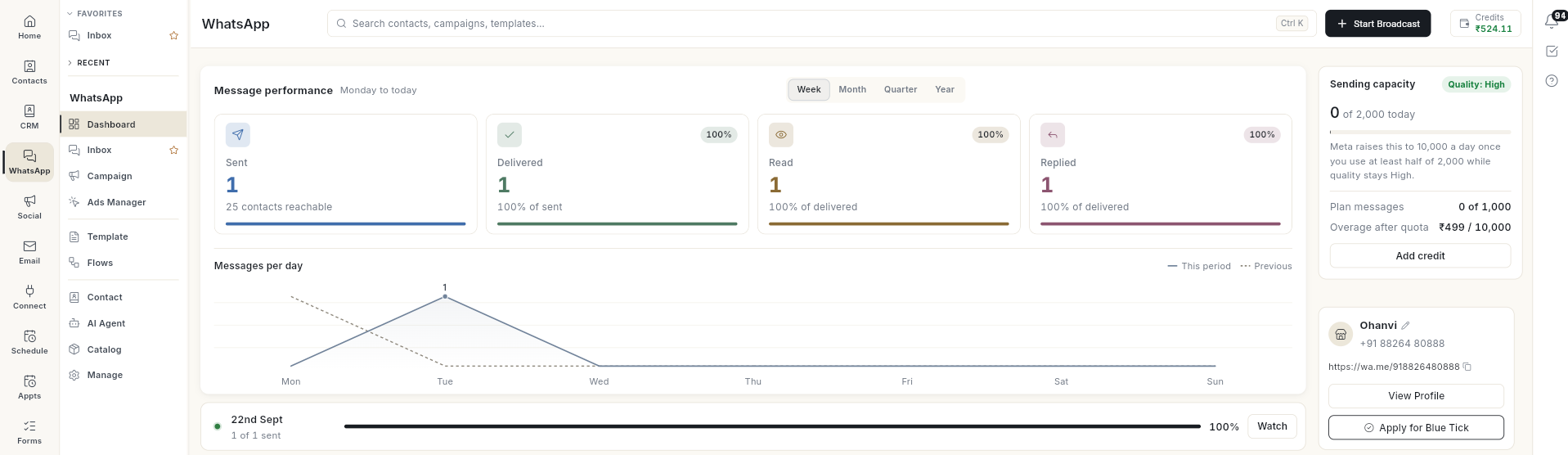
Act on alerts
When something needs your attention, a bar shows at the top of the dashboard. Click the button on the right of the bar:
| Bar | Button | What opens |
|---|---|---|
| 2 messages failed. | Review failures | Failed messages for the period. Each message shows the contact, the reason, for example Media upload error, and the broadcast it came from. Click Open Delivery Logs at the bottom to see every failed message with its Error code and Error message. |
Read message performance
- Pick a period: Week, Month, Quarter or Year. The text next to Message performance shows the dates covered, for example Monday to today for Week and This calendar month for Month.
-
Read the 4 numbers:
Number What it means Sent Messages sent in the period, with how many contacts are reachable. Delivered Messages that reached the phone, as a share of sent. Read Messages the customer opened, as a share of delivered. Replied Messages the customer answered, as a share of delivered. 
-
Click any number to open the messages behind it. For example, Sent opens Messages sent for the period. Each message shows the contact, its status (Sent, Delivered, Read, Replied) and the broadcast it came from. Click a message to read it on the right.
- Read the Messages per day chart below. This period is a solid line and Previous is dashed.
Under the chart, a strip shows your latest broadcast and how many of its messages are sent, for example 1 of 1 sent. Click Watch on the strip to open a side panel with its status, for example Completed, the sent, delivered, read and failed counts, and the list of recipients.
Check sending capacity and quality
On a wide screen, the panel on the right shows your account:
| Item | What it means |
|---|---|
| Sending capacity | How many people you can message today. Meta sets it once the number is verified and sending. |
| Quality | Quality: High, Quality: Medium, Quality: Low or Quality: Not rated yet. Meta rates it from how customers react to your messages. |
| Plan messages | Messages used this month out of your plan, with the charge for any messages over it. The Add credit button is below it. |
| Business card | Your business name, WhatsApp number and wa.me link, with View Profile and Apply for Blue Tick. |
| Quick Actions | Customize WhatsApp Link and Website Chat Widget. |
| Setup Progress | Shows until WhatsApp Business API Connected and Business Name Verified by Meta are both done. After that it is hidden. |
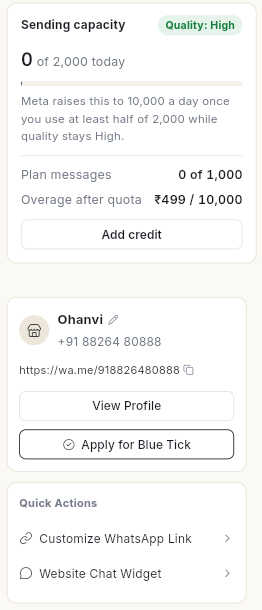
Meta raises your daily limit once you use at least half of it while quality stays High. While quality is Medium or Low, Meta does not raise it.
Check recent broadcasts
-
Scroll to Broadcasts. It lists your latest 6 broadcasts with Audience, Delivered, Read and Replies.

-
Click View all campaigns at the bottom to open the full campaign list in Campaign.
-
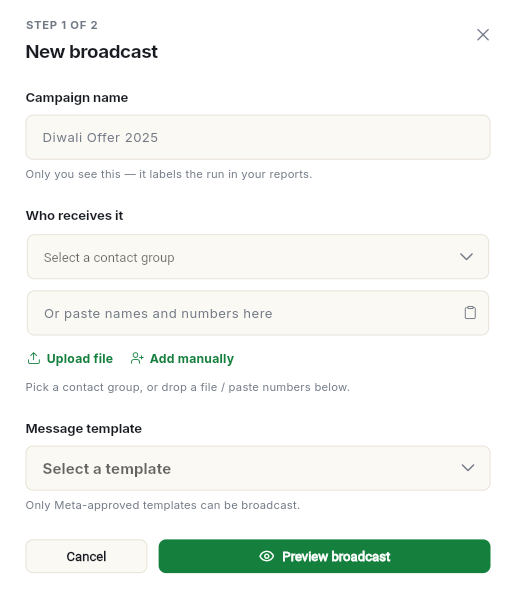
To start a new one, click Start Broadcast at the top. The New broadcast dialog opens. See Send a broadcast campaign.
Video walkthrough
[VIDEO]
Troubleshooting
| Issue | Cause | Fix |
|---|---|---|
| The Dashboard shows Connect WhatsApp instead of numbers | No number is connected yet. | Follow Connect your WhatsApp number. |
| Some WhatsApp data could not load | Part of the data failed to load. | Refresh the page. If it keeps showing, check your number in Configuration. |
| No broadcasts yet | You have not sent a broadcast. | Click Start Broadcast. |
| Sending capacity stays the same | Quality is Medium or Low, or you used less than half of your limit. | Improve quality, then keep using at least half of the limit each day. |
| Cloud storage is full. | Your media storage is full. | Delete old media or upgrade your plan. Click Manage storage. |