Check connection health, alerts and WhatsApp billing
Three WhatsApp settings keep the account running: Connection Health checks that messages can go out, Notification Preferences decides which events alert you, and Billing & Usage shows how you pay Meta. At the end, you know your number is healthy, your alerts are set, and you know how WhatsApp usage is billed.
Before you start
- Your role can open WhatsApp Manage. See Manage team members, roles and permissions.
Steps
Check connection health
- Open WhatsApp in the left rail, select Manage, then Connection Health.
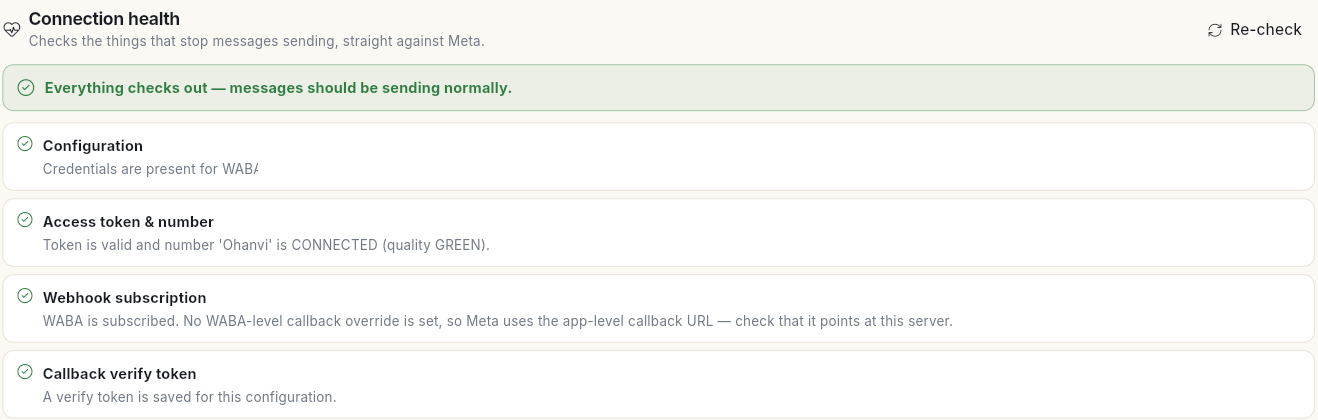
- Read the result at the top. Everything checks out — messages should be sending normally. means all is well.
- Read each check: Configuration, Access token & number (with your number's quality), Webhook subscription and Callback verify token.
- After you fix something, click Re-check.
Choose your WhatsApp alerts
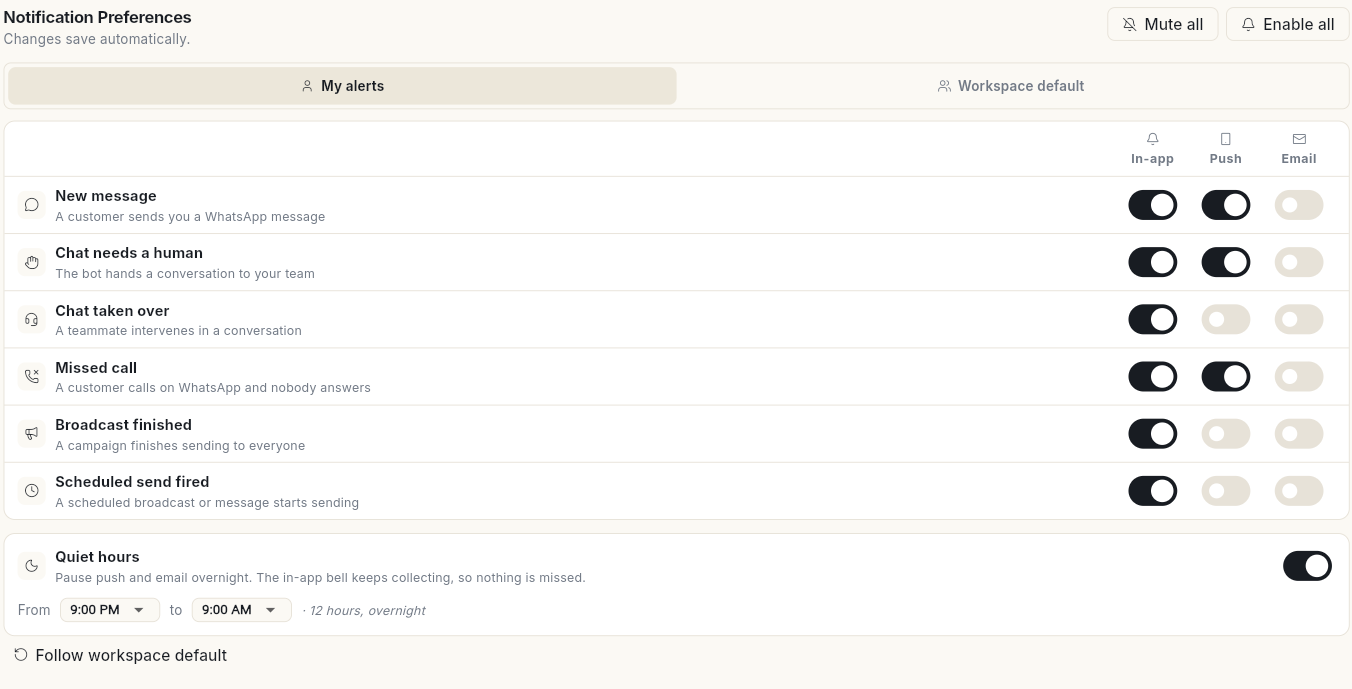
- In Manage, select Notification Preferences. Changes save automatically.
- Keep My alerts selected to set your own alerts. Workspace default holds the defaults for the whole workspace.
-
For each event, switch In-app, Push and Email on or off:
Event When it fires New message A customer sends you a WhatsApp message. Chat needs a human The bot hands a conversation to your team. Chat taken over A teammate intervenes in a conversation. Missed call A customer calls on WhatsApp and nobody answers. Broadcast finished A campaign finishes sending to everyone. Scheduled send fired A scheduled broadcast or message starts sending. -
Optional: turn on Quiet hours and pick From and to, for example 9:00 PM to 9:00 AM. Push and email pause overnight; the in-app bell keeps collecting, so nothing is missed.
- Use Mute all or Enable all to change every switch at once, or Follow workspace default to go back to the default.
For notifications from other parts of Ohanvi, see Choose how notifications reach you.
See how you pay Meta
- In Manage, select Billing & Usage.
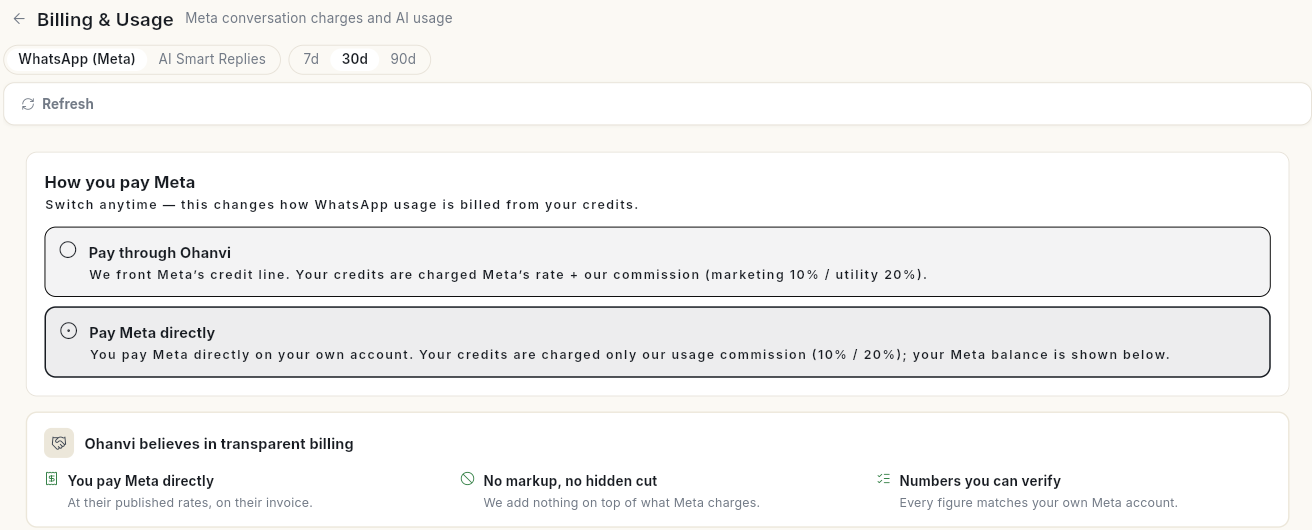
- Pick WhatsApp (Meta) or AI Smart Replies, and a period: 7d, 30d or 90d.
-
Under How you pay Meta, check the option picked:
- Pay through Ohanvi: Ohanvi fronts Meta's credit line. Your credits are charged Meta's rate plus Ohanvi's commission.
- Pay Meta directly: you pay Meta on your own account. Your credits are charged only Ohanvi's usage commission.
You can switch at any time. It changes how WhatsApp usage is billed from your credits.
-
Scroll down for Billable messages and the split By category and By pricing type.
For your Ohanvi credits and top-ups, see Credits and billing.
Video walkthrough
[VIDEO]