Add custom contact fields
Custom fields let you store your own details on a contact, such as a birthday or a rent amount, and use them as merge fields when you send messages. At the end you will have a new field that you can fill from an import.
Before you start
- You can see Contacts in the left rail with Custom fields in its panel. If not, ask your admin to give your role access to CRM contacts. See the Settings overview.
- A WhatsApp number is connected. Custom fields are stored in the WhatsApp field catalog. Without a number, the screen shows No field catalog for this workspace.
Steps
See the built-in fields
-
Open Contacts in the left rail, then select Custom fields.
-
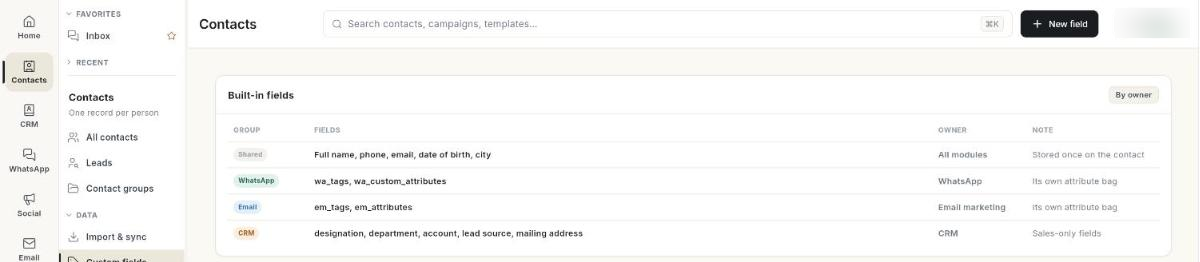
The Built-in fields card shows how each contact record is laid out, grouped by the module that owns each part:
Group Fields Owner Shared Full name, phone, email, date of birth, city All modules WhatsApp WhatsApp tags and WhatsApp custom attributes WhatsApp Email Email tags and email attributes Email marketing CRM Designation, department, account, lead source, mailing address CRM
Shared fields are stored once. When you change a phone number in CRM, WhatsApp uses the new number too. Tags are not shared: WhatsApp and Email keep separate tag lists.
Create a custom field
- Click New field. The New field dialog opens.
- In Field name, type a short name, for example
rent. This is the name you use as a merge field. - In Display label, type the label people see, for example
Rent. If you leave it empty, Ohanvi uses the field name. - In Value type, pick Text, Number, Date or Yes / No.
- Click Create. The message Field created. appears, and the field shows under Your custom fields.
Fill a custom field
- From a file: when you import contacts, your custom fields appear under YOUR CUSTOM ATTRIBUTES on the mapping step. A column whose name matches the field name or label is mapped for you. See Import and sync contacts.
- One contact at a time: set the value on the contact in WhatsApp → Contact [VERIFY: where a single contact's custom field value is edited].
Once filled, use the field as a merge field in WhatsApp messages, for example {{attribute.rent}}. Add a fallback after a pipe for contacts with no value, for example {{attribute.rent|your monthly rent}}.
Edit a custom field
- Under Your custom fields, click the field.
- Ohanvi opens WhatsApp → Contact, where the field catalog is managed. Change or remove the field there [VERIFY: exact place in WhatsApp → Contact].
The Filled on column shows —. Ohanvi does not yet count how many contacts have a value.
Video walkthrough
[VIDEO]
Troubleshooting
| Issue | Cause | Fix |
|---|---|---|
| Field name is required | Field name is empty. | Type a field name, then click Create. |
| A field with this name already exists | Another field has the same name, ignoring upper and lower case. | Pick a different name, or use the existing field. |
| Unable to create the field. | The save failed on the server. | Try again. If it keeps failing, check that your WhatsApp number is still connected. |
| No field catalog for this workspace | No WhatsApp number is connected, or the catalog could not be read. | Connect a WhatsApp number, then reopen Custom fields. |
| A field is not offered when importing | The file was scanned before the field existed. | Close the import, open it again, and choose the file again. |