Manage ad leads
Open the Leads tab to see every person who messaged you from one of your ads. At the end, you can search the list, check whether your messages were delivered and read, download the list as an Excel file, and reply from the Inbox. Takes about 2 minutes.
Before you start
- Your Facebook account, Page, ad account and WhatsApp number are connected in Setup. See Run Click-to-WhatsApp ads.
- At least 1 ad is live and someone has tapped it. See Create an ad.
- You can see Ads Manager in the WhatsApp panel. If not, ask your admin.
What the Leads tab shows
Leads arrive on their own. You do not add them by hand. A lead appears the moment someone messages you from one of your ads.
| Column | What it shows |
|---|---|
| LEAD | The person's name. If there is no name, the phone number shows instead. |
| PHONE | The country code and phone number. |
| AD | The name of the ad the person tapped. |
| LEAD DATE | The date the person messaged you. |
| ASSIGNED TO | The team member the lead is assigned to. Shows — when nobody is assigned. |
| SENT | How many messages you sent to this lead. |
| DELIVERED | How many of those messages reached the lead's phone. |
| READ | How many of those messages the lead opened. |
| REPLIED | How many times the lead replied. |
The last four columns show the message funnel: sent, then delivered, then read, then replied. A lead with a high SENT and a READ of 0 has not opened your messages.
Steps
Open the list
- Open WhatsApp in the left rail, then select Ads Manager.
-
Click Leads. The lead list opens, 25 rows at a time.
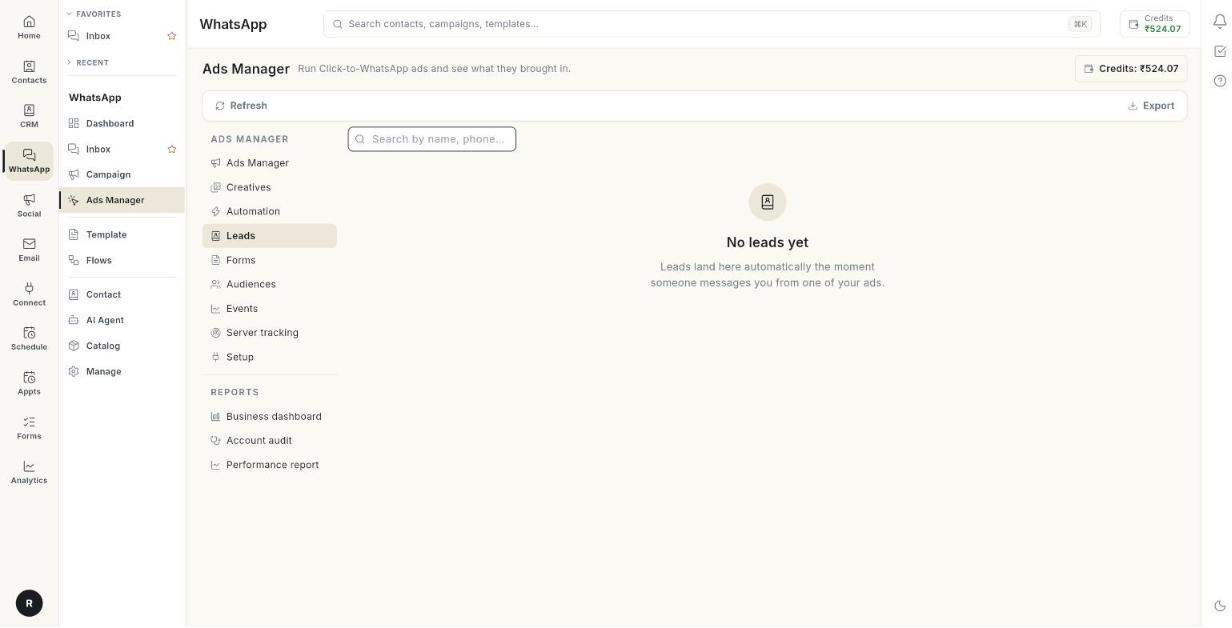
-
Click Refresh to load the newest leads.
Find a lead
- Click the Search by name, phone or ad box.
- Type part of a name, a phone number or an ad name. The table filters as you type.
- Clear the box to see all leads again.
Search covers the page you are on
Search filters only the rows on the current page. To search more leads, raise Rows per page or go to the next page.
Move between pages
- Look at the bottom of the table. It shows Rows per page: and a count such as 1–25 of 140.
- Change Rows per page: to show more leads at once.
- Use the page arrows to go to the next or previous page. [VERIFY: exact arrow labels]
Check message delivery
- Find the lead in the table.
- Read SENT to see how many messages you sent.
- Read DELIVERED to see how many reached the phone.
- Read READ to see how many the lead opened.
- Read REPLIED to see how many times the lead answered.
Download the list
- Click Export in the top bar. On a page without the top bar, the button reads Download Report.
- Open the file ad_leads.xlsx from your downloads folder.
The button is greyed out when there are no leads to download.
Reply to a lead
- Open Inbox from the WhatsApp panel.
- Find the lead's chat. Their first message is already there.
- Reply like any other chat.
Assign a lead to a team member
- Open the lead's chat in Inbox.
- Assign the chat to a team member.
- Return to Leads and click Refresh. ASSIGNED TO shows the name.
The ASSIGNED TO column is read-only in this tab.
Troubleshooting
| Issue | Cause | Fix |
|---|---|---|
| Connect your Meta ad account with a Set up now button | Setup is not finished and no leads exist yet. | Click Set up now and finish the 3 steps in Setup. |
| No leads yet | Nobody has messaged you from an ad yet. | Check that your ad is Active in Ads Manager. Leads land here as soon as someone messages. |
| Could not load leads | The list did not load. | Click Retry. If it keeps failing, reload the page. |
| Could not download the leads report. | The Excel file could not be built. | Click Download Report again. If it fails twice, click Refresh first. |
| ASSIGNED TO shows — | No team member is assigned to the lead. | Assign the chat from the Inbox. |
| READ is 0 for many leads | Leads have not opened your messages, or have read receipts off. | Check the message in Inbox and send a short follow-up. |