Track contact consent
Ohanvi records permission separately for each channel: WhatsApp opt-in, email subscription and call consent. One never counts as another. At the end of this page you can check who agreed to what, update a contact's consent, and export a log for an audit.
Before you start
- You can see Contacts in the left rail with Consent & compliance in its panel. If not, ask your admin to give your role access to CRM contacts. See the Settings overview.
- You have contacts. See Import and sync contacts.
Steps
Review consent
-
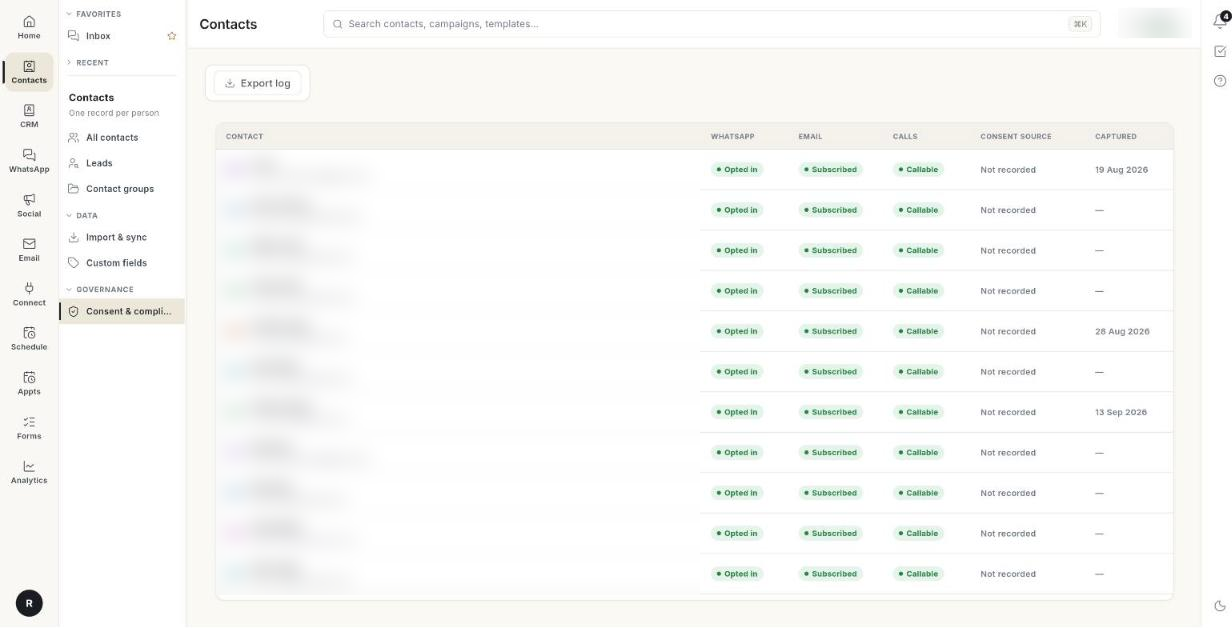
Open Contacts in the left rail, then select Consent & compliance.
-
The table shows one row per contact:
Column What it shows Contact Name, with the company, email or phone under it. WhatsApp Opted in or Opted out for WhatsApp messages. Email Subscribed or Unsubscribed for email. Calls Callable or Do not call. Consent source Where consent was captured, or Not recorded. Captured The date consent was captured.
The screen and the exported log cover up to the first 5,000 contacts. If the records cannot load, it shows Consent records could not be loaded with a Retry button, rather than a partial list.
Export the consent log
- Click Export log.
- Ohanvi downloads
consent-log.csvand shows Consent log exported — N contact(s).
The file has the columns Contact, Email, Phone, WhatsApp, Email consent, Calls, Consent source and Captured.
Change WhatsApp opt-in for one contact
- Open Contacts → All contacts and click the contact.
- In the record on the right, open the WhatsApp block.
- Turn the Opted in switch (broadcasts) on or off. A message confirms Opted in to broadcasts. or Opted out of broadcasts.
Change consent for many contacts
- Open Contacts → All contacts and tick the contacts.
- Click More bulk actions (the … button) in the selection bar.
- Choose one:
- Opt in to marketing or Opt out of marketing — changes WhatsApp opt-in.
- Exclude from broadcasts or Include in broadcasts — keeps the opt-in as it is but leaves the contact out of broadcasts.
- A message confirms the result, for example Opted out — 12 contacts.
Record do-not-call and email opt-out
- When you add a contact, tick Do Not Call or Email Opt-out under Personal & Consent in the Add Contact form. See Manage contacts.
- People who unsubscribe from your emails are marked Unsubscribed on their own. See the Email overview.
Imports mark new contacts as opted in
New contacts created from a file import are marked Opted in to WhatsApp. Import only people who agreed to hear from you. Opt out anyone who did not, using the bulk action above.
Video walkthrough
[VIDEO]
Troubleshooting
| Issue | Cause | Fix |
|---|---|---|
| Nothing to show yet | No contacts exist yet. | Click Import contacts, or connect WhatsApp so people arrive on their own. |
| Consent records could not be loaded | The contact list did not load completely. | Click Retry. Ohanvi shows nothing rather than an incomplete list. |
| Could not change the opt-in. | The switch change did not save. | Check your connection and try again. |
| Bulk result says … of … done, … failed. | Some contacts could not be updated. | Keep the failed contacts ticked and run the action again. |
| Consent source shows Not recorded | The contact came in without a recorded source, for example added by hand. | Nothing to fix. Keep your own proof of consent for these contacts. |
| Do Not Call cannot be changed in the contact record on a wide screen | The record pane shows it but does not edit it [VERIFY]. | Edit the contact from its account, or from All contacts on a narrow window. |