Create a WhatsApp message template
Write a message template with a header, body, footer and buttons, then submit it to Meta. At the end, your template is In review at Meta, and once it shows Approved you can use it in campaigns, flows and replies outside the 24-hour chat window.
Before you start
- Your WhatsApp number is connected to Ohanvi. See Connect your WhatsApp number.
- You can see Template in the WhatsApp panel. If not, ask your admin to give your role template access. See Roles and permissions.
- You know which category your message belongs to. See Choose a category below.
What a template is
WhatsApp only lets a business start a conversation, or write after 24 hours of silence, with a template that Meta has approved. Every campaign and every automated message you send outside the 24-hour window uses one.
Choose a category
Meta prices and reviews templates by category. Pick the one that matches what the message does.
| Category | Use it for | Example |
|---|---|---|
| MARKETING | Offers, launches, festival sales, re-engagement, anything promotional. | "Diwali sale: 20% off until Sunday." |
| UTILITY | Updates about something the customer already did: orders, bookings, payments, shipping. | "Your order {{1}} has shipped." |
| AUTHENTICATION | One-time passcodes only. Meta writes the wording itself. | "{{1}} is your verification code." |
Some Template type choices fix the category for you. Carousel, Catalog, Multi-product and Limited Time Offer are always MARKETING. Order details (Payment), Order Status and Call Permission Request are always UTILITY.
Choose a template type
| Template type | What it sends |
|---|---|
| Default | An ordinary message with an optional header and buttons. |
| Carousel | Two to ten swipeable cards, each with its own picture and buttons. |
| Order details (Payment) | Asks the customer to pay. Needs payments set up with Meta. |
| Catalog | Opens your WhatsApp catalog. Needs a catalog on this number. |
| Multi-product | Shows chosen products in sections. Needs a catalog. |
| Authentication | A one-time passcode. Meta writes the wording itself. |
| Flows | Opens a published Flow — a form the customer fills in inside WhatsApp. |
| Order Status | Tells the customer where their order has got to. |
| Call Permission Request | Asks permission to call. Carries no buttons, and needs calling enabled. |
| Limited Time Offer | An offer code with a countdown. Carries no footer. |
Steps
Create the template
- Open WhatsApp in the left rail, then select Template. The Templates page opens.
-
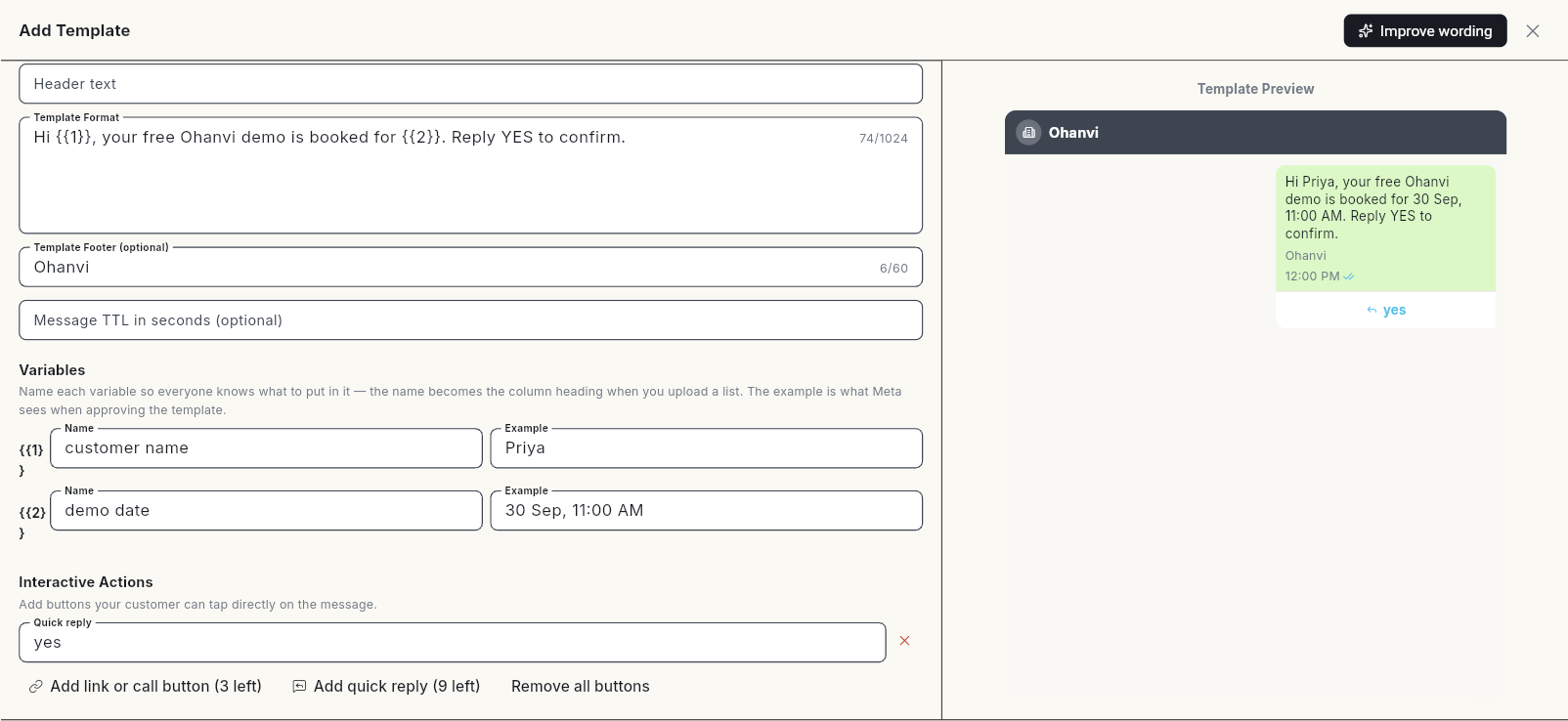
Click New template. The Add Template form opens, with a Template Preview beside it.
-
Choose your Organization, if you have more than 1.
- Choose a Template type. The hint under the field says what each type does.
- Choose a Template Category: UTILITY, MARKETING or AUTHENTICATION.
- Type a Template name, for example
order_shipped. Use lowercase letters, numbers and underscores only. If the name breaks a rule, click the Use "…" suggestion under the field. -
Choose a Template Language. Type in Search language or code to find it, for example
Hindioren_US.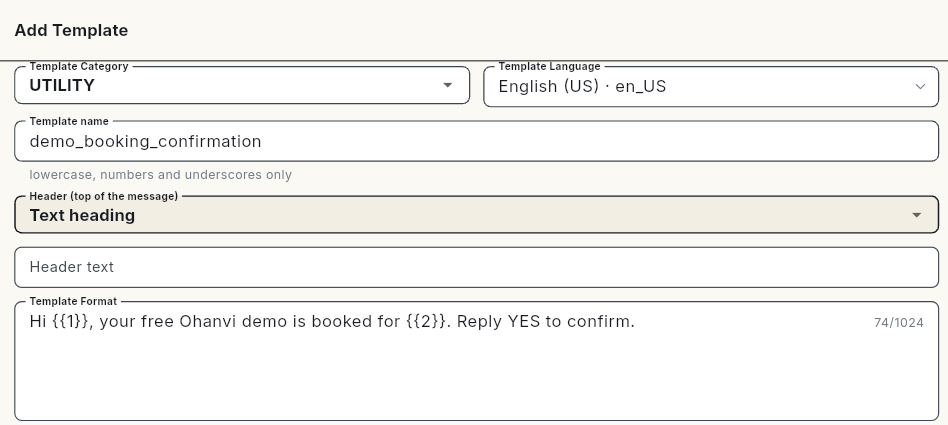
Start from a ready-made template
Click Browse Library to clone a template from the library, or click Generate and describe the message to have AI write it. Check the result before you submit.
Add the header
The header is optional and sits at the top of the message.
-
Choose a Header (top of the message): Text heading, Image, Video or Document. There is no "none" option: for no header, keep Text heading and leave Header text empty.

-
For Text heading, type the Header text. It can hold up to 60 characters and at most 1 variable.
- For Image, Video or Document, upload a sample file. Meta uses the sample to review the template. You choose the real file each time you send a campaign.
Upload limits: images up to 5 MB, videos up to 16 MB, documents up to 100 MB. A Video header always needs a sample. For Image and Document, Ohanvi submits a neutral placeholder if you leave the sample empty.
Write the body and footer
- Type the message in Template Format. It can hold up to 1,024 characters.
- Add a variable where each customer's own value goes. Write it as
{{1}}, then{{2}}, and so on, in order. - Optional: type a Template Footer (optional), up to 60 characters. Footers cannot contain variables.
- Optional: set Message TTL in seconds (optional), for example
3600. This is how long Meta keeps trying to deliver the message.
A body must follow Meta's rules:
- Variables start at
{{1}}and run in order, with no gaps. - 2 variables cannot touch. Put words between
{{1}}and{{2}}. - The body cannot be only variables, and should not start or end with one.
- No more than 3 blank lines in a row.
Name each variable and give a sample
- Under Variables, fill in a Name for each variable, for example
customer name. The name becomes the column heading when you upload a recipient list. -
Fill in an Example for each variable, for example
LakshmiorORD-10482. Meta sees the example when it reviews the template.
Use real-looking examples, not placeholders like xxx. Meta rejects templates it cannot read as a real message.
Add buttons
- Under Interactive Actions, click Add link or call button or Add quick reply. Each button shows how many are left.
- For a link button, type a Button label and a URL that starts with
https://. You can add{{1}}at the end of the URL, for examplehttps://example.com/{{1}}. - For a call button, type a Button label and a phone number with the country code.
- For a Quick reply, type the Button label the customer taps.
- Optional: turn on Enable Click Tracking to count link clicks in the campaign report. Customers still land on the URL you entered.
Button limits:
- Up to 10 buttons in total.
- Up to 2 link buttons and 1 call button.
- Up to 10 quick replies.
- Button labels up to 25 characters, and no 2 buttons with the same label.
- Keep link and call buttons together, and quick replies together.
Set up a one-time code template
Choose Authentication as the Template type. The One-time code template section replaces the body.
- Leave Add security recommendation on to add Meta's "do not share this code" line.
- Set Code expires in (minutes).
- Under Button, choose Copy code, or One-tap autofill for an Android app.
- For One-tap autofill, fill in Android package name and App signature hash. Without both, the template is submitted as Copy code instead.
Authentication templates cannot have a media header or call-to-action buttons.
Submit for approval
- Check the Template Preview. Fix any problem listed below the form.
-
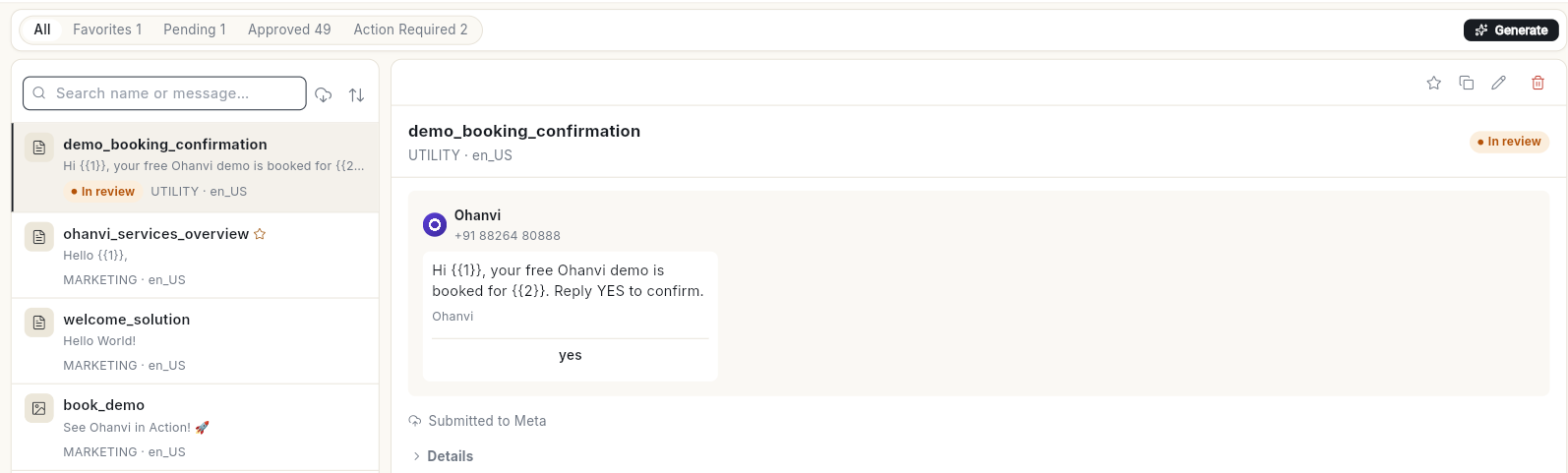
Click Save & Submit for Approval. The message Template submitted to WhatsApp. Awaiting approval. appears. The template shows In review and is counted under the Pending tab.
-
To save without sending to Meta, click Save as Draft instead. The template shows Draft until you submit it.
On the free trial, the form shows Free trial: a “Powered by Ohanvi” footer is added to your templates.
Meta usually decides within a few minutes, sometimes up to 24 hours. Ohanvi checks the status for you. To check now, click the Sync from Meta — pull the latest approval status icon beside the search field. You can sync again after 2 minutes.
Template statuses
Use the All, Favorites, Pending, Approved and Action Required tabs to filter the list. Action Required holds every template you need to fix.
| Status | What it means | What to do |
|---|---|---|
| Draft | Not sent to Meta yet. | Open it and submit it for approval. |
| In review | Meta is reviewing it. | Wait. Approval usually takes a few minutes, sometimes up to 24 hours. |
| Approved | Ready to send. | Use it in a campaign or flow. |
| Rejected | Meta refused it. | Read the Rejection reason, edit the wording and submit again. |
| Paused | Too many recipients blocked or reported it. | Wait. Sending resumes automatically once the pause lifts. |
| Disabled | Meta disabled it for good after repeated quality problems. | Create a new template with different wording. |
| In appeal | You appealed Meta's decision and it is being re-reviewed. | Wait for the result. |
| Deleting / Deleted | Meta is removing it, or it no longer exists at Meta. | Create a replacement. |
Approved templates can also show a quality rating: High quality, Medium quality or Low quality. On Medium quality or Low quality, soften the wording soon. Meta pauses a template whose quality keeps dropping.
Fix a rejected template
-
Open the Action Required tab and click the template. The Rejection reason shows under the preview, in Meta's own words, for example
INVALID_FORMAT.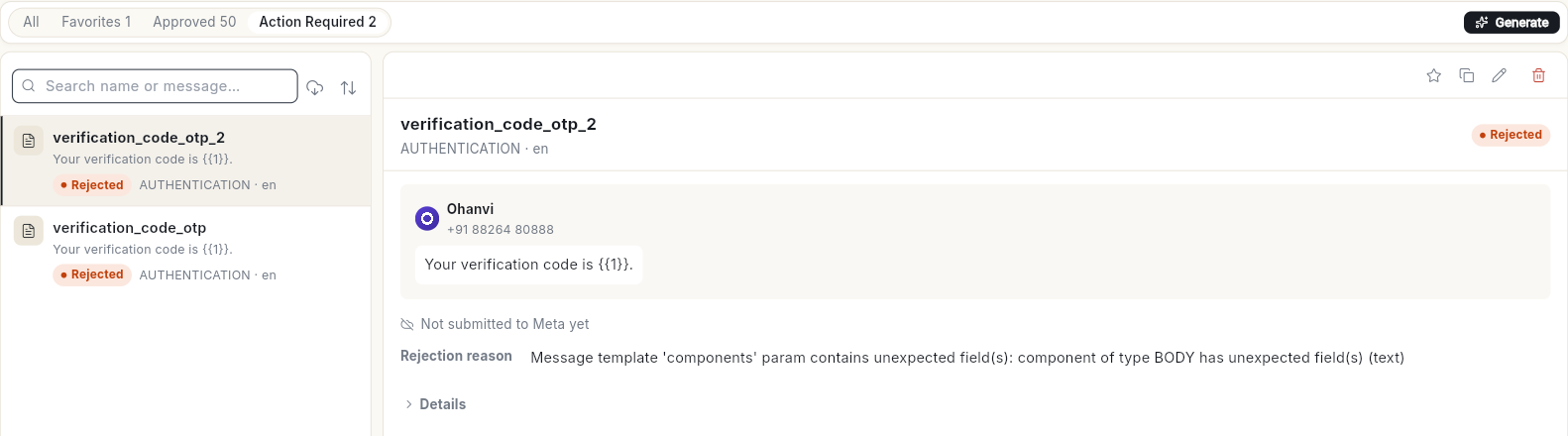
-
Match the reason to the table below and change the template.
- Click Edit, make the change, then click Save Changes. The template is submitted to Meta again.
If you try to send a rejected template in a campaign, Ohanvi refuses it and explains the reason in the sentence shown in the second column.
| Reason from Meta | What Ohanvi tells you | What to change |
|---|---|---|
INVALID_FORMAT |
WhatsApp says the layout is wrong — usually a placeholder like {{1}} at the very start or end of the text, two placeholders touching, or an example value missing. | Add words before and after each variable, separate variables, and fill every Example. |
ABUSIVE_CONTENT |
WhatsApp says the wording breaks its content rules. | Remove threats, adult content and misleading claims. |
SCAM |
WhatsApp flagged the wording as looking like a scam. | Avoid prize, lottery, refund and urgent-payment language. |
PROMOTIONAL |
WhatsApp says this is promotional, but it was submitted as a utility template. | Resubmit it under the MARKETING category. |
INCORRECT_CATEGORY / TAG_CONTENT_MISMATCH |
WhatsApp says the category is wrong for this wording. | Change the category, or reword the message to match it. |
Edit, duplicate or delete a template
- Edit: hover a template and click Edit. Change it, then click Save Changes. A submitted template goes back to In review until Meta approves the new version.
- Duplicate: click Duplicate to open a copy in the Duplicate Template form. Use this to make a new language version or a variant.
- Favorites: click Add to favorites on a template to pin it to the Favorites tab.
- Delete: click Delete, then Delete again in the Delete template? window. The message Template deleted. appears.
Deleting removes the template from Meta too
Ohanvi deletes the template from your WhatsApp account at Meta as well as from Ohanvi. This cannot be undone. Campaigns and flows that use it can no longer send it.
Video walkthrough
[VIDEO]
Troubleshooting
| Issue | Cause | Fix |
|---|---|---|
| Meta only allows lowercase letters, numbers and underscores | The name has spaces, capitals or symbols. | Click the Use "…" suggestion, or rename it, for example order_shipped. |
| Template with this name and language already exists | You already have a template with this name in this language. | Pick a different name, or edit the existing template. |
| Could not save this template. Your WhatsApp account may not be connected, or Meta could not be reached — check WhatsApp Settings, then try again. | Your number is not connected, or Meta did not answer. | Check your connection in Settings → WhatsApp → Configuration, then try again. |
| You have reached WhatsApp's limit of 250 templates. | Meta allows 250 templates per WhatsApp Business account. | Delete templates you no longer use, then create the new one. |
| Add a sample video — Meta needs one to approve a media header. | A Video header has no sample. | Upload a sample video, then submit again. |
| This template could not be deleted. It may still be used by a campaign, or your role may not allow deleting templates. | A campaign still uses it, or your role cannot delete templates. | Remove it from the campaign first, or ask your admin. |