Read a WhatsApp campaign report
Open a sent campaign and read how it landed: how many people got it, read it and acted on it, and why some messages failed. At the end, you know what to fix and you have resent the failures.
Before you start
- You have sent at least 1 campaign. See Send a broadcast campaign.
- You can see Campaign in the WhatsApp panel.
What each delivery status means
Figures fill in as WhatsApp confirms each message, so a campaign sent a minute ago is still counting.
| Status | Meaning |
|---|---|
| Queued | Waiting to be handed to WhatsApp. |
| Sent | WhatsApp accepted the message. |
| Delivered | The message reached the person's phone. |
| Read | The person opened it. People who turned off read receipts never show as Read, even when they read it. |
| Clicked | The person tapped a tracked link button. Needs Enable Click Tracking on the template. |
| Replied | The person wrote back. |
| Failed | WhatsApp did not deliver it. The reason is written on the row. Failed messages are not charged. |
Steps
Read the summary
- Open WhatsApp in the left rail, then select Campaign.
- At the top, read the totals across all campaigns: Campaigns, Messages sent, Delivered, Read and Failed.
-
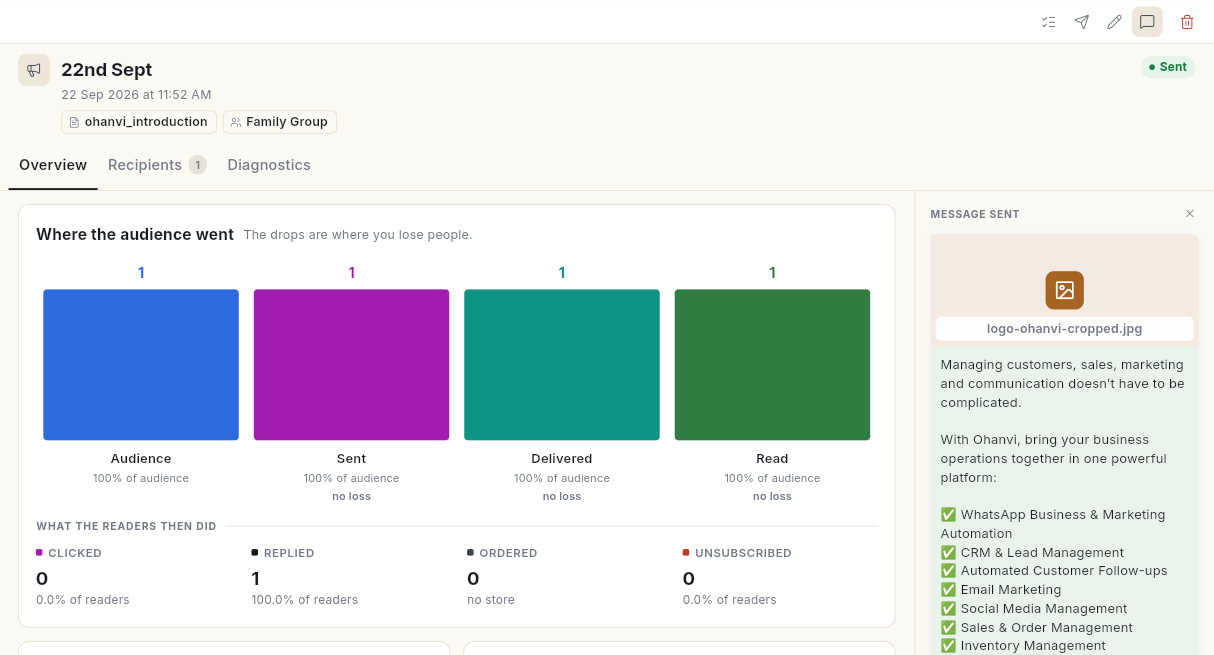
Click a campaign in the list. Its report opens on the right, with a GRADE and 3 tabs: Overview, Recipients and Diagnostics. On the right, Message sent shows the message that went out.
Read the Overview tab
- Where the audience went shows each stage from sent to delivered, read, clicked, replied and ordered. The drops are where you lose people. Click a stage to open that exact list of people.
- What the readers then did shows how many readers Clicked, Replied, Ordered or Unsubscribed.
- vs your last broadcast compares this send with the broadcast before it. Green beat the one before, red slipped.
- What it drove shows reads and clicks. With a store connected, it also shows the revenue.
- Do this next lists suggested actions, for example following up people who read but never clicked, or leaving out numbers that failed twice in a row.
- How fast it landed shows the Median time to deliver, Median time to read and Peak reading hour.
Read how fast it landed
The How fast it landed card shows time since launch in minutes, not calendar days. A broadcast finishes in minutes, so a per-day chart would show a single point.
- Open the Overview tab and scroll to How fast it landed.
- Read Median time to deliver. Half of the messages reached the phone faster than this time.
- Read Median time to read. Half of the readers opened the message faster than this time. Under it, p95 shows the time that 95 of every 100 readers stayed within.
- Read Peak reading hour. It shows the clock hour with the most reads, for example
19:00–20:00. The caption reads when to send the next one. - If nobody has read the message yet, Peak reading hour shows — and the caption reads no reads yet. Check again later.
- Read Never delivered. It is the messages sent minus the messages delivered. The caption reads see Diagnostics for why.
Times show in the shortest honest unit, for example 45 s, 12 min 30 s or 2 h 15 m.
Send when people read
Schedule your next broadcast for the Peak reading hour of this one. See Check scheduled messages and delivery logs.
Find out why messages failed
-
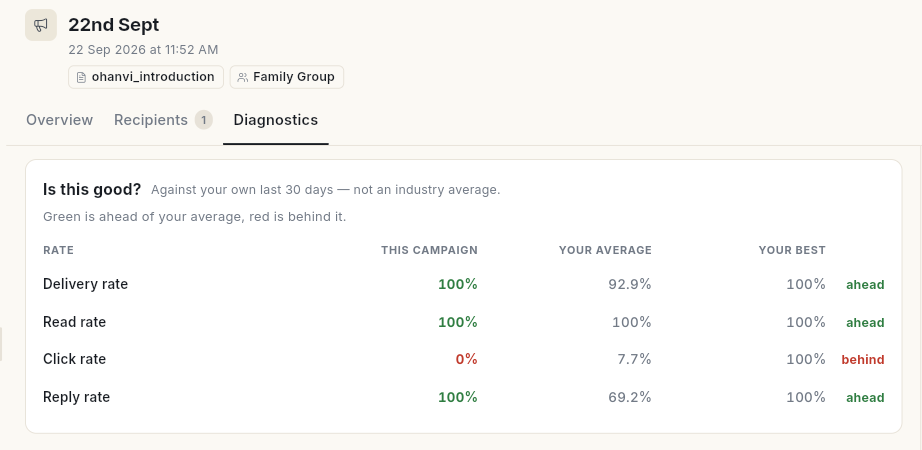
Open the Diagnostics tab. Is this good? compares this campaign's Delivery rate, Read rate, Click rate and Reply rate with Your average and Your best over your own last 30 days. Green is ahead of your average, red is behind it.
-
When messages failed, read Why messages failed. It groups failures by WhatsApp's reason, in plain words, with the Count and a Fix button, for example Retry 2.

-
Read Links & buttons for clicks per link, and Template health for the template's quality rating.
- Read What this send cost your list: Reached first time, At risk (2 or more failures in a row), Unsubscribed and Excluded.
Resend to the people it missed
-
On the campaign, click the Resend icon (a paper plane) at the top right. The Resend? window shows how many people it goes to. If every message was delivered, the message Nothing to resend — every message landed. appears instead.

-
Click Resend. Resend started appears. Delivery updates arrive as WhatsApp confirms each one.
Resend goes to the failed recipients. When nothing failed, it goes to the people whose message was not delivered. Each resent message is charged when it is delivered.
See who received it
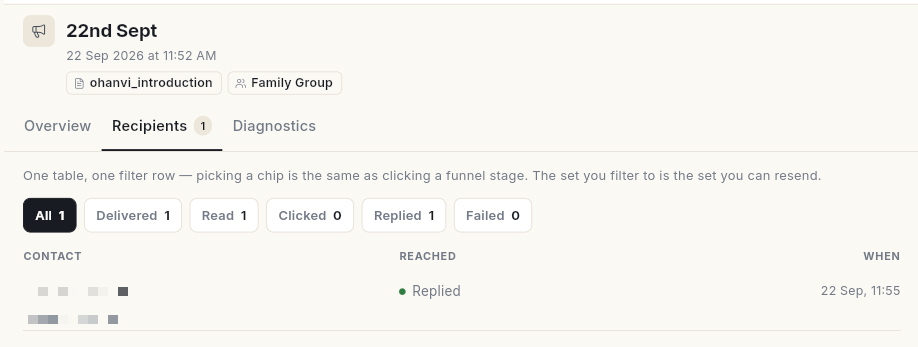
- On the campaign, open the Recipients tab, or click the Who received it icon (a list with ticks) at the top right. Each row shows the Contact, how far the message Reached, and When.
-
Filter with the chips All, Delivered, Read, Clicked, Replied or Failed. Each chip shows its count. The set you filter to is the set you can resend.
-
To resend only the failures, click Resend … failed.
Open the report on its own page
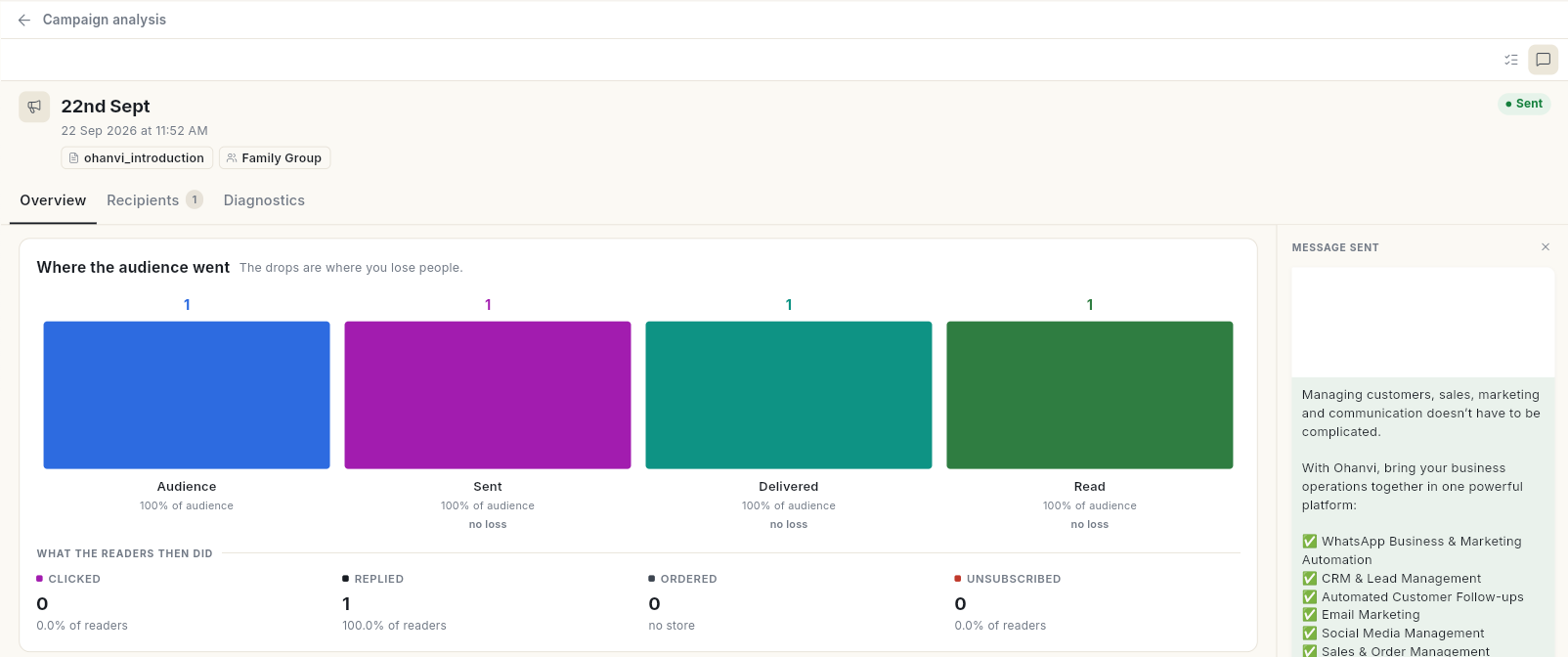
- Open WhatsApp → Dashboard and click a broadcast in the Broadcasts table. Campaign analysis opens on its own page.
- It has the same Overview, Recipients and Diagnostics tabs as the report in Campaign, with Message sent on the right.
- Click the back arrow next to Campaign analysis to return.
For totals across all your campaigns, including revenue from broadcasts, use Analytics. See Read Marketing Analytics.
Video walkthrough
[VIDEO]
Troubleshooting
| Issue | Cause | Fix |
|---|---|---|
| Read is lower than Delivered by a lot | Some people turned off read receipts, or have not opened it yet. | Compare with Replied and Clicked, and check again later. |
| Clicks show 0% with No URL button on template | The template has no link button, so no click can be tracked. | Add a URL button with Enable Click Tracking to your next template. |
| Failure reason: This person has chosen not to receive marketing messages from your business, so WhatsApp blocked this one. | The person opted out of marketing messages in WhatsApp. | Leave them out of marketing campaigns. |
| Failure reason: WhatsApp did not deliver this one. It limits how many marketing messages a person receives so their inbox stays useful … | Meta caps the marketing messages each person gets. | Try again later, or reach this person another way. |
| Failure reason: This number cannot receive WhatsApp messages. … | The number is not on WhatsApp, is mistyped, or blocked you. | Check the number on the contact. |
| Nothing to resend — every message landed. | No message failed or was left undelivered. | No action needed. |