Add bookable services
A service is what a customer books, such as a haircut, a consultation or a product demo. Each one has a length and an optional gap after it. At the end you will have a list of services that providers, classes and your WhatsApp booking bot can use.
Before you start
- You can see Appts in the left rail. If not, ask your admin to give your role Appointments access. See Settings.
- You know how long each service takes and how much break you need between bookings.
Steps
Add a service
The page subtitle reads What a customer can book, and how long each one takes. If you have no services yet, the page shows No services yet and Add one to start taking bookings. Click Add service there to start.
- Open Appts in the left rail, then select Services. The Services page opens.
-
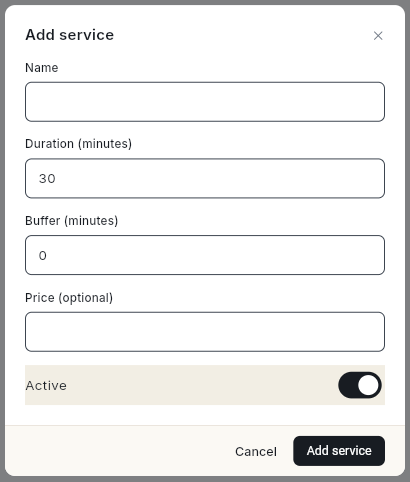
Click Add service. The Add service dialog opens.
-
In Name, type the service name customers will see, for example
Haircut. - In Duration (minutes), type how long the service takes. It starts at
30. - In Buffer (minutes), type the break to keep free after each booking, for example
10. Leave0for no break. - In Price, type the price in rupees. This field is optional.
- Leave Active on so customers can book it.
- Click Add service. The message Saved appears and the service is listed with its length, buffer and price, for example 30 min · +10 min buffer · ₹500.
Edit a service
- On the Services page, click the pencil icon (Edit) on the service. The Edit service dialog opens.
- Change the fields you need.
- To stop offering the service for a while, turn Active off. The service shows an Inactive badge.
- Click Save service.
Delete a service
Customers can no longer book it
A deleted service is no longer offered for booking. Turn Active off instead if you may offer it again.
- Click the bin icon (Delete) on the service. The Delete "Service name"? dialog opens.
- Click Delete.
Video walkthrough
[VIDEO]
Troubleshooting
| Issue | Cause | Fix |
|---|---|---|
| Clicking Add service closes the dialog but nothing is added | Name was empty. | Open Add service again and type a name. |
| Save failed | The server refused the service, for example because the duration was missing. | Check Name and Duration (minutes), then try again. |
| A new service shows no free times to customers | No provider performs it, or no working hours are set. | Add a provider. See Add providers and working hours. |
| The duration was saved as 30 minutes | Duration (minutes) contained text that is not a number. | Edit the service and type digits only. |