Automate your ads
Create a rule in Automation that checks your ads every 30 minutes and acts when its conditions match. At the end, your rule has run in Preview, you have read what it would do, and you have gone live or steered budgets with AI bidding.
Before you start
- Your Facebook account, Page and ad account are connected in Setup. See Set up Ads Manager.
- You have at least 1 campaign, ad set or ad in your ad account.
- You can see Ads Manager in the WhatsApp panel. If not, ask your admin.
What a rule is
A rule is one sentence: If some conditions are true, then do one action. For example: if an ad set spent more than a set amount today and got fewer than 1 result, then pause it.
- The rule checks every 30 minutes. A saved rule shows Checked every 30 minutes. at the bottom of the editor.
- Every new rule starts in Preview. It logs what it would do and changes nothing on Meta.
- When you go live, the rule really changes your ads on Meta. Every change is logged in the Activity log.
Live rules change your ads on Meta
A live rule pauses ads and changes budgets without asking you first. Run a rule in Preview and read the Activity log before you click Go live.
The Automation tabs
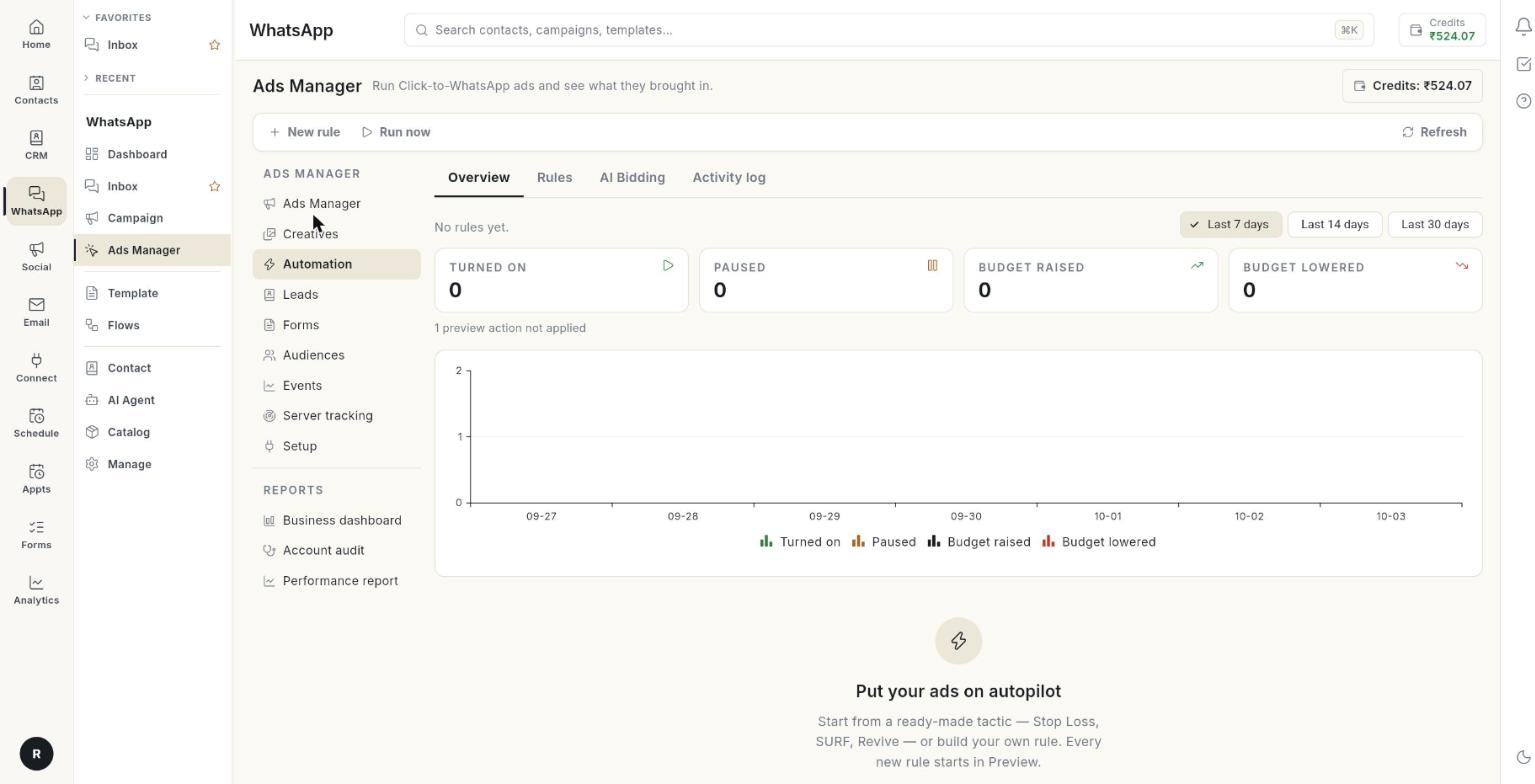
Select Automation in the left column of Ads Manager. It has 4 tabs.
| Tab | What it shows |
|---|---|
| Overview | Counts of what rules did, a daily chart and Recent activity. |
| Rules | One card for each rule, with its mode and switches. |
| AI Bidding | Budget steering toward a cost-per-result or ROAS target. See Steer budgets with AI bidding. |
| Activity log | Every action a rule took, or would have taken in Preview. |
The top bar has New rule, Run now and Refresh.
Steps
Create a rule from a ready-made tactic
- Open WhatsApp in the left rail, then select Ads Manager.
-
Select Automation in the left column.
-
Click New rule. The New rule window opens.
-
Pick a card under Tactics or Strategies, or click Start from scratch.
-
Change any number in the editor. The header reads From "[card name]" — change any number you like.
- Click Create rule. The message Rule created in Preview. It logs what it would do — go live when you are happy. appears.
Starting numbers
Each card comes with starting numbers for spend, cost per result and results. Check them against your own budget before you save. [VERIFY: starting amounts are in the currency of your ad account]
The ready-made cards are:
| Card | Level | What it does |
|---|---|---|
| Stop Loss | Ad set level, Ad level | Pauses one that spent without results today, and turns it back on at the reset time. |
| SURF | Ad set level, Campaign level | Raises the budget of one having a cheap day, up to your maximum, and puts it back at the reset time. |
| Sunsetting | Ad set level | Steps an ad set's budget down each day it keeps running expensive, never below your minimum. |
| Revive | Ad set level, Ad level | Turns a paused one back on when its recent numbers show it was working. |
| Scale winning campaigns | Campaign level | Adds budget to campaigns that stayed cheap for a week, one step a day, up to your maximum. |
| Scale winning ad sets | Ad set level | Same, for ad sets. |
| Downscale losing campaigns | Campaign level | Takes budget off campaigns running expensive over a week, never below your minimum. |
| Downscale losing ad sets | Ad set level | Same, for ad sets. |
| Stop Loss for expensive ads with no clicks | Ad level | Turns off, for today, ads that spend without a single click. |
| Pause losing ads for today | Ad level | Pauses ads that are expensive today and turns them back on at the reset time. |
| Pause losing ads permanently | Ad level | Pauses ads expensive for three days. Turns them back on if late results show they were fine. |
Name the rule and choose what it works on
- In the New rule editor, type a Rule name, for example "Stop loss — ad sets". Use up to 120 characters.
- Under Works on, choose Campaigns, Ad sets or Ads. Changing it clears any assets you picked.
Ads have no budget
Budget actions are not offered for Ads. The editor shows Ads have no budget of their own. Use ad set or campaign level for budgets.
Add the conditions
- Under If … of these are true, choose all or any. all means every condition must match. any means 1 is enough.
- In the condition, pick a Metric. The list is below.
- Pick a Period. The list is below.
- Pick Is: is more than, is at least, is less than or is at most.
- Pick Compared with: a fixed value, % of account average or % of its previous period.
- Type the Value. For a % comparison, type a Percent above 0, for example 130.
- Click Add condition for another condition.
A rule takes up to 6 conditions.
Metrics you can use: Spend, Impressions, Link clicks, CTR (link, %), Cost per link click, CPM, Frequency, Results, Cost per result, Conversations, Leads, Purchases, Revenue, ROAS and Daily budget.
Periods you can use: Today, Yesterday, Last 3 days and Last 7 days.
Choose the action
- Under Then, pick an Action. The list is below.
- For a budget action, fill By with a percent between 1 and 100, or fill New daily budget with an amount.
- Fill Max daily budget. The budget is never raised above it. It is required for Increase budget by %.
- Fill Min daily budget. The budget is never lowered below it. The decrease cards require it.
| Action | What it does |
|---|---|
| Pause | Pauses the item. |
| Turn on | Turns the item on. |
| Increase budget by % | Raises the daily budget. Needs a Max daily budget. |
| Decrease budget by % | Lowers the daily budget. |
| Set daily budget | Sets a new daily budget. |
| Notify me | Only sends you an alert. Changes nothing on Meta. |
Set when and how often the rule acts
- Turn on Notify me when it acts to get a bell notification, push and email. You get one summary per check, only when the rule is live.
- Fill Wait between actions (hours). Use a value from 1 hour to 30 days. Blank means 4 hours for budget actions and 24 hours for others.
- Fill Reset at (HH:mm) to turn a paused item back on, or put the budget back, at that time. Blank keeps the change.
- Turn on Turn it back on if late results show it was fine. Use it for a pause with no reset time. Meta reports some results a day or two late.
- Choose Keep checking for: 1 day, 2 days, 3 days, 5 days or 7 days.
- Under When it runs, pick the day chips from Mon to Sun. No day picked means every day.
- Fill From (HH:mm) and To (HH:mm) to limit the hours the rule may act. Fill both or neither. Blank means all day.
- Choose a Timezone: Account default (India) or a zone from the list. It is also used for Reset at.
Choose which items the rule covers
- Under Apply to, choose All [ad sets] or Only the [ad sets] I pick. The words follow your Works on choice.
- If you chose Only the … I pick, tick the items.
- If you chose All, use Skip some [ad sets] to choose items the rule must leave alone.
- Click Create rule. A new rule starts in Preview. When you edit a rule, click Save changes.
Read the Overview tab
- Select the Overview tab.
- Read the summary line, for example 3 rules · 1 live · checked every 30 minutes.
- Pick a range: Last 7 days, Last 14 days or Last 30 days.
- Read the tiles: Turned on, Paused, Budget raised and Budget lowered.
- Read the grey line under the tiles. It shows how many preview actions were not applied and how many failed.
- Read the daily chart, then Recent activity.
- Click See all to open the Activity log.
If you have no rules, the tab shows Put your ads on autopilot. Click Create your first rule.
Manage your rules
- Select the Rules tab. Each rule is a card with its name, a Live or Preview badge, its level and a summary.
- Read the grey line: actions in 48 hours, actions in 7 days, last checked, and the author.
- Use the switch on the card to turn the rule on or off. The badge Off shows when it is off.
- Open the More menu on a card.
- Click Edit to open the editor. Save changes with Save changes.
- Click Go live to make the rule real. A window asks Turn "[name]" live?
- Click Back to preview on a live rule. The rule only logs again.
- Click Run now to check this rule now.
- Click See activity to open the Activity log for this rule.
- Click Delete to stop the rule. Past activity stays. Anything it paused stays paused.
Test in Preview, then go live
- Create the rule. It starts in Preview.
- Click Run now in the top bar, or wait for the next check. One of these messages appears:
- No enabled rules to check.
- Checked N rules — nothing matched.
- Checked N rules — N actions. See the Activity log.
- Open the Activity log. Rows with the result Preview only show what the rule would have done.
- If the rows look right, open More on the rule and click Go live.
- In the window Turn "[name]" live?, click Go live. The message Rule is live. appears.
Read the Activity log
- Select the Activity log tab.
- Choose a Rule, or All rules.
- Pick Last 7 days, Last 14 days or Last 30 days.
- Read the columns. See the table below.
| Column | What it shows |
|---|---|
| WHEN | The date and time of the action, in your local time. |
| RULE | The rule's name. |
| ON | The level and the name of the campaign, ad set or ad. |
| ACTION | Paused, Turned on, Budget raised, Budget lowered, Budget set, Flagged, Turned back on or Budget put back. Budget actions show the old and new budget. |
| RESULT | Done, Preview only or Failed. |
| WHY | The reason, any error, and when a reset is due. |
If the tab is empty, it says Nothing yet. Every time a rule acts — or, in Preview, would have acted — it shows here.
Steer budgets with AI bidding
AI bidding moves the daily budgets of the campaigns or ad sets you pick toward your target. It closes half the gap at a time, within your minimum and maximum. It checks every hour.
- Select the AI Bidding tab.
- Click New AI bidding.
- Type a name, for example "Scale Diwali ad sets".
- Under Steer the budget of, choose Campaigns (campaign budget) or ad sets. Pick up to 50.
- Choose the goal: Cost per result with At most, or ROAS with At least.
- Fill Minimum. The budget is never lowered below it.
- Fill Maximum. The budget is never raised above it.
- Choose Biggest step: 10%, 15%, 20% or 30%.
- Choose Judge on: Last 3 days or Last 7 days.
- Choose Wait between changes: 2, 4, 6, 12 or 24 hours.
- Click Create. It starts in Preview and shows each hour what it would do. The message reads AI bidding created in Preview — it shows what it would do and changes nothing yet.
- Open More on the card and click Go live when you are ready.
Statuses on a check are Raised, Lowered, Would raise, Would lower, Failed, Not found and Holding. The tool holds while the item is still learning or when its budget is not being spent.
Do not point 2 tools at the same ad sets
Avoid pointing budget rules and AI bidding at the same ad sets. They would change the same budget.
Troubleshooting
| Issue | Cause | Fix |
|---|---|---|
| Give the rule a name. | The Rule name is empty. | Type a name. |
| Every condition needs a number. | A Value is blank or not a number. | Fill every condition with a number. |
| A "% of" condition needs a percent above zero, e.g. 130. | The comparison is a percent and the value is 0 or blank. | Enter a percent above 0. |
| Set a maximum daily budget so the rule cannot overspend. | The action raises the budget and Max daily budget is blank. | Fill Max daily budget. |
| Ads have no budget — change budgets at ad set or campaign level. | A budget action is set on Ads. | Switch Works on to Ad sets or Campaigns. |
| Pick at least one campaign, ad set or ad, or apply the rule to all. | Only the … I pick has nothing ticked. | Tick at least 1 item, or choose All. |
| The rule never acts | It is in Preview, switched off, or no item matches. | Check the Live badge and the switch. Click Run now and read the Activity log. |