Check connection health
Connection Health tests your WhatsApp connection straight against Meta. At the end, you know whether messages can go out and come in, and you have a clear fix for anything that failed. A check takes a few seconds.
Before you start
- You can open Manage in the WhatsApp panel. If not, ask your admin.
- You added a WhatsApp number to Ohanvi. See Connect your WhatsApp number.
What the four checks mean
| Check | What it tests | What a failure usually means |
|---|---|---|
| Configuration | That your WhatsApp setup has an access token, a WABA ID and a Phone Number ID. | A field is empty, or no configuration exists yet. |
| Access token & number | That Meta accepts your token and that the number is CONNECTED. It also reads the number's quality. | The token expired or was revoked, the Phone Number ID is wrong, or the number is restricted. |
| Webhook subscription | That your WhatsApp Business Account is subscribed to an app, and that the messages field is on. | Customers' replies do not reach Ohanvi. |
| Callback verify token | That a webhook verify token is saved. | Meta cannot confirm your webhook. |
Quality rating
Meta limits or blocks sending when a number's quality reaches RED. If the check warns about quality, send fewer messages and soften your wording.
Steps
Run the health check
- Open WhatsApp in the left rail, then select Manage.
-
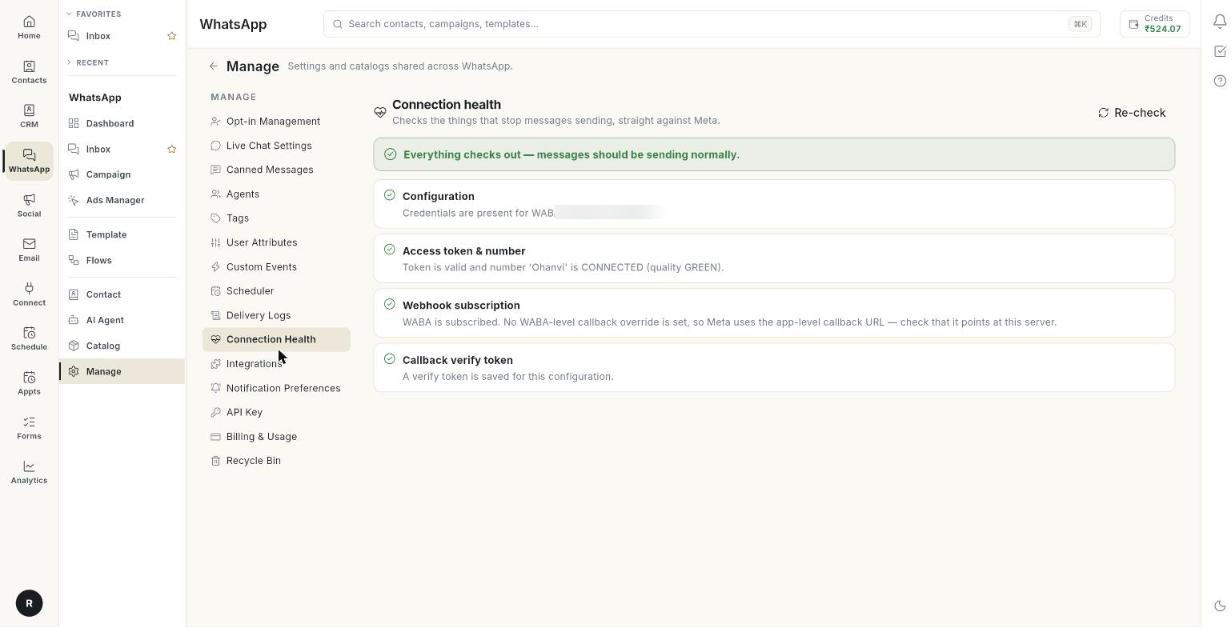
Select Connection Health. The page title reads Connection health, and it starts a check.
-
Read the line at the top. Everything checks out — messages should be sending normally. means all is well.
- Read each of the four checks. A failed check shows what went wrong and how to fix it.
Fix a failed check
- Find the failed check in the list.
- Read its detail line and its fix line.
- Make the change. The next sections explain the usual fixes.
- Click Re-check. The page runs all four checks again.
Usual fixes:
- Configuration: open Settings → WhatsApp → Configuration. Fill in the missing token or ID, then save. See Connect your WhatsApp number.
- Access token & number: paste a new permanent access token, and check the Phone Number ID.
- Webhook subscription: reconnect the webhook. See Webhooks and integrations.
- Callback verify token: save the same verify token here that you entered in your Meta app.
Run the check again
- Click Re-check at any time.
- If the check could not run, click Retry.
Troubleshooting
| Issue | Cause | Fix |
|---|---|---|
| No WhatsApp configuration found for this organisation. | No number is added yet. | Add your Cloud API credentials in Settings → WhatsApp → Configuration. |
| Could not run the health check. | Ohanvi could not reach the service. | Click Retry. |
| The health check did not return a result. | The check returned nothing. | Click Re-check. |
| Meta rejected the request | The access token has expired or was revoked. | Create a new permanent token and save it in Configuration. |
| This WABA is not subscribed to any app | Meta does not send incoming messages to Ohanvi. | Subscribe the account again. See Webhooks and integrations. |
| The messages field is missing | The webhook is subscribed, but not to messages. | Turn on the messages field in your Meta app. |