CRM and contacts
The CRM holds everyone you talk to and every deal you work on. Contacts stores the people. CRM follows each sale from lead to deal to won or lost, on stages you name yourself.
Where to find it
CRM spans two icons in the left rail:
| Rail icon | Panel items |
|---|---|
| Contacts | All contacts, Contact groups · under Data: Import & sync, Custom fields · under Governance: Consent & compliance |
| CRM | Leads, Deals · Campaigns · Funnel |
Some CRM screens are not in the panel:
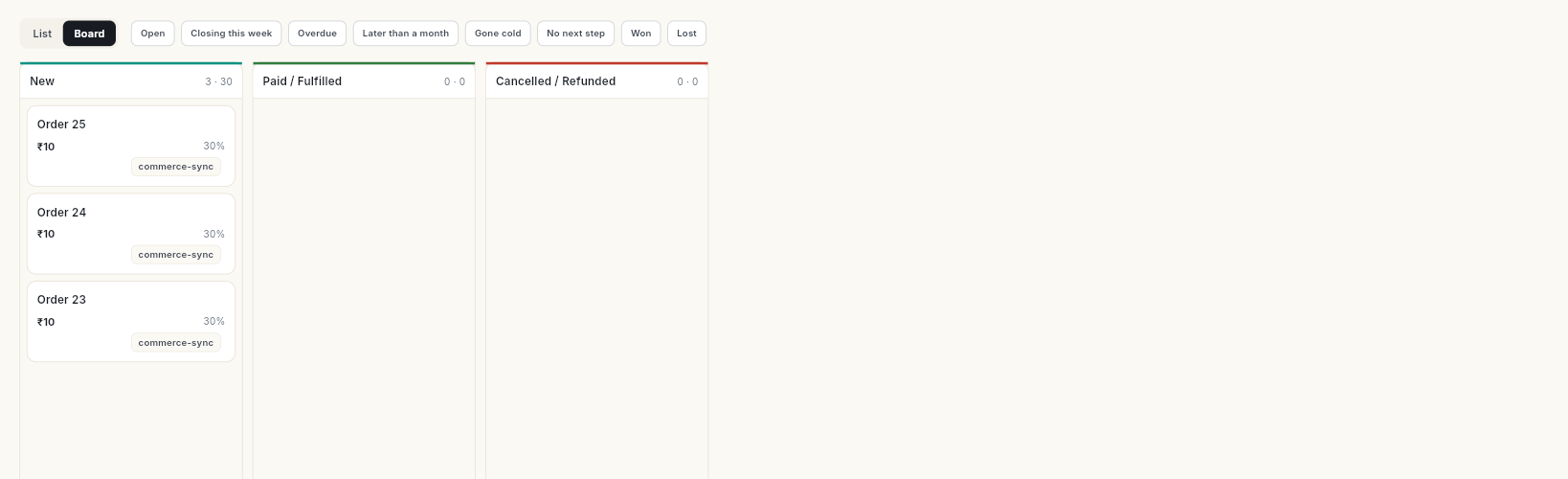
- Boards — the List | Board toggle on Deals and Campaigns.
- Stages & fields — the Stages & fields button on each board.
- Import — the Import button on Leads and Deals.
- Campaign Templates — the Templates button on Campaigns.
- Sales Quotas — Manage quotas on Forecast.
- Dashboard, Accounts, Automations, Forecast, Activities, Activity Calendar, Notes and Sales reports — type the name in the search box at the top, or press Ctrl+K (⌘K on Mac) and pick it from Go to….
- Pipelines, Lead Sources and Products — click your initials bottom-left, then Settings → CRM.
Before you start
- Your workspace has the CRM module, and your role has CRM access. Otherwise the Contacts and CRM icons do not appear. Ask your admin — see Manage team members, roles and permissions.
- For contacts to arrive on their own from chats, your WhatsApp number is connected.
- Dashboard, Funnel, Forecast and Sales reports need CRM reports access. Automations needs automation access.
Contacts
See Contacts for every guide in this part.
| Guide | Use it when |
|---|---|
| Manage contacts | You want to add, find, filter, edit, tag, merge or export contacts. |
| Call contacts and review your calls | You call a contact and want to record the outcome and a follow-up. |
| Call many contacts in a row with Auto Calling | You have a list of contacts to call one after another. |
| Send a welcome email to a contact | You want to email one contact with your brochures attached. |
| Set up the welcome email and your brochures | You want a default welcome message and a shared brochure library. |
| Jump back to recent contacts | You want the contacts you opened or called lately. |
| Recover abandoned carts with Commerce leads | Shoppers left your online store without paying. |
| Create and manage contact groups | You want a saved list of contacts to message together. |
| Import and sync contacts | You have contacts in a file, or want them to flow in from WhatsApp, a store or Zapier. |
| Add custom contact fields | You need to store something about contacts that the built-in fields do not cover. |
| Track contact consent | You need to check or change who agreed to hear from you, or export a consent log. |
CRM
See CRM for every guide in this part.
| Guide | Use it when |
|---|---|
| Work with leads | You want to call new leads, decide who is the right customer and convert them. |
| Build lead phases and steps | You want to set the steps every lead and customer follows, and how calls are timed. |
| Move leads through your stages | You look for the old Leads list and board, and which status each choice sets. |
| Create and manage deals | You want to add a deal, move it through stages and close it. |
| Set up stages and fields | You want your own stages and the extra fields your team fills in. |
| Import leads and deals | You have leads or deals in an Excel or CSV file. |
| Read the CRM dashboard | You want your open pipeline, wins and the deals going cold. |
| Add and manage accounts | You want to track the companies you sell to. |
| Log activities and notes | You want to plan calls and meetings and keep notes on a contact or deal. |
| Track campaigns and campaign templates | You want to record a campaign, its audience and its results. |
| Manage CRM automations | You want to see, pause or resume the rules running on leads and deals. |
| Read the funnel and move leads on the board | You want to see where leads drop off. |
| Read the sales forecast | You want to compare the pipeline with your targets. |
| Run the sales reports | You want a report as an Excel or PDF file. |
Configure the CRM
Follow these when you set up the CRM for the first time. See Configure the CRM.
| Guide | Use it when |
|---|---|
| Set up pipelines | You create the stages a deal moves through. |
| Manage lead sources and see which ones convert | You add the channels your leads come from. |
| Add products | You add what you sell. |
| Set sales quotas | You give each salesperson a monthly target. |