Create a WhatsApp chatbot flow
Build a chatbot that starts when a customer sends a keyword, shows a welcome message with buttons, asks for their name and email, and closes with a message that uses those answers.
Before you start
- Your WhatsApp Business number is connected in WhatsApp → Manage.
- You have a test phone number that is not currently assigned to an agent in Inbox.
- You have picked a start keyword that no other active flow uses (check in the Test tab, step 12).
Steps
Create the flow
- Open WhatsApp → Flows.
-
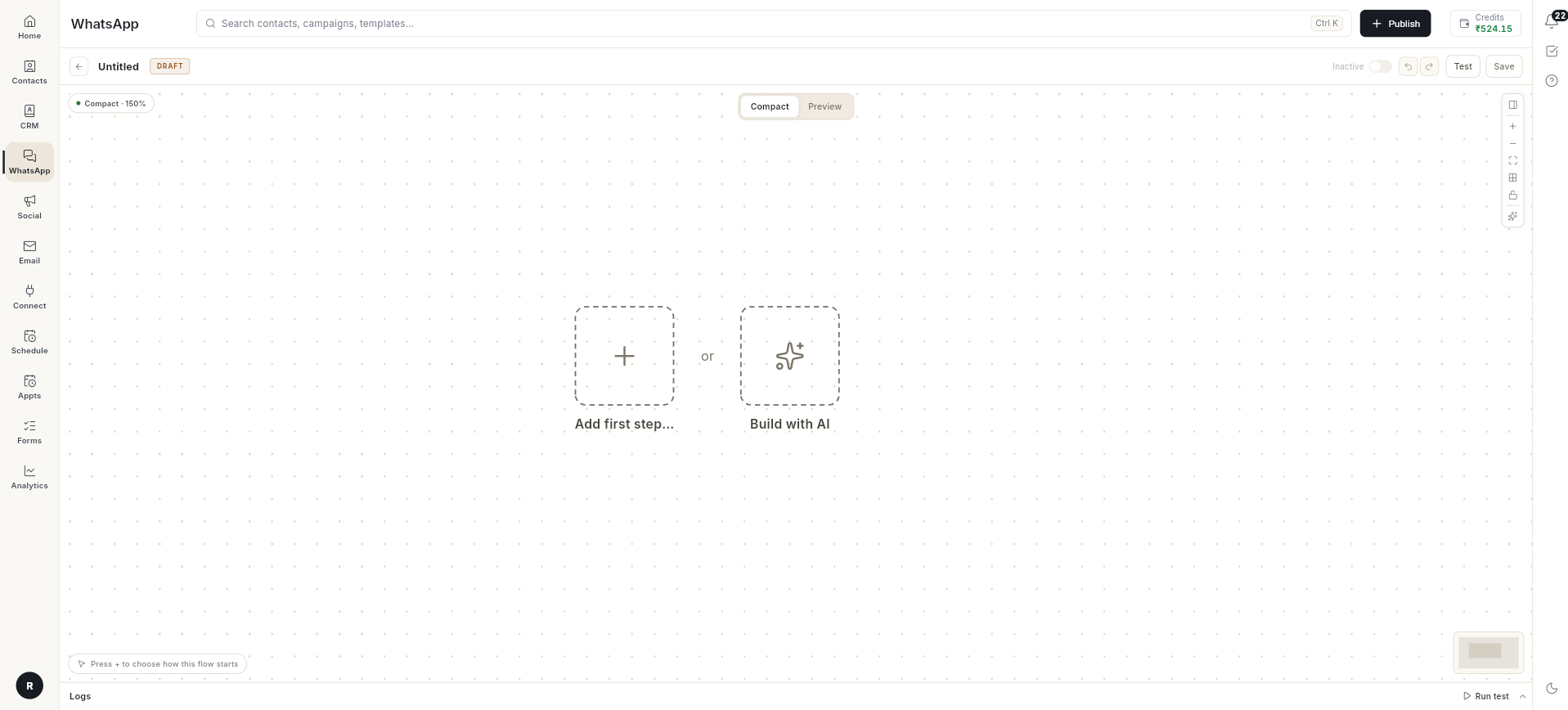
Click New flow. A blank canvas opens.
-
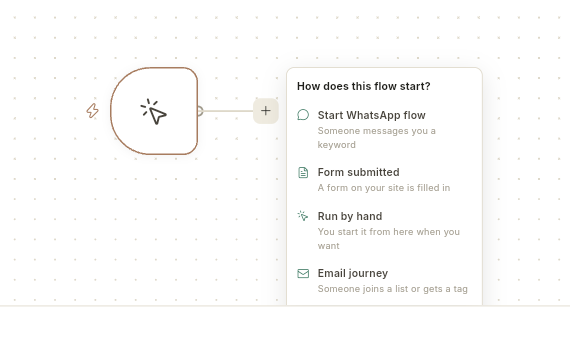
Click Add first step…, then choose Start WhatsApp flow.
-
In Keywords, type the word that starts the bot, for example
hello. Separate several keywords with commas. -
Keep Match when the message as Has the keyword as a word, then click Start building.
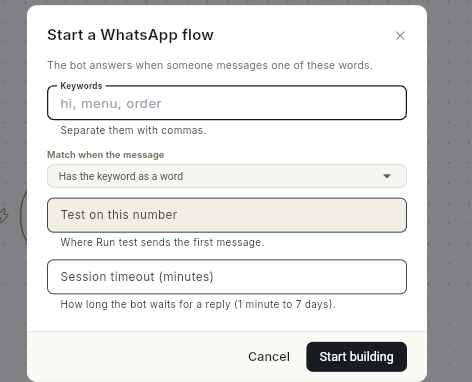
Keywords are not case-sensitive.
hello,HelloandHELLOall start the flow.Match when the message decides how closely the customer's message must match. For the keyword
hi:Option Starts the flow on Does not start on Has the keyword as a word hi,hi therehiiContains the keyword hi,hii,chillihelloIs exactly the keyword hihi there
Add the welcome message and buttons
- Click the + next to the start node and choose Send a message.
- In the right panel, type the message, for example
Hi, how can I help you?. -
Click + Add Button and type a label, for example
Admission. Repeat forFeesandContact Us.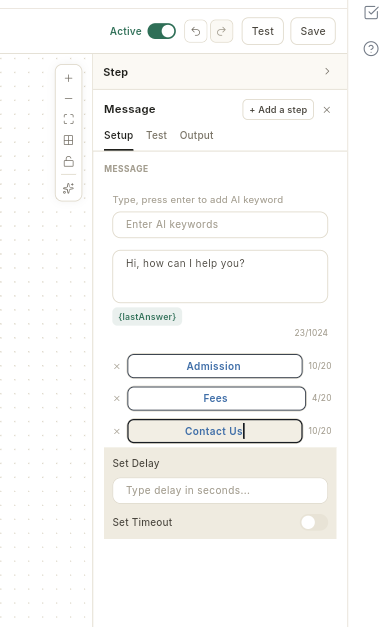
A message can have up to 3 buttons. Each label can be up to 20 characters.
Ask for name and email
- At the bottom of the card, click + Add Content and choose Ask Question.
-
Type the question, for example
What is your name?, and set Save the answer as to Name. The answer is stored in the variablename.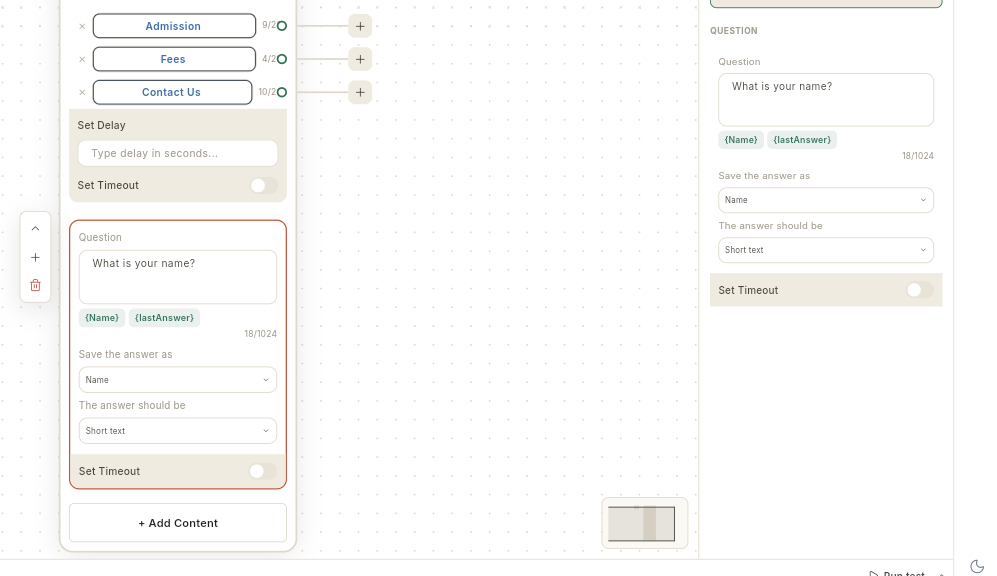
-
Repeat step 9 and 10 for the email: question
What is your email?, save the answer as Email. The answer is stored in the variableemail.
Add the closing message
-
Click + Add Content and choose Text + Button. Type the closing message using the saved answers with double curly braces:
text
Thanks {{name}}, we will contact you at {{email}}.
The easy way: type
Thanks, then click the {Name} chip under the message box. It inserts{{name}}for you. Do the same with {Email}.On WhatsApp the customer sees their own answer, for example Thanks Priya.
Use double curly braces in small letters
If you type a variable yourself, write
{{name}}and{{email}}.{{Name}}with a capital letter is sent to the customer as plain text.
Send a different message for each button (optional)
By default every button leads to the next block in the same card. To give a button its own reply:
-
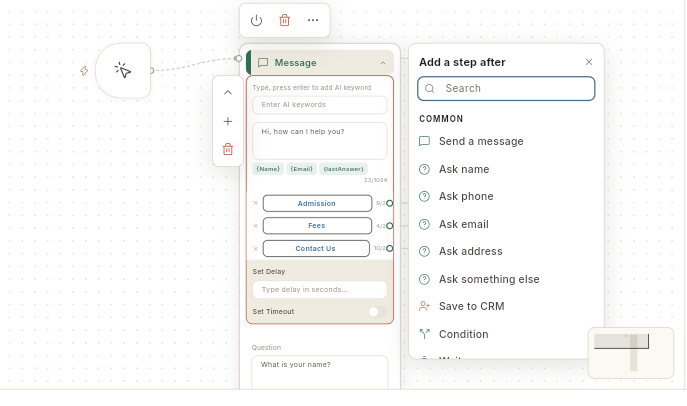
On the card, click the + at the right end of the button row, for example Fees, and choose Send a message.
-
A new card opens, wired to that button. Type its message, for example
Fees details will be shared soon.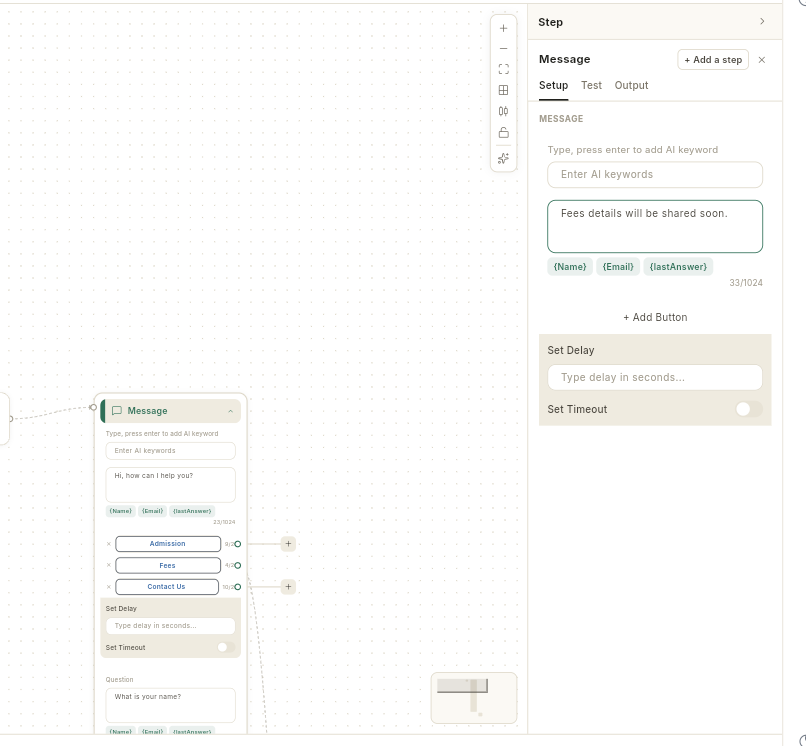
-
Repeat for any other button. Buttons without a wire continue to the next block of the main card.
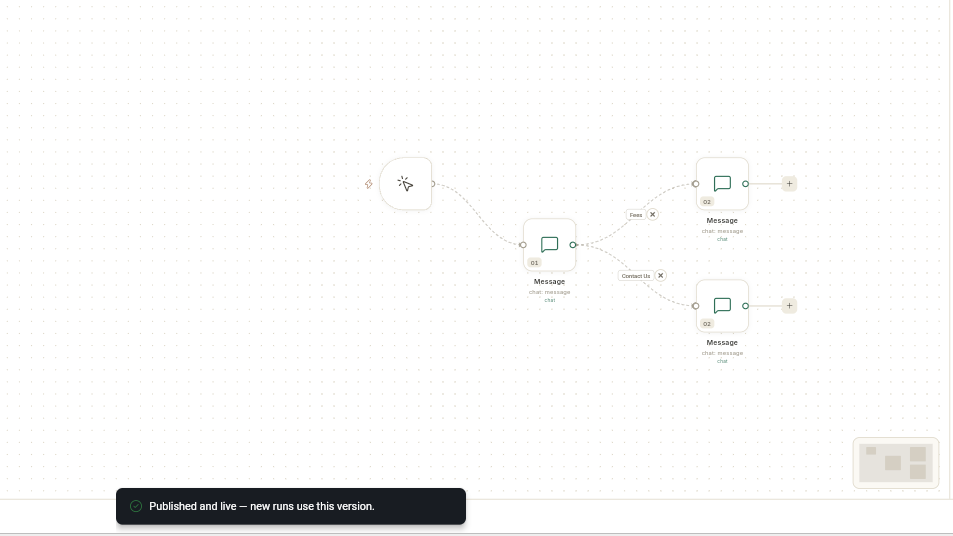
After the branch card finishes, the conversation returns to the main card and continues with its next block.
Save, check and publish
- Click Save. The status chip reads DRAFT.
-
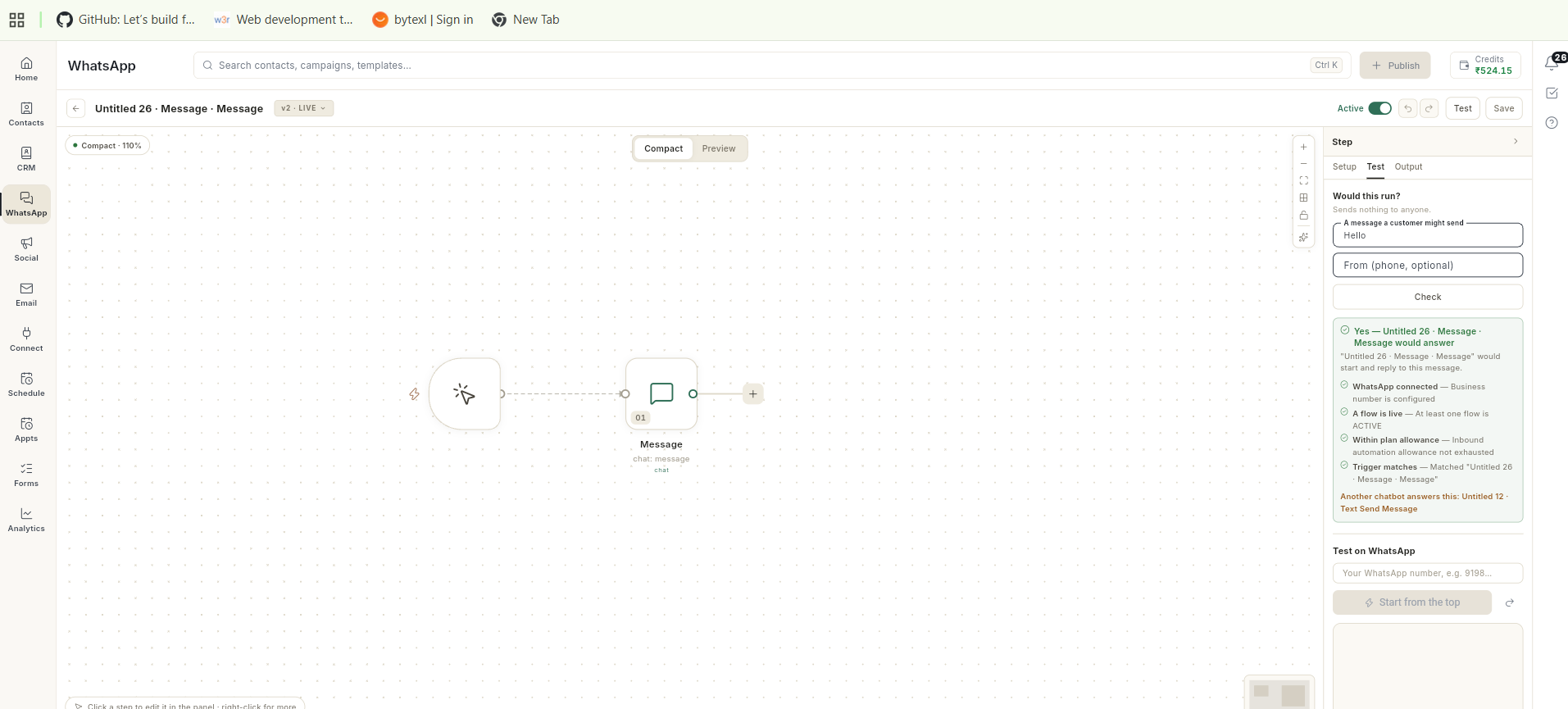
Open the Test tab in the right panel, type your keyword under A message a customer might send, and click Check. The result should read Yes — [your flow] would answer. If it also says Another chatbot answers this, change your keyword before publishing.
-
Click Publish. The message Published and live — new runs use this version appears and the Active switch turns on.

-
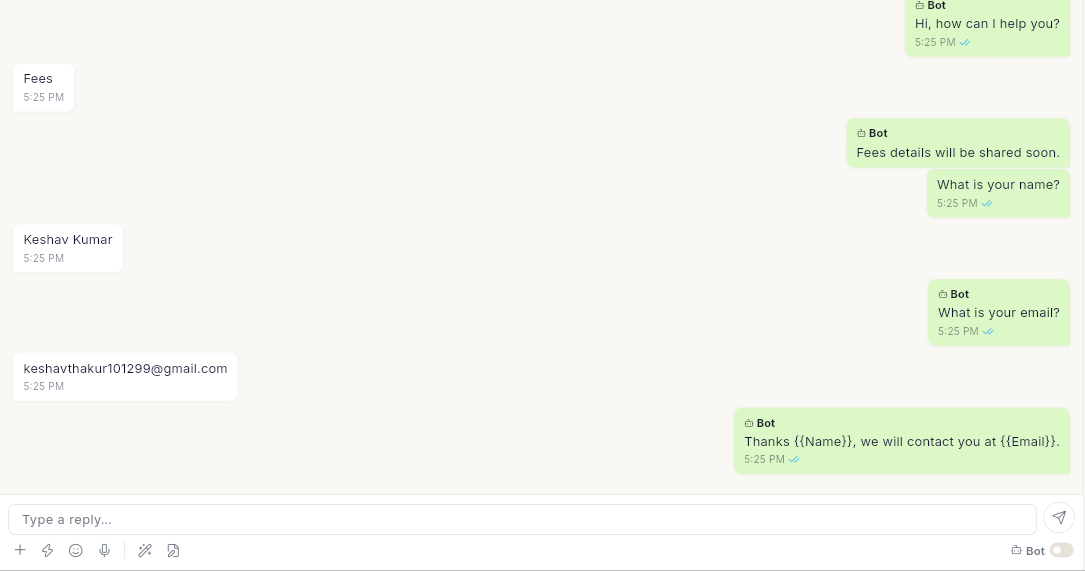
From your test phone, send the keyword to your business number. The bot replies with the welcome message and buttons. Tap a button, answer the name and email questions, and check the closing message.
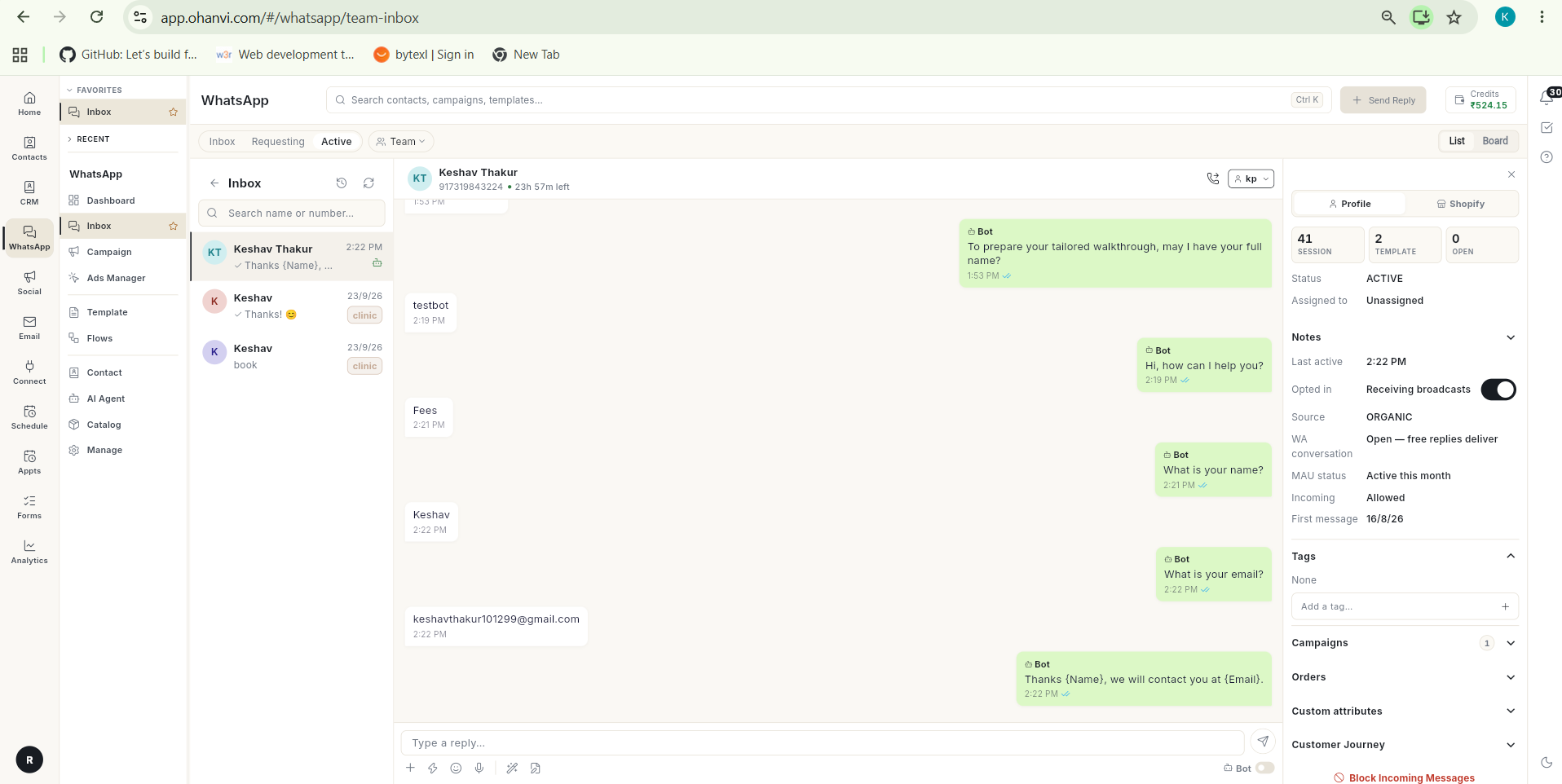
The same conversation appears in WhatsApp → Inbox with each bot message marked Bot.
Build the flow with AI instead
You can let Ohanvi draft the same flow from a sentence, then review and publish it.
-
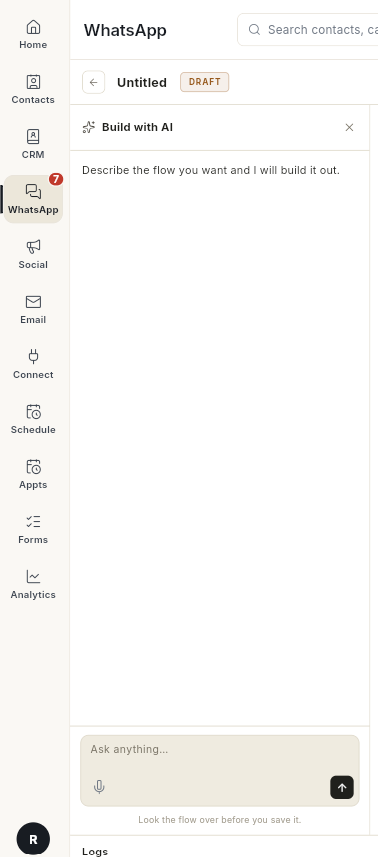
Click New flow, then click Build with AI. A chat panel opens on the left.
-
In Ask anything…, describe the bot and send it, for example:
text Create a WhatsApp welcome chatbot that starts when user says hi, sends a welcome message, asks for name, asks for email and then sends a thank-you message. -
Wait for It is on the canvas. The AI names the flow and draws the cards. Click Preview to read every block.
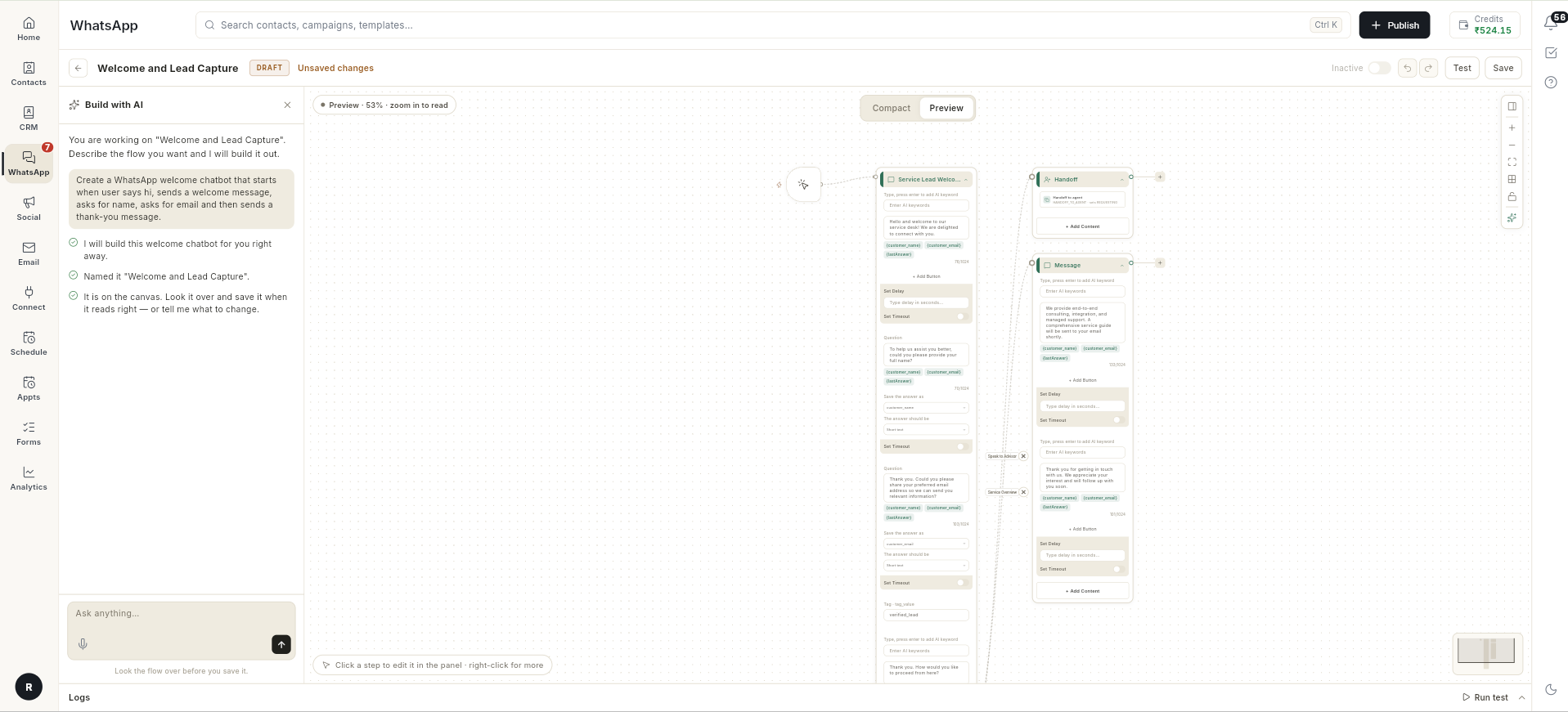
The AI may add extra steps, such as a tag or a Speak to Advisor button. Delete what you do not need.
-
Nothing is saved yet. Click Save, run the Test tab check for your keyword, then click Publish.
-
Send the keyword from your test phone and answer each question.
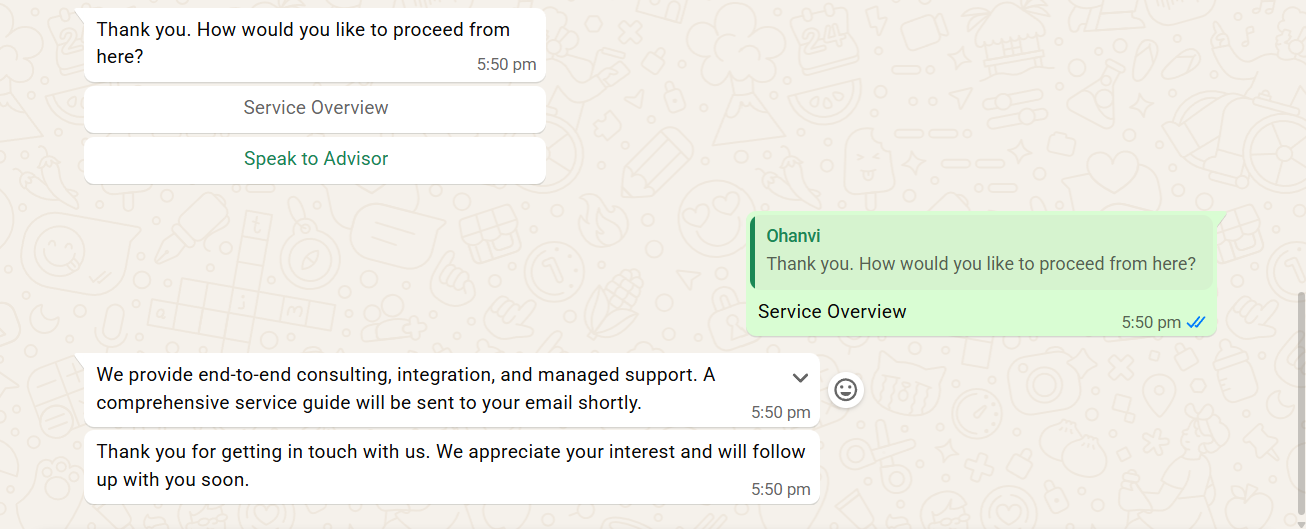
Video walkthrough
[VIDEO]
Troubleshooting
| Issue | Cause | Fix |
|---|---|---|
| Add at least one step before publishing | The flow has no steps yet. | Add a step, such as Send a message, then click Publish. |
| Add a step before testing | You clicked Run test on a flow with no steps. | Add at least one step, then click Run test again. |
| Could not publish — the step that needs fixing is marked on the canvas | A step is incomplete, for example a message with no text. The card shows a warning such as Empty message. | Open the marked card, fill in the missing part, then click Publish again. |
| Publish stops and the card shows "[flow]" listens for "[keyword]", which already starts "[other flow]" | Another chatbot already uses the same keyword. Hover over the warning on the card to read the full message. | Pick a keyword no other chatbot uses, then click Publish again. |
| No reply on WhatsApp | Another active flow uses the same keyword, so that flow answers instead. | Open Test tab → Check. If it names another chatbot, change your keyword and publish again. |
| Inbox shows Bot stopped — its last message could not be delivered | The flow that answered has an empty message step or an invalid message. | Open that flow, fill every empty message, save and publish. |
Closing message shows {Name} or {{Name}} instead of the customer's name |
The placeholder must be the attribute key in small letters with double braces. | Change to {{name}} and {{email}}, save, publish. |
| Changed text still not on WhatsApp | The change was saved but not published. The chip reads LIVE · NOT PUBLISHED. | Click Publish. Customers already mid-conversation finish on the old version. |
| Bot never replies to your test number | The contact is assigned to an agent or is in Requesting. | In Inbox, resolve the conversation, then send the keyword again. |
| Fourth button missing on WhatsApp | WhatsApp allows 3 reply buttons per message. | Use a List / Buttons block for more than 3 choices. |
| The bot asks Which session? and then says Nothing is available right now. Please try again later. | The Book a Demo template picks its sessions from Appts → Services, and no service has been added yet. | Open Appts in the left rail, select Services and click Add service. See Add services. Then send the keyword again. |