Add media, catalogue, product, template and form blocks to a chatbot
Add message blocks to a chatbot flow beyond plain text. At the end, your bot can send a file, your catalogue, one product, a group of products, an approved template or a form that opens inside WhatsApp.
Before you start
- You have a chatbot flow open in the builder. See Create a WhatsApp chatbot flow.
- For Catalogue, Single product and Multi product, a product catalogue is connected to your number. See Set up your WhatsApp catalog.
- For Template, you have at least 1 template with the status Approved. See Create a WhatsApp message template.
- For WhatsApp Form, you have a published form.
How message blocks work
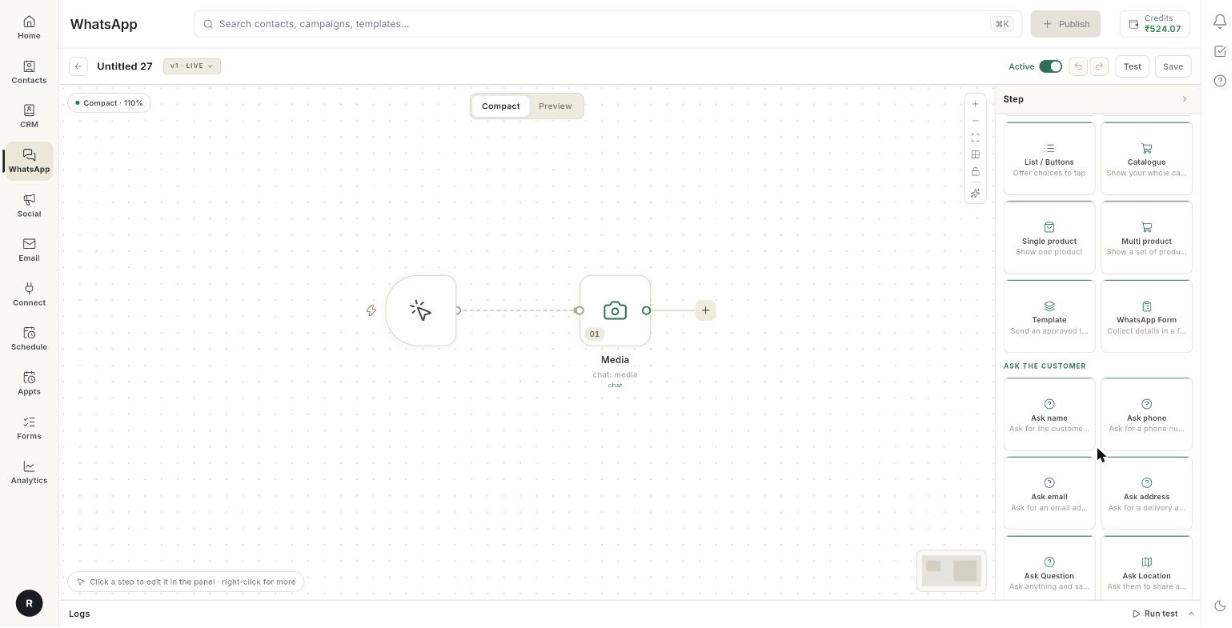
A flow card holds one or more blocks. Each block is one message the bot sends. Every block below sits in the Message types group of the step list.
| Block | What the customer gets |
|---|---|
| Text | A plain message, with up to 3 reply buttons. See Create a WhatsApp chatbot flow. |
| List / Buttons | A message with choices to tap. See Create a WhatsApp chatbot flow. |
| Media | An image, video, document or audio file, with a caption and up to 3 buttons. |
| Catalogue | Your whole catalogue. |
| Single product | One product from your catalogue. |
| Multi product | A set of products, grouped in sections. |
| Template | An approved template. |
| WhatsApp Form | A form the customer fills in without leaving the chat. |
Steps
Add a block to a card
-
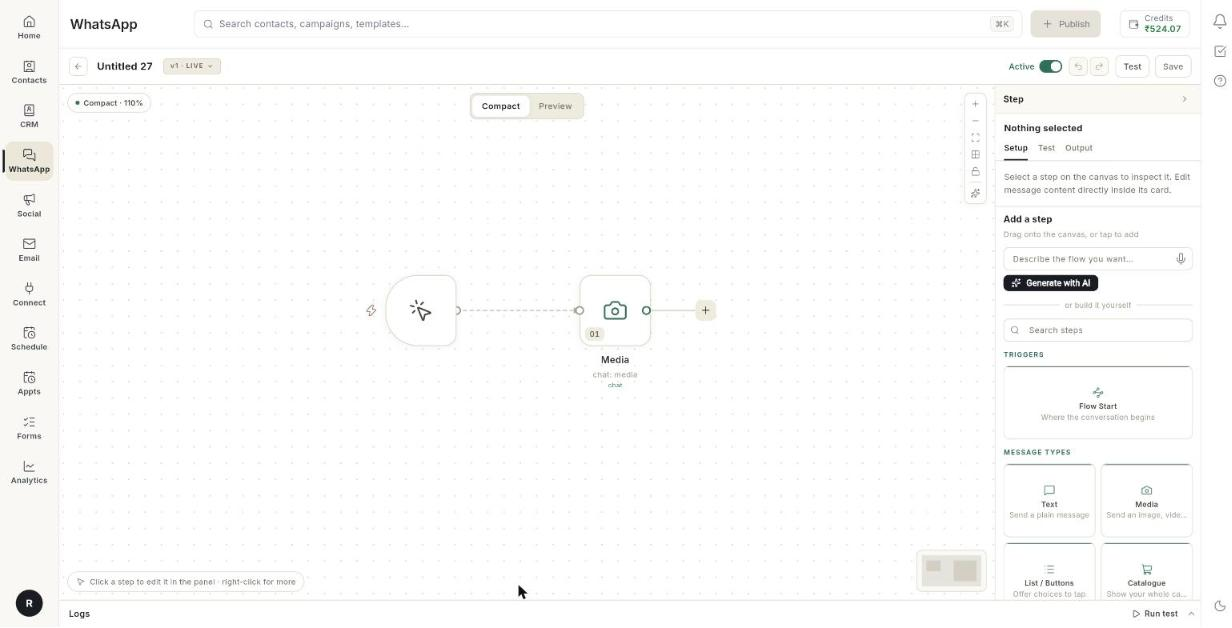
Open your flow in the builder.
-
Click + next to a step, or click + Add Content at the bottom of a card.
- Choose All steps.
-
Under Message types, choose the block you want.
-
Click the block in the card to open its fields in the right panel.
Keywords on message blocks
Most message blocks start with a Type, press enter to add AI keyword field. Type a word and press Enter to add it. [VERIFY: what AI keywords change in the flow]
Send media
- Add a Media block.
- Under Select media type, click the row to switch between IMAGE, VIDEO, DOCUMENT and AUDIO.
- In the upload box, browse for a file, or paste one. On the web, press Ctrl+V to paste.
- Wait for the preview to appear. Ohanvi stores the file for you.
- Type a Caption.... It can hold up to 1,024 characters.
- Optional: click + Add Button and type a label for each reply button.
- Optional: set Set Delay and Set Timeout. See Delay and timeout.
Button limits:
- Up to 3 buttons on a Media block.
- Button labels up to 20 characters.
- The + Add Button row disappears at 3 buttons.
Why the file is stored
The builder keeps its own copy of your file. A conversation that reaches this step days later still sends it.
Send your whole catalogue
- Add a Catalogue block.
- Type a Body. It can hold up to 1,024 characters.
- Optional: type a Footer, up to 60 characters.
Send one product
- Add a Single product block.
- Click + Add Product. The Choose a product list opens.
- Pick a product from the list.
- Type a Body, up to 1,024 characters.
- Optional: type a Footer, up to 60 characters.
If the list says No product catalogue is connected., connect a catalogue first.
Send a group of products
- Add a Multi product block.
- Type a Header. It can hold up to 20 characters.
- Type a Body. It can hold up to 1,024 characters.
- Optional: type a Footer, up to 60 characters.
- Click + Add Section to add a group of products. [VERIFY: how products are chosen inside each section]
- The card shows a View Items button. WhatsApp fixes its wording, so you cannot rename it.
A multi-product message can hold up to 10 items.
Send an approved template
- Add a Template block.
- Click Select Template. The Choose a template list opens.
- Pick a template. Only approved templates appear.
- If the template has a picture, video or document header, find Header media, shown by Meta.
- Click the row to choose the header type. The default is Image.
- Upload a file for the header.
To remove things from the block:
- Click the bin icon on the template name to remove the template. If a header file is attached, the tooltip reads Remove template and its media.
- Click the cross beside Header media, shown by Meta to remove only the file. The tooltip reads Remove media only, keep the template.
- Click the template name to swap it for another one.
If the list says No approved templates yet., create and submit a template first.
Send a WhatsApp form
- Add a WhatsApp Form block.
- Under Message above the form, type the message, for example
Please fill in your details. - Under Form, click Choose a form and pick a published form.
- Under Button label, type the words on the button that opens the form, for example
Open form. - Under Save answers as, type a name for the saved answers, for example
form.
If the list says No forms published yet., publish a form first.
Set a delay and a timeout
Some blocks hold timing settings at the bottom of the card.
- Find the grey timing area under the block.
- For Set Delay, type the seconds to wait in Type delay in seconds.... Only Media, Text and AI reply blocks have a delay.
- For Set Timeout, switch it on, then type minutes in Timeout after (minutes).
- A new Timed out exit appears on the card. Wire it to the step that runs when the customer does not reply.
Timeout is available on Media and WhatsApp Form blocks, and on list and ask blocks. A message that only informs has no delay.
Troubleshooting
| Issue | Cause | Fix |
|---|---|---|
| The character count under a field turns red. | The text is longer than the limit for that field. | Shorten the text. WhatsApp refuses an over-long body instead of cutting it. |
| + Add Button is missing. | The block already has 3 buttons. | Remove a button, or use a List / Buttons block for more choices. |
| No approved templates yet. | No template has the status Approved. | Create a template and wait for Meta to approve it. |
| No product catalogue is connected. | Your number has no catalogue. | Connect or sync a catalogue. |
| No forms published yet. | The form list is empty. | Publish a form, then reopen the block. |
| A media step sends nothing days later. | The file was not uploaded through the builder. | Upload the file again in the upload box. |