Set notification preferences
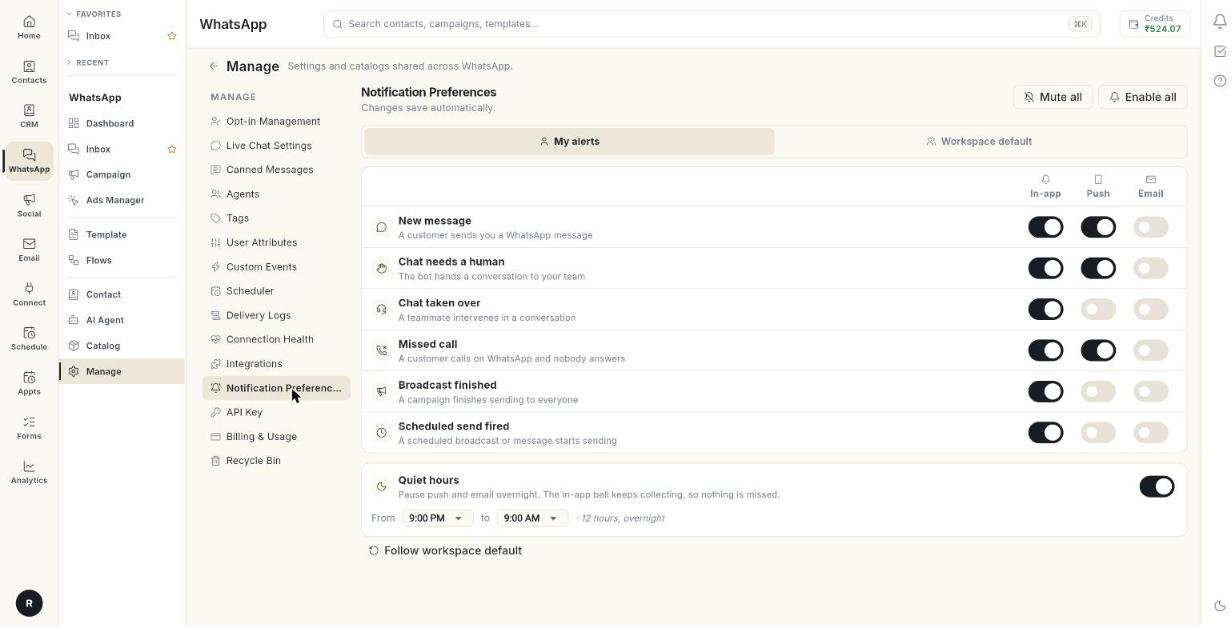
Notification Preferences decide how you hear about WhatsApp events such as a new message or a chat that needs a human. At the end, each event reaches you the way you want, and quiet hours keep your nights calm. Changes save as you make them.
Before you start
- You can open Manage in the WhatsApp panel. If not, ask your admin.
- To set the team default, your role needs permission to edit it.
The events and the three ways to be told
| Event | When it fires |
|---|---|
| New message | A customer sends you a WhatsApp message. |
| Chat needs a human | The bot hands a conversation to your team. |
| Chat taken over | A teammate intervenes in a conversation. |
| Missed call | A customer calls on WhatsApp and nobody answers. |
| Broadcast finished | A campaign finishes sending to everyone. |
| Scheduled send fired | A scheduled broadcast or message starts sending. |
| Way to be told | What it is |
|---|---|
| In-app | The notification bell inside Ohanvi. |
| Push | A push notification on your phone. |
| An email to your account address. |
Steps
Open Notification Preferences
- Open WhatsApp in the left rail, then select Manage.
-
Select Notification Preferences.
-
Keep My alerts selected to set your own alerts.
Choose how you hear about each event
- Find the event, for example New message.
- Switch In-app on or off.
- Switch Push on or off.
- Switch Email on or off.
The page says Changes save automatically. There is no save button. If a change fails, you see Couldn't save that change — please try again. Switch it again.
Turn every alert on or off at once
- Click Mute all to switch every alert off.
- Click Enable all to switch every alert on.
Set quiet hours
- Find Quiet hours. It pauses push and email overnight.
- Turn the switch on.
- Pick the time after From, for example 9:00 PM.
- Pick the time after to, for example 9:00 AM.
The in-app bell keeps collecting alerts during quiet hours, so you miss nothing.
Use the team default instead of your own choices
- Click Follow workspace default.
- In the window Follow the workspace default?, read the message. Your own choices are cleared.
- Click Follow default.
You then get whatever your admin sets, including later changes. Click Cancel to keep your own choices.
Set the default for the whole team
- Click Workspace default at the top.
- Set the events, the three switches and Quiet hours the same way as above.
The page then says What a teammate gets before they change anything themselves.
Troubleshooting
| Issue | Cause | Fix |
|---|---|---|
| Couldn't save that change — please try again. | The change did not reach the server. | Check your connection and switch it again. |
| You get no push alerts | Push is off, or Quiet hours is on. | Turn Push on, and check Quiet hours. |
| You get no emails | Email is off for that event. | Turn Email on for it. |
| Your choices keep changing | You chose Follow workspace default. | Switch the switches yourself to leave the default. |
| You do not see Workspace default | Your role cannot edit the team default. | Ask your admin. |