Flows
Flows are automatic chats. A chatbot flow answers customers for you, asks questions, and hands over to a person when needed. These guides explain every block in the builder and what to fill in.
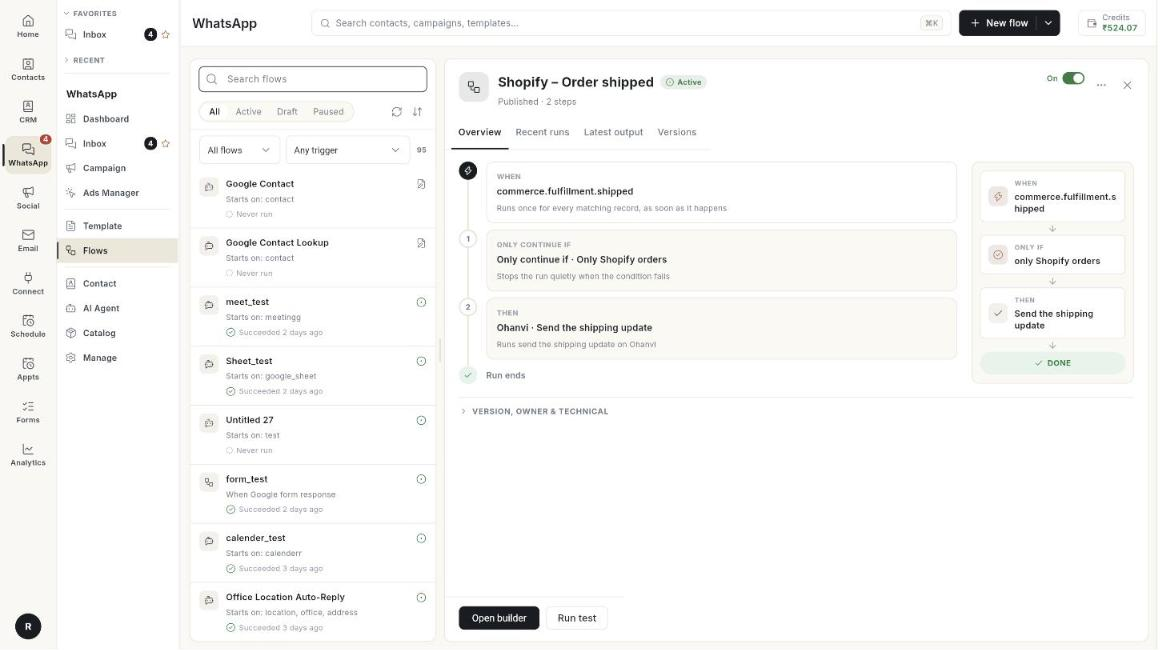
Where to find it: open WhatsApp in the left rail, then select Flows.
Guides
| Guide | Use it when |
|---|---|
| Understand the flow builder | You are new to the builder and want a tour of every part and every block group. |
| Create a chatbot flow | You are building your first chatbot. |
| Flow Start and triggers | You want to choose how a flow begins. |
| Text and List / Buttons blocks | You want the bot to send text or let customers pick from choices. |
| Media, product and form blocks | You want the bot to send pictures, products, templates or forms. |
| Ask name, phone, email, address, Delay and Condition | You want to collect details, pause, or branch on an answer. |
| Ask Question, Location, Media and Wait & Branch | You want the bot to ask for a location, a file or a reply. |
| Action blocks | You want the bot to tag a contact, call an API or hand over to an agent. |
| Action step and Condition rules | You want to run a ready-made action, call Zapier or Pabbly, or continue only if something is true. |
| Store action blocks | You want the bot to handle orders, returns and addresses. |
| Google Workspace steps | You want to use Google Sheets, Calendar, Meet or Contacts. |
| Integration and advanced steps | You want to split tests, call a webhook or save to CRM. |
| Test with the chat simulator | You want to try the flow before you publish it. |
Before you start
- Your WhatsApp number is connected to Ohanvi. See Connect your WhatsApp number.
- Your role has access to this screen. If you do not see it, ask your admin.