Create and manage contact groups
A contact group is a saved list of people that every module can target, such as a WhatsApp broadcast or a CRM list. At the end of this page you will have a group, filled by hand or by a rule, ready to broadcast to.
Before you start
- You can see Contacts in the left rail with Contact groups in its panel. If not, ask your admin to give your role access to CRM segments. See the Settings overview.
- To create, edit or delete groups, your role needs save access to CRM segments. Without it, New group, Edit and Delete do not appear.
- You have some contacts. See Manage contacts or Import and sync contacts.
Steps
Open your groups
-
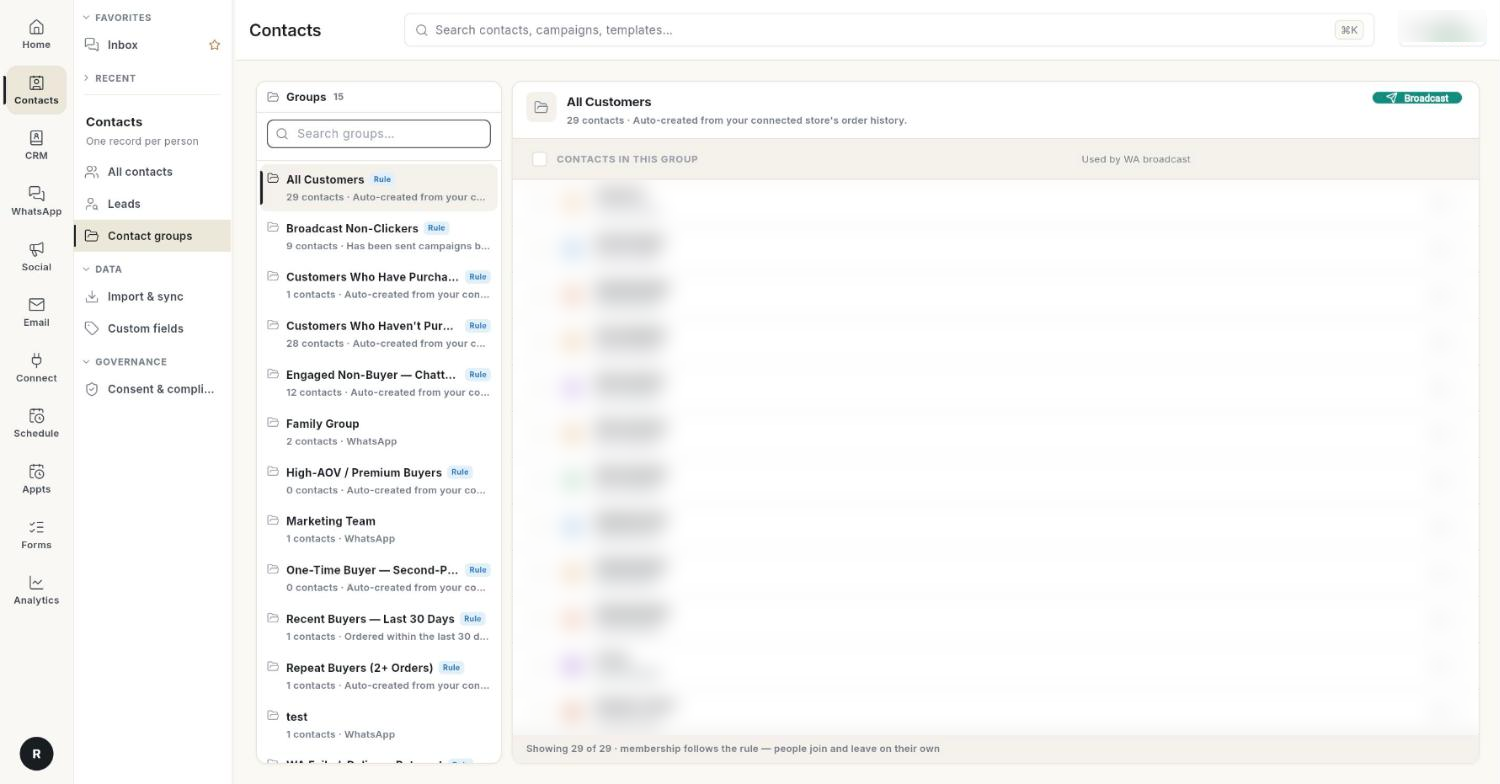
Open Contacts in the left rail, then select Contact groups.
-
The list on the left shows every group, from CRM and from WhatsApp. Type in Search groups… to find one.
- Click a group. Its members appear on the right, with a line saying which campaigns use it, for example Not used by a campaign yet.
Each group shows how it stays up to date:
| Badge | Meaning |
|---|---|
| Rule | Membership follows the rule — people join and leave on their own. |
| Auto | Kept up to date automatically, for example by a connected store. |
| No badge | Added by hand. |
Create a group
- Click New group. The New group dialog opens.
- In Name, type the group name, for example
Wholesale partners. - In What this group is, describe who belongs in it, for example
Account type: Wholesale. - Leave Fill it from a rule off to add people by hand.
- Click Save. The message Group created. appears.
Fill a group from a rule
Use a rule when membership should follow a field, such as everyone in one city.
- In the New group dialog, turn on Fill it from a rule.
-
In Rule (criteria JSON), type the rule. For example, all qualified leads:
json {"memberType":"LEAD","filters":{"leadStatus":"QUALIFIED"}} -
Set
memberTypetoCONTACTorLEAD. Underfilters, list one or more fields and the value to match. A person must match every filter.- For contacts:
city,state,country,department,accountId,leadSourceId. - For leads:
leadStatus,rating,city,state,country,industry,leadSourceId.
- For contacts:
- Click Save.
Values match exactly but ignore upper and lower case. For example, {"memberType":"CONTACT","filters":{"city":"Pune"}} finds contacts whose city is Pune or pune.
Add people to a group
- Open Contacts in the left rail, then select All contacts.
- Tick the checkbox next to each person. A bar shows how many are selected.
- Click Add to segment. The Add to which group? list opens.
- Pick the group. The message Added N to … confirms it.
Only groups filled by hand are offered. A rule group decides its own members.
You can also add people while importing from WhatsApp → Contact, where the Add to List field lets you pick a list.
Remove people from a group
- Open the group on Contact groups.
- Click the remove icon (Remove from group) on a member, or tick several members and click Remove from group.
- In the confirmation, click Remove. The contacts stay in Ohanvi; only their place in the group is removed.
A rule group shows Membership follows the rule instead. Change the rule to change who is in it.
Broadcast to a group
- Click Broadcast on the group. Ohanvi shows Opening the broadcast composer for … and opens the WhatsApp broadcast composer.
- Pick the same group as the audience in the composer. The group is not selected for you. See Send a WhatsApp broadcast campaign.
Edit or delete a group
- Open the group and click Edit. Change the name, description or rule, then click Save. The message Group updated. appears.
- To delete it, click Delete, then click Delete in the Delete group confirmation.
Deleting a group cannot be undone
The saved list is removed for every module that uses it. The people in it stay in your contacts.
Video walkthrough
[VIDEO]
Troubleshooting
| Issue | Cause | Fix |
|---|---|---|
| Could not save the group. | The name is already used by another group, the name is empty, or the rule JSON is not valid. | Use a unique name. Check the rule has memberType set to LEAD or CONTACT and only the filters listed above. |
| No hand-picked group to add them to. | You have no group filled by hand. | Create a group with Fill it from a rule off. |
| Membership follows the rule — … when removing someone | Rule groups have no hand-picked members. | Edit the rule instead. |
| CRM groups did not load or WhatsApp groups did not load | One source of groups could not be reached. | The other groups still work. Reload the page after a moment. |
| A rule group is empty | No one matches every filter, or a value is spelled differently. | Check the exact values on a few contacts, then edit the rule. |