Add funds to your account
Add funds (recharge credits) to keep sending WhatsApp messages, emails and AI replies. You pick an amount, Ohanvi adds 18% GST, and you pay through Razorpay by card, UPI, netbanking or wallet.
Before you start
- You are signed in to Ohanvi. See Sign in to Ohanvi.
- You know how credits work: 1 credit = ₹1, valid for one year. See Credits and billing in Ohanvi.
- You have a card, UPI app, netbanking or wallet ready to pay.
- You are using Ohanvi in a web browser at app.ohanvi.com. Payment does not work in the Ohanvi mobile app yet.
- To claim GST, you have added your GSTIN in Invoice Details before recharging.
Steps
- Click the Credits box in the top-right corner. The Credits page opens.
-
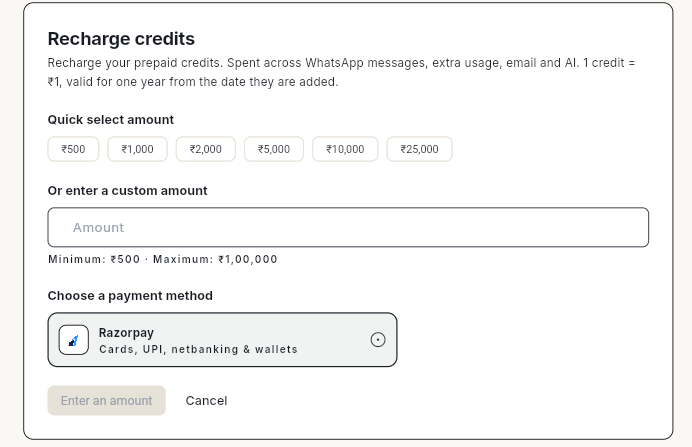
Click Recharge at the top of the page, or Recharge credits in the This cycle card. The Recharge credits window opens.
-
Choose an amount:
- Click a Quick select amount: ₹500, ₹1,000, ₹2,000, ₹5,000, ₹10,000 or ₹25,000, or
- Type your own amount in Or enter a custom amount. The minimum is ₹500 and the maximum is ₹1,00,000.
- If you have a coupon, type it in Coupon code and click Apply.
-
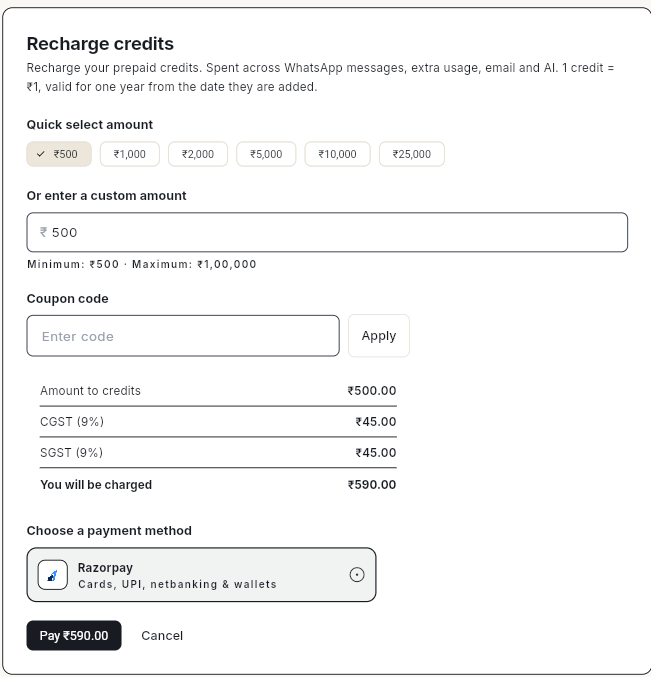
Check the breakdown before you pay:
Line Example for ₹500 Amount to credits ₹500.00 CGST (9%) ₹45.00 SGST (9%) ₹45.00 You will be charged ₹590.00 This example is for a business in the same state as Ohanvi, or one that has not added a GSTIN. If the GSTIN in your Invoice Details is from a different state, you see one IGST (18%) line (₹90.00 on ₹500) instead of CGST and SGST. The total is the same.
-
Under Choose a payment method, keep Razorpay selected.
- Click Pay ₹[total], where the total is the You will be charged figure (for example Pay ₹590.00 for a ₹500 recharge). Then complete the payment in the Razorpay window.
- When the payment succeeds, the credits are added to your Credit balance, and the recharge appears in Statement and Invoices on the Credits page.
Note
You receive credits equal to the amount you chose. GST is charged on top. A ₹500 recharge costs ₹590 and adds 500 credits.
Video walkthrough
[VIDEO]
Troubleshooting
| Issue | Cause | Fix |
|---|---|---|
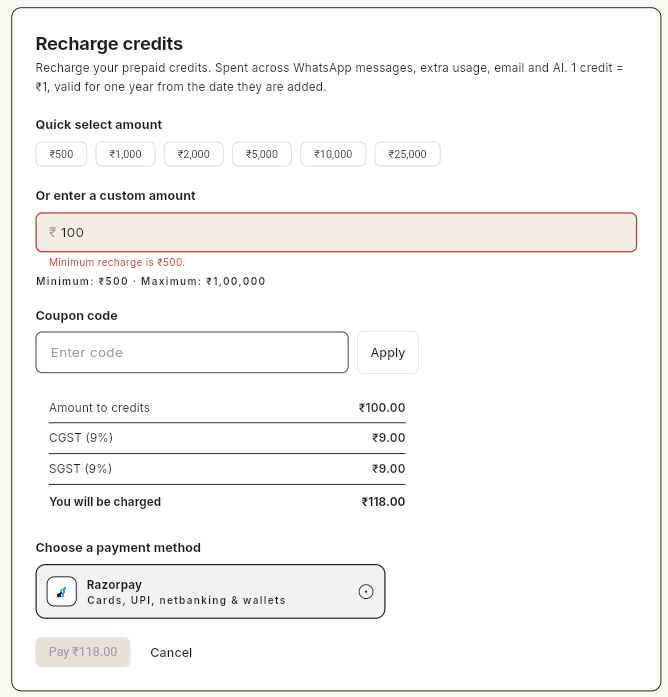
| Minimum recharge is ₹500. and the Pay button is grey | The amount is below ₹500. | Enter ₹500 or more. |
| Pay button shows Enter an amount | No amount is chosen. | Click a quick amount or type one. |
| '[code]' is not a valid coupon code. | The coupon is mistyped, expired or not meant for your account. | Check the code with whoever gave it to you, or remove it and pay without a coupon. |
| Online payment is only available on the web app right now. | You tried to pay from the Ohanvi mobile app. | Open app.ohanvi.com in a browser and recharge from there. |
| You want more than ₹1,00,000 | The maximum for one recharge is ₹1,00,000. | Recharge in more than one payment. |
| Money left your bank but the balance did not change | The payment is still being confirmed. | Wait a few minutes and refresh the Credits page. If it still does not show, contact support with the payment reference. |
| Invoice has no GSTIN | GSTIN was not added before the recharge. | Add your GSTIN in Invoice Details before your next recharge. |