Automate store messages with flows
Send WhatsApp messages to shoppers when something happens in your store, such as a new order or an unfinished checkout. At the end, the store automations you want are checked, tested and running on real orders.
Before you start
-
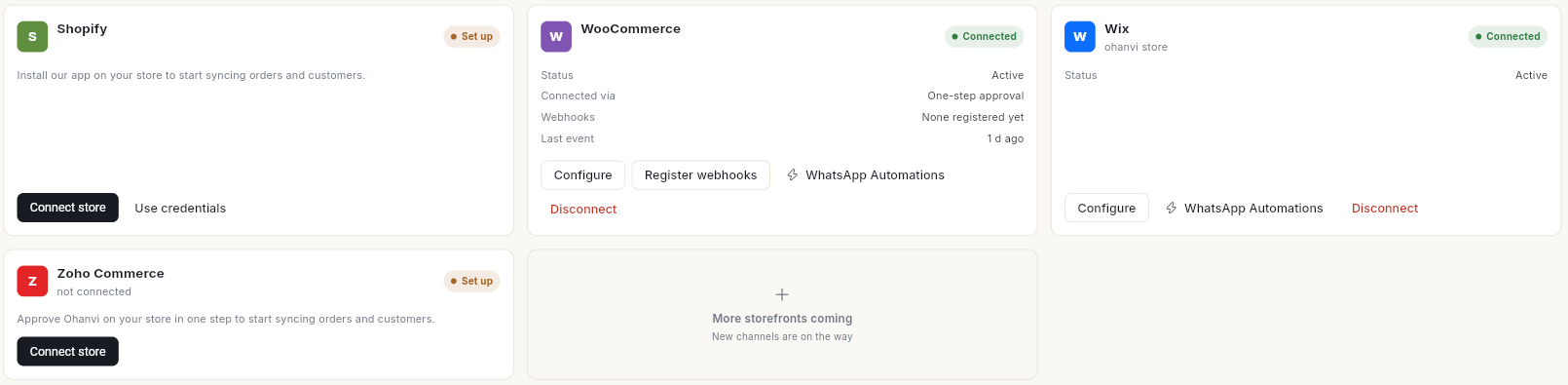
Your Shopify or WooCommerce store is connected in Connect → Store Connections. A connected store shows Connected and a WhatsApp Automations link.
-
Your WhatsApp number is connected.
- The WhatsApp templates each automation sends are approved by Meta. Check them in WhatsApp → Template.
- You can open Flows and publish flows. See Understand flows and the Flows list.
The ready-made store automations
When you open Flows, Ohanvi adds 15 store automations as drafts. They send nothing until you publish them. Each one works for Shopify and WooCommerce stores.
| Automation | What it does |
|---|---|
| Welcome new customer | Welcomes a shopper the first time they become a store customer. |
| Browse nudge | Nudges a shopper about a product they looked at and did not buy. |
| Order confirmation | Sends the order confirmation when a new order is placed. |
| Payment received | Confirms the payment when an order placed unpaid, such as cash on delivery or a bank transfer, is marked paid. |
| Abandoned checkout recovery | Messages a shopper 45 minutes after they leave a checkout, then after a day and 2 more days. Stops as soon as they order. |
| Payment failed | Tells the shopper their payment did not go through. |
| Order shipped | Sends tracking details when the order is fulfilled. |
| Out for delivery | Tells the shopper their parcel is out for delivery today. |
| Delivered confirmation | Confirms delivery once the carrier reports it. |
| Delivery attempt failed | Tells the shopper the courier could not deliver, so they can sort out the next attempt. |
| COD verification | Asks the shopper to confirm a cash-on-delivery order before dispatch. |
| Cancellation update | Tells the shopper their order was cancelled. |
| Refund update | Tells the shopper a refund was issued on their order, and the amount refunded. |
| Review request | Asks for a review 3 days after delivery. |
| Reorder reminder | Reminds the shopper to reorder a month after delivery. |
Welcome new customer, Browse nudge and Reorder reminder are marketing messages. Send them only to contacts who opted in.
Payment received runs only when an order changes from unpaid to paid. A card order that is paid when it is placed gets Order confirmation only.
Added to existing accounts
If your account already had the store automations, Payment received, Refund update and Delivery attempt failed are added as drafts the next time you open Flows. Your existing automations keep their names, so the cancellation one may still read Cancellation and refund update. It sends cancellations only.
Steps
Find the store automations
- Open WhatsApp in the left rail, then select Flows.
- Open the kind drop-down and choose Automations.
- Click the Draft pill. The store automations are listed with the other drafts.
If your store or WhatsApp is not connected yet, the row's status reads Inactive. Its panel shows a note, such as Connect WhatsApp to turn these automations on., and a Connect store or Connect WhatsApp button.
Check and finish an automation
- Click the automation's row, then click Open builder.
- Click each step and read its Setup tab. Check the template name and the values it sends.
- Fill in any field that is empty. For example, Review request needs your review link, and Welcome new customer needs your store name. Copy the review link with Copy link on Google Reviews → Review page. See Get more Google reviews.
- For COD verification, check that the condition matches how your checkout names cash on delivery. The draft looks for
Cash on Delivery. - Click Save.
Publish and turn it on
- Click Publish in the top bar.
- Read the message. Published and live — new runs use this version. means it now runs on real orders.
- Repeat for each automation you want.
You can also publish from the list: click the row, then click Publish & turn on.
Live automations message real shoppers
From now on, each matching store event sends a WhatsApp message. Messages already sent cannot be taken back.
Build your own store automation
- Click New flow, then Add first step…, then Run by hand.
- In When this runs, choose When something happens here.
- In Which event, choose a store event, for example A new store order is placed, An order is paid, A refund is issued or A shopper leaves a checkout unfinished. The panel shows which store the event comes from.
- Add an Action step and choose Send a WhatsApp template. Set Send to to the shopper's phone from the trigger, and type the Template name.
- Add a Wait or a Continue only if… step if you need one. To check that the shopper has not ordered since, add Check if they ordered recently before the condition.
- Save and publish. See Build an automation flow.
Use store actions inside a chatbot
A chatbot can look up orders during a WhatsApp conversation. In the builder, click All steps and look under Store actions:
- Order status, Cancel order, Reorder, Confirm address, COD check, COD to prepaid, Book appointment
Each one has an outcome for each result, such as found or not found, that you wire to the next message. To let the customer pick an order first, add Pick a recent order or Pick an open order from Advanced. For building the chatbot, see Create a WhatsApp chatbot flow.
Video walkthrough
[VIDEO]
Troubleshooting
| Issue | Cause | Fix |
|---|---|---|
| Connect WhatsApp before publishing — this flow sends a WhatsApp message and there is no WhatsApp number to send it from. | WhatsApp is not connected. | Click Connect WhatsApp in the flow's panel, connect, then publish. |
| Connect your store before publishing — nothing raises this flow's trigger until a store is connected. | No store is connected. | Click Connect store, connect Shopify or WooCommerce, then publish. |
| The template '…' is not approved by Meta yet, so this flow cannot send it. Wait for approval, then publish. | The template is missing or waiting for Meta. | Create or fix the template in WhatsApp → Template, wait for approval, then publish. |
| Out for delivery, Delivered confirmation, Delivery attempt failed, Review request or Reorder reminder never run | These run only when your courier reports delivery updates to the store, or a shipping integration sends them. Many couriers report only that the order was shipped. | Use Order shipped instead, or use a courier or shipping integration that reports delivery. |
| Payment received does not run for a paid order | The order was already paid when it was placed. | No fix needed. That shopper gets Order confirmation. |
| The template '…' is not approved by Meta yet… on Payment received or Delivery attempt failed | The templates wa_ecom_payment_received and wa_ecom_delivery_issue are new and still waiting for Meta. |
Check them in WhatsApp → Template, wait for approval, then publish. |
| COD shoppers do not get the COD message | Your checkout names cash on delivery differently. | Open COD verification, change the condition's value to match your checkout, then publish. |
| A deleted store automation does not come back | Archived automations are not created again. | Build it yourself from the store event, or duplicate a similar one. |