Inbox
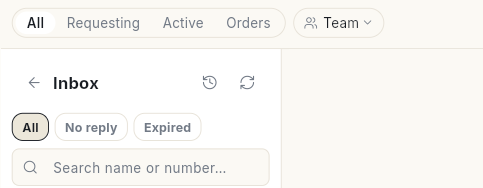
The Inbox is where your team chats with customers. You can reply, assign chats, move them on a board, handle store orders, translate messages and make calls.
Where to find it: open WhatsApp in the left rail, then select Inbox.
Guides
| Guide | Use it when |
|---|---|
| Use the inbox | You reply to customers, assign chats or add notes. |
| Run several WhatsApp numbers | You have more than one number and want to see which one a chat is on. |
| Fix the 24-hour window error | A reply is refused although the chat shows time left. |
| Use the Board and List views | You want to see all chats sorted into lanes. |
| Handle store orders | A customer asks about an order and you want to act on it. |
| Send files and voice notes | You want to send a photo, a file, a voice note or an AI-written reply. |
| Speak and translate | You want to reply in the customer's language by speaking or typing in yours, or read a message in another language. |
| Use WhatsApp Calling | You want to call customers or take their calls. |
Before you start
- Your WhatsApp number is connected to Ohanvi. See Connect your WhatsApp number.
- Your role has access to this screen. If you do not see it, ask your admin.