Add WhatsApp agents
Add the people who answer WhatsApp chats, each with their own login. At the end, your agents and managers can sign in and reply from the inbox, and chat rules decide which conversations each agent can take.
Before you start
- You are the organisation admin. Only the admin can create agents.
- You can see Manage in the WhatsApp panel. If not, ask your admin. See Manage team members, roles and permissions.
- You have a free seat. The Quota chip shows seats used, for example Quota: 3 / 10 agents.
Steps
Open your team
- Open WhatsApp in the left rail, then select Manage.
-
Select Agents. The list of your team opens, with each person's role. The chip at the top shows how many agents you use out of your plan, for example Quota: 2 / 10 agents. Click a person to see their details on the right.
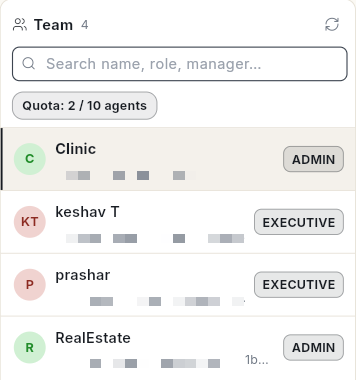
There are 2 roles:
| Role | What they see |
|---|---|
| Manager | Their executives' chats and data. |
| Agent (shown as Executive) | Only their own chats. Their WhatsApp panel shows only Inbox. |
Add an agent
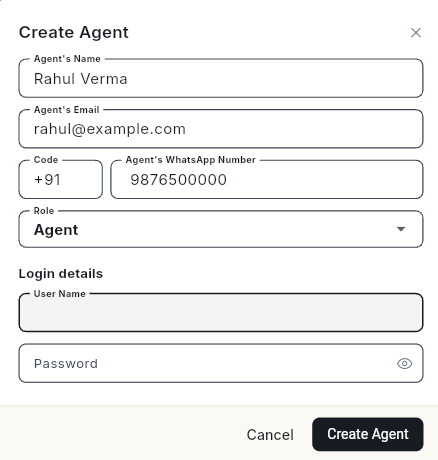
- Click Add Agent. Create Agent opens.
- Fill in Agent's Name, Agent's Email, the country Code and Agent's WhatsApp Number.
- In Role, pick Agent or Manager.
- For an agent, pick a Manager (optional). The field shows only when your team has a manager.
-
Under Login details, type a User Name and a Password.
-
Click Create Agent. The message Agent created — they can sign in now. appears.
- Share the user name and password with the agent.
The password needs 8 to 64 characters, with an uppercase letter, a lowercase letter, 2 digits and a special character. It must not contain the user name, name or email.
To let someone set their own password instead, click Invite via Link. See Invite teammates with a link.
Import your team
- Click Import Team. The WhatsApp Team upload opens.
- Download the sample file. It has the columns Name, Username, Email, Password, Country Code, Phone Number, Role, Manager Username and Organisation.
- Fill in one row per person. Use MANAGER or EXECUTIVE for Role.
- Upload the file.
Set chat rules
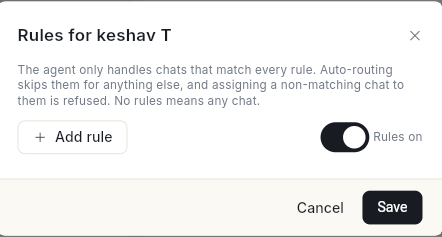
Chat rules limit an agent to chats that match every rule. With no rules, the agent can take any chat.
-
Click the agent, then click Set chat rules at the top. Rules for and the name opens.
-
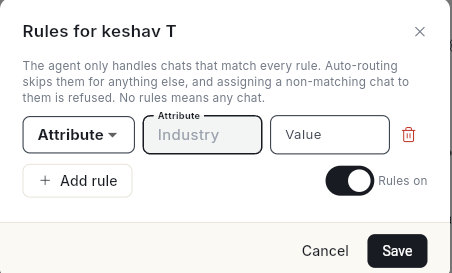
Click Add rule. A rule row appears, set to Attribute at first. Open the drop-down and pick Tag to type a tag, or keep Attribute and type the attribute and its Value. Click the bin icon to remove a rule.
-
Make sure the switch shows Rules on.
- Click Save. The message Rules saved for and the name appears.
Auto-routing skips an agent for chats that do not match. Assigning a non-matching chat to them is refused.
Change or remove an agent
- Click the agent.
- To change the role or manager, click Change role / manager, make the change, then click Save.
- To remove the agent, click Remove agent. Confirm with Remove agent.
Removing an agent
Their login is disabled and their roles are revoked. Chats assigned to them go back to the unassigned queue.
Video walkthrough
[VIDEO]
Troubleshooting
| Issue | Cause | Fix |
|---|---|---|
| Agent quota reached (10/10). Remove an agent or request a higher quota to add more. | All seats are used. | Remove an agent you no longer need, or ask for a higher quota. |
| This username is already taken. Please choose another. | Another login uses that user name. | Pick a different User Name. |
| Name, username and password are required. | A required field is empty. | Fill in the name, User Name and Password. |
| Password must contain an uppercase letter, at least 2 digits, a special character. | The password is too weak. The message lists what is missing. | Add what the message asks for. |
| This password is too common and easy to guess (like Password@123). | The password is on a common-password list. | Use a few unrelated words, for example Mango#River42Lamp. |
| Only the organisation admin can create agents. | You are not the admin. | Ask your organisation admin to add the agent. |