Read the ads performance report
Open the Performance report to see how many leads each ad brought, what happened to the messages you sent them, and what the ads cost. At the end, you can read every card, check your ad credits and add money. Takes about 5 minutes.
Before you start
- Your Facebook account, Page, ad account and WhatsApp number are connected. See Set up Ads Manager.
- You have at least 1 ad that has produced a lead. See Create an ad.
- You can see Ads Manager in the WhatsApp panel. If not, ask your admin.
What the report shows
The report has 5 parts, from top to bottom: the summary cards, the Meta spend — last 30 days strip, the Credits & billing card, the New leads per day chart, and one card for each ad.
Some figures come from Ohanvi and some from Meta. A dash (—) means Meta did not return that figure.
Steps
Open the report
- Open WhatsApp in the left rail, then select Ads Manager.
-
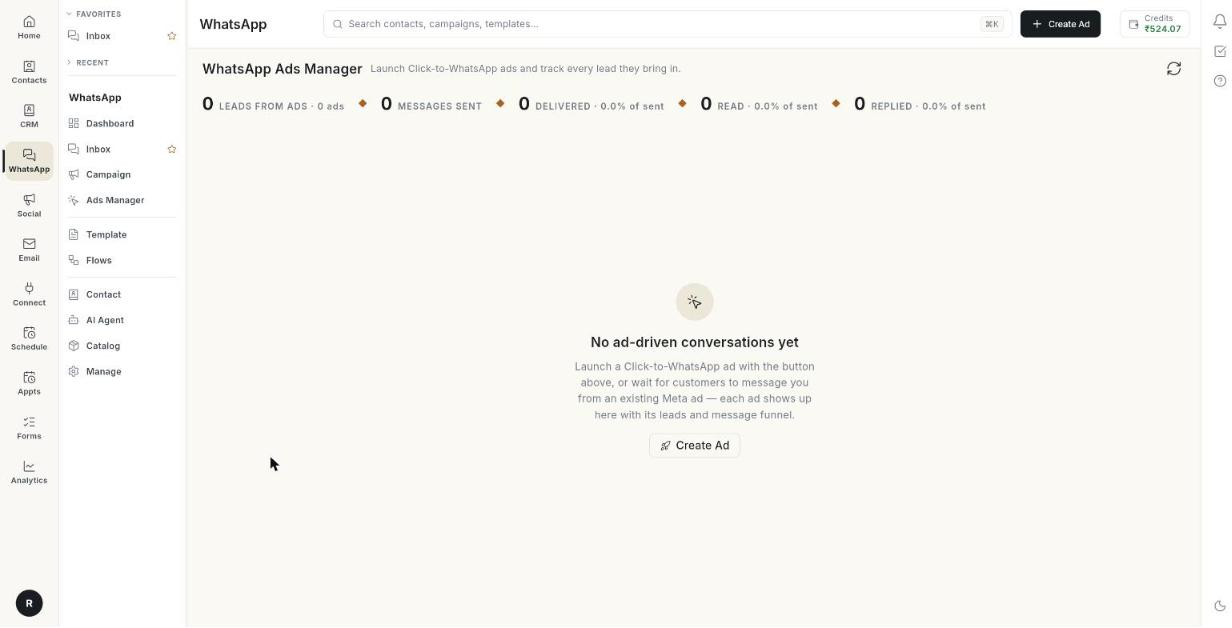
In the left column, under Reports, click Performance report. The page WhatsApp Ads Manager opens.
-
Click the refresh icon at the top right to load the latest numbers.
If no ad has produced a lead yet, the page reads No ad-driven conversations yet. Click Create Ad or wait for customers to message you from an ad.
Read the summary cards
The cards at the top add up all your ads.
- Read Leads from ads. It counts people who messaged you from an ad. The line below shows how many ads produced them.
- Read Messages sent. It counts messages you sent to those leads.
- Read Delivered. It counts messages that reached the lead's phone. The line below shows the share of messages sent.
- Read Read. It counts messages the lead opened. The line below shows the share of messages sent.
- Read Replied. It counts messages the lead answered. The line below shows the share of messages sent.
- Read Ad spend. It shows the money the ads spent in the last 30 days.
- Read Cost per lead. It is ad spend divided by leads. The line below shows how many chats Meta counted.
Ad spend and Cost per lead appear only when your Meta ad account is connected. A missing card means no spend data came back. It does not mean the leads were free.
Read the Meta spend strip
Below the cards, the strip Meta spend — last 30 days shows Meta's own figures.
- Read SPEND. It is the money spent on the ad account.
- Read IMPRESSIONS. It is how many times your ads were shown. One person can add more than one.
- Read CLICKS. It is how many times people clicked your ads.
- Read CTR. It is clicks divided by impressions, as a percentage.
- Read CONVERSATIONS. It is the WhatsApp chats Meta says your ads started.
- Read COST / CONVERSATION. It is spend divided by conversations.
Two lead counts can differ
Leads from ads counts contacts Ohanvi recorded. CONVERSATIONS counts chats Meta recorded. The two can differ by a few. [VERIFY: reason for the difference]
Check your credits and billing
The Credits & billing card shows how your ad spend is paid.
- Read the status badge, for example ACTIVE. It shows the state of the Meta ad account. Any other value is shown in amber.
- Read Credits balance (shared). These are your prepaid credits. Every product spends from the same balance.
- Read Old ads credits. This is a leftover balance from the earlier ads wallet. It shows only when it holds money.
- Read Meta payment method. It shows the card or UPI on the ad account, or Not added yet.
- Read Total ad spend. This is all the money the ad account has spent.
- Read Unbilled spend. This is spend that Meta has not billed yet.
Add money to your ad credits
- On the Credits & billing card, click Add money. The window Add money to Ads Credits opens.
- Type an Amount (₹). The minimum is ₹10.
- Click Pay with Razorpay.
- Pay by UPI, card, netbanking or wallet.
- Come back and click I have paid — check. The balance updates.
If a recharge is waiting, an amber row reads Recharge of … is pending payment. with Pay now and I have paid — check.
No Add money button
If your plan is billed through Shopify, Add money is hidden. Your ad spend is added to your monthly Shopify bill. Meta still charges the ad account's own payment method for delivery.
Add a Meta payment method
- On the Credits & billing card, click Add Meta payment method. If one exists, the button reads Meta billing.
- Meta's payment page opens. Add a card or UPI.
Ads need a payment method on Meta
Ads run only after a payment method is added on the Meta ad account. Meta's page accepts card and UPI.
Set a spend cap with Pay with Ohanvi
The Pay with Ohanvi card sits under Credits & billing. It lets Meta bill Ohanvi, and the spend comes off your credits.
- Click Turn on to start. Click Turn off to stop.
- Click Change cap to set the Spend cap. This is the most the account may spend. Meta stops delivery when the cap is reached.
- Click Pause to stop delivery for now. Click Resume to start again.
Read the leads per day chart
- Find New leads per day. Each bar is 1 day.
- Hover a bar. Read the date and the number of leads.
- Read the first and last dates under the chart.
Read an ad card
Each ad that produced a lead has its own card.
- Read the ad headline and Ad ID. The big number is the leads from this ad.
- Click View leads to open the list. See Manage ad leads.
- Read the message funnel from left to right. Use the chips in the table below.
- Read the money row when spend is available. It shows Spent, Per lead, and Per chat when Meta counted chats.
- Read Read rate. It is the share of sent messages that were read.
- In the lead list, read Free to reply with the time left, for example · 3h left. It shows while a lead's 72-hour ad window is open. You can answer in this window without a paid template.
| Chip | What it counts |
|---|---|
| Sent | Messages you sent to this ad's leads. |
| Delivered | Messages that reached the phone. |
| Read | Messages the lead opened. |
| Replied | Messages the lead answered. |
| Clicked | Button or link clicks inside your messages. [VERIFY: click source] |
| Failed | Messages that did not go through. Shown only when above 0. |
Troubleshooting
| Issue | Cause | Fix |
|---|---|---|
| Could not load ads report | The report did not load. | Click Retry. |
| No ad-driven conversations yet | No lead has come from an ad in this report. | Create an ad, or wait for a customer to message you from one. |
| Ad spend and Cost per lead cards are missing | The Meta ad account is not connected, or Meta returned no spend. | Finish Setup. See Set up Ads Manager. |
| Add money is missing | Your plan is billed through Shopify, or credits did not load. | Pay through your Shopify bill. Otherwise refresh the page. |
| Minimum recharge is ₹10. | The amount is below 10. | Type 10 or more. |
| Could not start the recharge | The payment page did not open. | Try again. If it repeats, contact support. |
| Could not check payment status. | The payment check did not finish. | Click I have paid — check again after a minute. |
| Could not load leads | The lead list did not load for that ad. | Close the window and click View leads again. |