Use the WhatsApp inbox
Answer your customers' WhatsApp messages as a team. At the end of this page you can pick up a waiting chat, reply inside the 24-hour window or with a template, hand the chat to a teammate, and give it back to the bot when you are done.
Before you start
- Your WhatsApp number is connected. See Connect your WhatsApp number.
- You can see Inbox in the WhatsApp panel. Agents with the WhatsApp executive role see only Inbox. If you see nothing, ask your admin. See Manage team members, roles and permissions.
- To assign chats, you are an admin or a manager. Executives cannot assign.
Steps
Find a conversation
- Open WhatsApp in the left rail, then select Inbox.
-
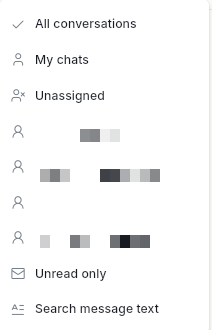
Click Team above the list and pick All conversations, My chats or Unassigned. Managers and admins also see each teammate, with their role, to open that person's inbox.
-
Use the tabs above the list:
Tab What it shows All Every conversation, newest first, including broadcasts still waiting for a reply and closed chats. Requesting The customer replied and nobody is handling it yet. These wait for a person. Active The bot is handling the chat, or an agent took it over. Taken-over chats show Intervened by and a name. Orders Chats with store activity, such as an order placed, shipped or cancelled, or an abandoned cart. Shown only when a store is connected. 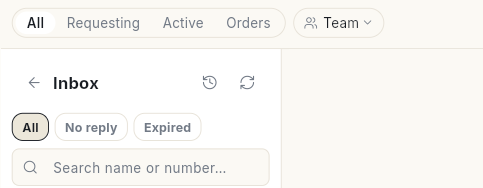
-
To narrow the list, pick All, No reply or Expired under Inbox, type in Search name or number…, or pick Unread only or Search message text in the Team menu.
- Click a conversation. The chat opens on the right.
To switch the layout, pick List or Board. To find an old chat, open Chat history.
Take over a chat from the bot
- Open a chat in Requesting. It shows This chat is waiting for a human. Click Intervene to take over and reply.
-
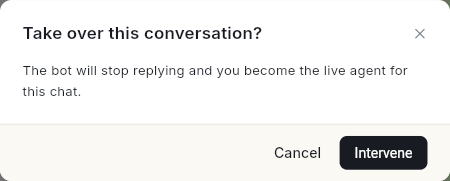
Click Intervene at the top right of the chat. Take over this conversation? appears: the bot will stop replying and you become the live agent. Click Intervene again to confirm, or Cancel.
-
The bot stops replying to this chat. You are now the live agent.
In an Active chat, typing a reply takes the chat over too. It stays yours until someone resolves it.
Reply inside the 24-hour window
WhatsApp lets you send free-text messages for 24 hours after the customer's last message. The time left shows in the chat header. It turns amber in the last hour. Any new message from the customer resets it to 24 hours.
- Type your reply in the composer at the bottom.
- To add more, click Add to this message and pick Document, Photo or video, Template, Emoji, Bold, Italic or Schedule this reply.
- Press Enter or click Send Reply.
Know which number you reply from
If you run several WhatsApp numbers, every reply leaves from the number the customer last wrote to. You do not pick it. WhatsApp's 24-hour window belongs to one customer and one of your numbers, so a reply from any other number would be refused.
- Look at the chat header. It says which number the customer wrote to.
- Look at the small letter badge under each message. It shows the number the message came in on, or went out from. Hover it to read the label and the phone number, for example
Sales · +91 98100 45210. -
Look above the composer. It reads Replying from, then the badge, the label and the number.
The top of the inbox lists your numbers with their badges. A grey badge with ? is a number that is not connected in Ohanvi.
If the customer wrote to a number that is not connected, the composer is turned off and reads This customer wrote to a number that isn't connected. Click Connect, type a Label and click Connect. Then reply. See Run several WhatsApp numbers.
Reply after the 24-hour window closes
When the window is closed, the composer shows 24-hour window closed, how long ago the customer last replied, and Only approved templates deliver now — a reply reopens the chat for 24 hours.

- Click Send Template. The template list opens.
- Search with Search templates… and pick an approved template.
- Fill in each field under Variables, then click Send. The message Template sent. appears.
Clicking Write anyway unlocks the composer, but WhatsApp does not deliver free text outside the window. Sending a template does not take the chat over, so a flow started by the template can still run.
Use quick replies
- In the composer, type / followed by part of a shortcut. The Canned messages list opens.
- Pick a reply. It is inserted into the composer. Filter by All, Starred, Text, Image, Video or Doc.
- Star a reply to find it faster later.
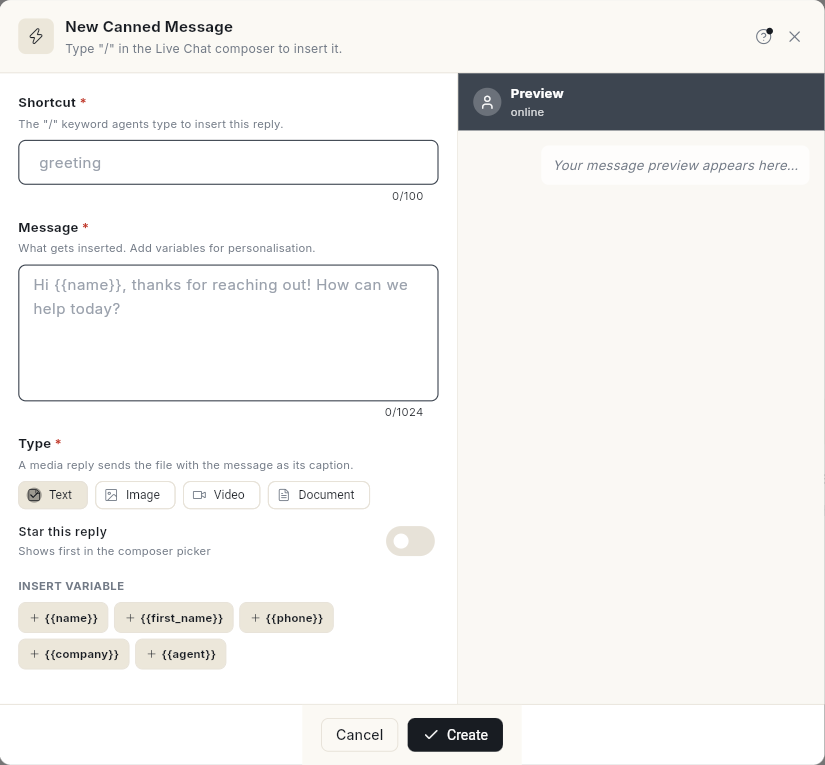
To create quick replies, open WhatsApp → Manage → Canned Messages, then click New quick reply. New Canned Message opens. Give it a Shortcut and a Message, pick a Type (Text, Image, Video or Document), then click Create. Click a chip under Insert variable, such as {{name}} or {{agent}}, to personalise it. Turn on Star this reply to show it first in the picker.
To draft with AI, click Help me write, or click Rephrase with AI to rewrite your draft.
Assign a chat to a teammate
- In the chat header, click the owner chip. It shows Intervene, You or the owner's name.
- Type in Search teammate or team, then pick a person.
You can also right-click a conversation in the list and choose Assign to teammate. In Assign conversation, pick a person or click Unassign. Chats only go to agents whose chat rules match. See Add WhatsApp agents.
Add notes and tags
- Click the contact's name at the top of the chat. The profile panel opens.
- Under Tags, type in Add a tag… and press Enter.
-
Click Notes to open it, type in Add a note…, then click Add note. Only your team sees notes.
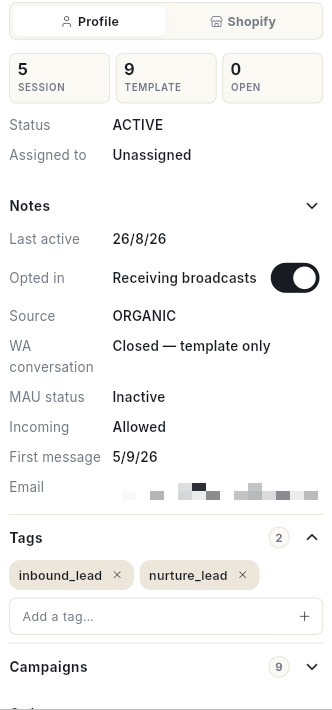
The profile also shows the WA conversation state (Open — free replies deliver or Closed — template only), opt-in, orders, campaigns and Custom attributes.
Resolve a chat
- When you are done, click the owner chip in the chat header.
- Click Done — hand back to the bot, or press E. The chat returns to the bot.
To give the chat back to the queue without resolving it, click Release this chat. Right-click a conversation for Resolve — back to bot, Mark as read, Pin to top, Flag for follow-up and Close chat.
Set auto-resolve, welcome messages and working hours
- Open WhatsApp in the left rail, then select Manage.
- Select Live Chat Settings.
-
Set what you need:
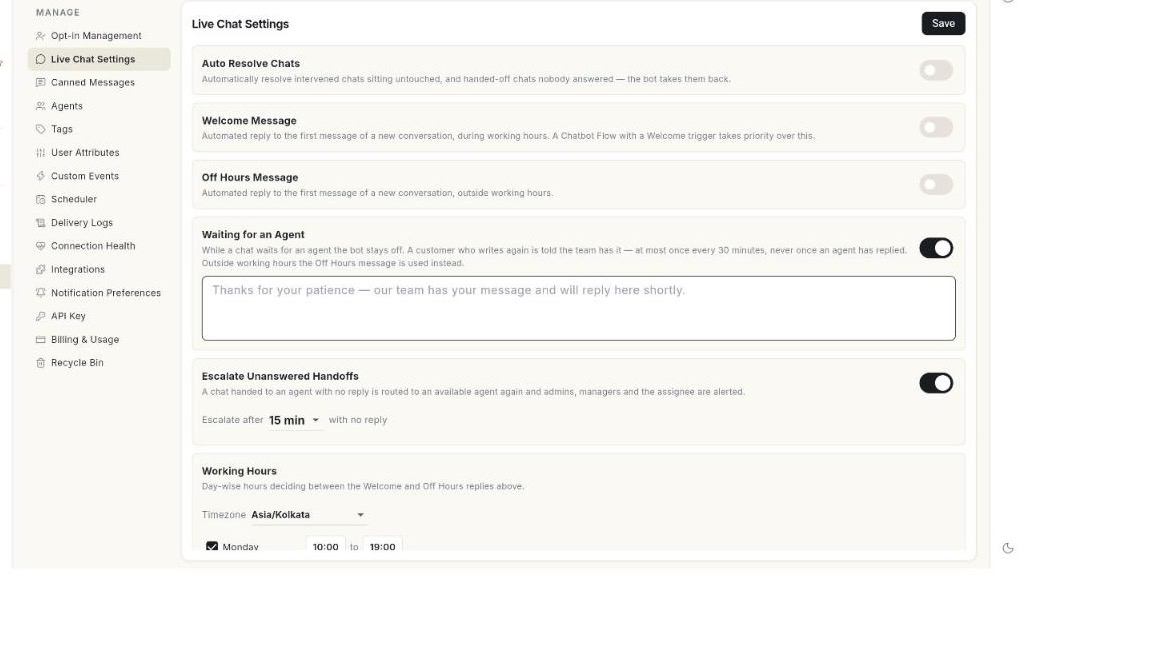
Setting What it does Auto Resolve Chats Resolves taken-over chats left untouched, and handed-off chats nobody answered. Pick Resolve after 1 to 72 hours of inactivity. The default is 24 hours. Welcome Message Replies to the first message of a new conversation during working hours. A chatbot flow with a Welcome trigger takes priority. Off Hours Message Replies to the first message of a new conversation outside working hours. Waiting for an Agent Tells a customer who writes again that the team has the chat. Sent at most once every 30 minutes, and never after an agent replies. Escalate Unanswered Handoffs Routes a handed-off chat with no reply to another available agent, and alerts admins, managers and the assignee. Pick Escalate after 5 to 60 minutes. The default is 15 minutes. Working Hours Pick a Timezone and set hours per day, or mark a day Closed. Each number can also have its own hours. See Run several WhatsApp numbers. -
Click Save. The message Live chat settings saved. appears.
Tell waiting customers that the team has their chat
Once the bot hands a chat to a person, the bot stays silent until the chat is resolved. This setting decides what a customer who writes again sees in the meantime.
- Open WhatsApp in the left rail, then select Manage.
- Select Live Chat Settings.
-
Turn on Waiting for an Agent. A text box opens.
-
Type the reply. The box shows an example:
Thanks for your patience — our team has your message and will reply here shortly. - Click Save. The message Live chat settings saved. appears.
The reply goes out at most once every 30 minutes, and never once an agent has replied. Outside working hours, the Off Hours Message is used instead.
Escalate chats that nobody answers
When a chat is handed to an agent and nobody replies, Ohanvi can route it to another agent and alert your team.
- In Live Chat Settings, turn on Escalate Unanswered Handoffs. The Escalate after list opens.
- Pick Escalate after 5, 10, 15, 30 or 60 min. The default is 15 min.
- Read the end of the line, which says with no reply.
- Click Save. The message Live chat settings saved. appears.
From then on, a handed-off chat with no reply goes to an available agent again. Admins, managers and the assignee are alerted.
Turn it off
Turn Escalate Unanswered Handoffs off and click Save to stop escalation. Chats stay with the agent they were assigned to.
Video walkthrough
[VIDEO]
Troubleshooting
| Issue | Cause | Fix |
|---|---|---|
| This person has not messaged you in the last 24 hours, so WhatsApp only allows an approved template here — a normal message will not go through. Send a template instead. | The 24-hour window is closed. | Click Send Template and send an approved template. |
| The red message above appears but the chat header shows time left. | The customer wrote to a number that is not connected, so a reply cannot leave from it. | Connect that number. See Reply says the 24-hour window is closed but the chat shows time left. |
| This customer wrote to a number that isn't connected | The number the customer wrote to is not connected in Ohanvi. | Click Connect and name the number. |
| No approved templates found. | You have no approved templates yet. | Create a template and wait for Meta's approval. See the WhatsApp overview. |
| You cannot type in a Requesting chat | These chats need an explicit takeover. | Click Intervene first. |
| No one to assign to yet — add agents under Manage → Team. | No agents exist yet. | Add agents. See Add WhatsApp agents. |
| Live updates paused | The live connection dropped. | Wait. New messages appear once it reconnects. Click Refresh if needed. |
| This number cannot receive WhatsApp messages. | The number is not on WhatsApp, is mistyped, or blocked your business. | Check the number on the contact. |