Add a WhatsApp chat button to your website
Put a floating WhatsApp button on your own website so visitors can message you in one click. At the end, you have a button with your label, colour and opening message, and a snippet ready to paste into your site.
Before you start
- Your WhatsApp number is connected. See Connect your WhatsApp number.
- You can edit your website's HTML, or someone on your team can.
Steps
Open the button settings
- Click your initials in the bottom-left corner, then click Settings.
- Select WhatsApp, then Website Button. The Website Chat Button page opens.
You can also open it from the WhatsApp Dashboard: under Quick Actions, click Website Chat Widget.
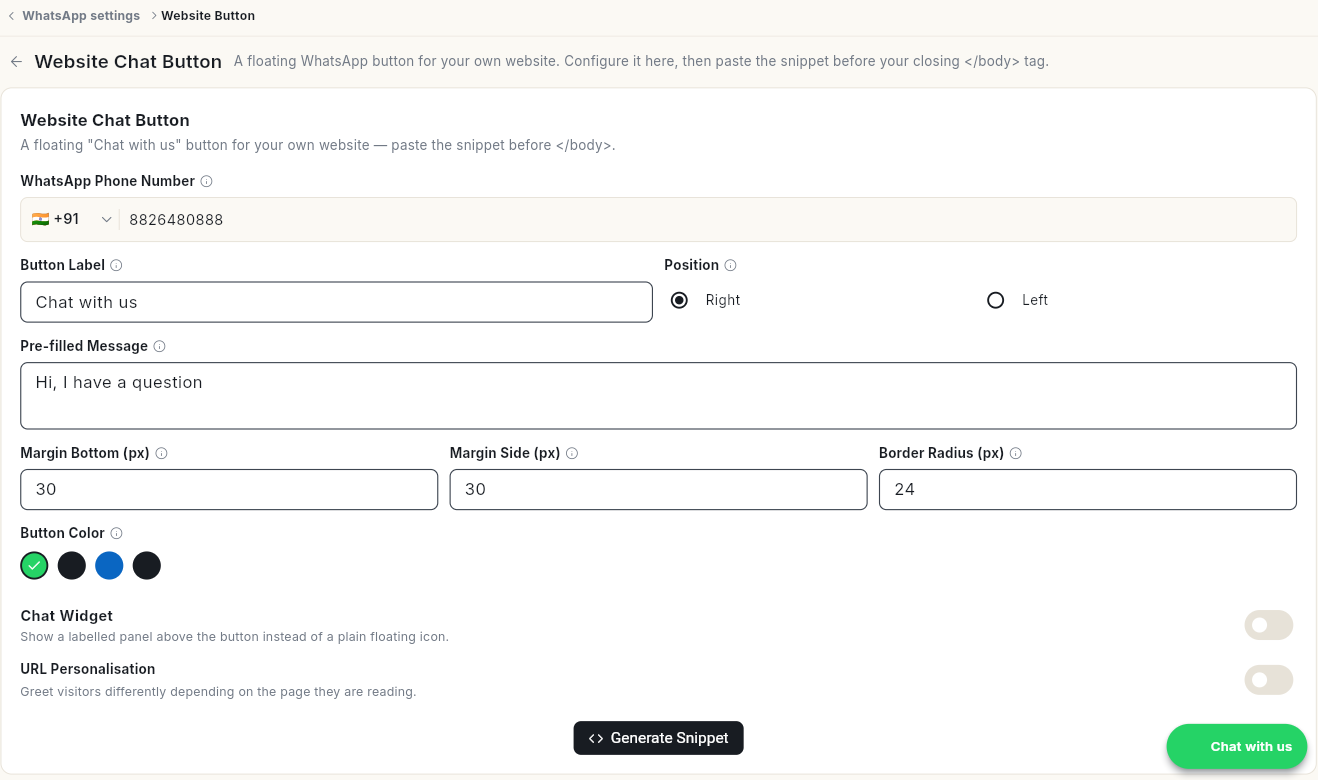
Set up the button
- Check WhatsApp Phone Number. It is filled in with your connected number.
- In Button Label, type the text on the button. It starts as Chat with us.
- Under Position, pick Right or Left.
- In Pre-filled Message, type the first message the visitor sends. It starts as Hi, I have a question.
- Set Margin Bottom (px), Margin Side (px) and Border Radius (px) to place and shape the button. They start at 30, 30 and 24.
- Pick a Button Color.
- Optional: turn on Chat Widget to show a labelled panel above the button instead of a plain icon.
- Optional: turn on URL Personalisation to greet visitors differently depending on the page they are reading.
The preview button in the bottom-right corner shows how it looks.
Add the button to your website
- Click Generate Snippet.
- Paste the snippet into your website's HTML, just before the closing
</body>tag.
Video walkthrough
[VIDEO]