Set up live chat settings
Live Chat Settings control the automatic replies and timers around your team inbox. At the end, customers get a welcome or off-hours reply, waiting customers are told your team has their chat, and unanswered chats move on to another agent. It takes about 5 minutes.
Before you start
- Your WhatsApp number is connected to Ohanvi. See Connect your WhatsApp number.
- You can open Manage in the WhatsApp panel. If not, ask your admin.
- You have agents who answer chats. See Add WhatsApp agents.
What each setting does
| Setting | What it does |
|---|---|
| Auto Resolve Chats | Closes chats that sit untouched after you took them over, and handed-off chats nobody answered. The bot then takes the customer back. |
| Welcome Message | An automatic reply to the first message of a new conversation, sent during working hours. |
| Off Hours Message | An automatic reply to the first message of a new conversation, sent outside working hours. |
| Waiting for an Agent | Tells a customer who writes again that your team has the chat. |
| Escalate Unanswered Handoffs | Sends a handed-off chat with no reply to another available agent, and alerts your team. |
| Working Hours | The days and times that decide between the Welcome and Off Hours replies. Each number can also have its own hours under Configuration. See Run several WhatsApp numbers. |
Chatbot flows come first
A chatbot flow with a Welcome trigger takes priority over the Welcome Message. See Create a WhatsApp chatbot flow.
Steps
Open Live Chat Settings
- Open WhatsApp in the left rail, then select Manage.
-
Select Live Chat Settings. The page shows the settings above and a Save button.
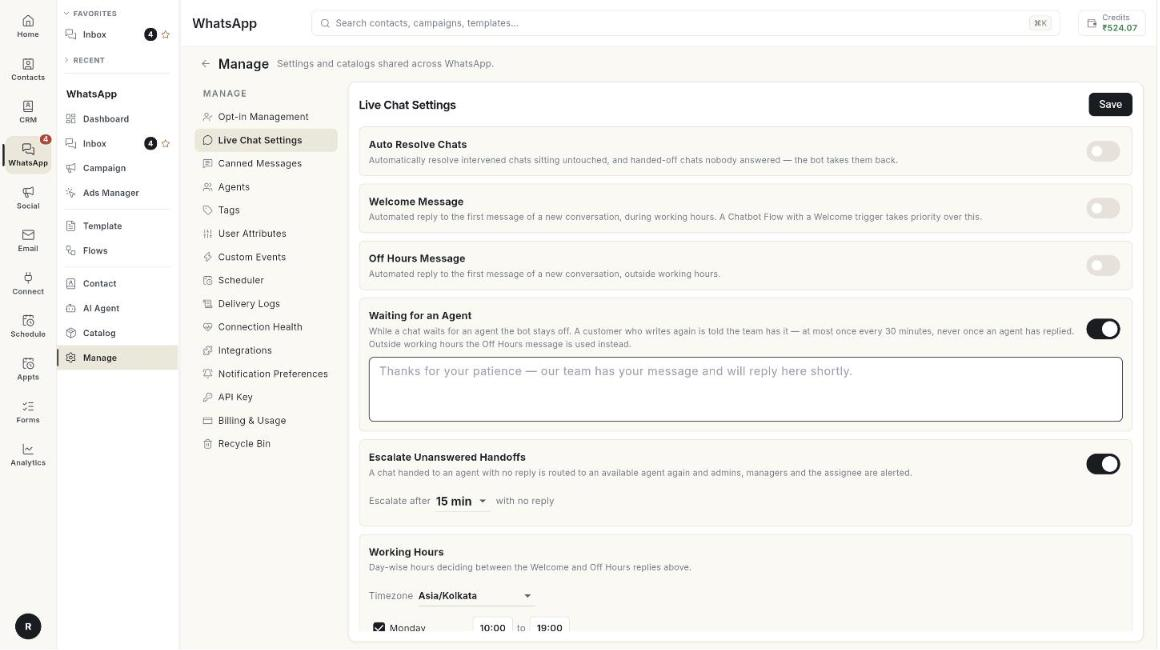
If no number is connected, the page says No WhatsApp account connected. Connect a number first.
Resolve idle chats automatically
- Turn on Auto Resolve Chats.
- Open the Resolve after list.
- Pick the idle time: 1 h, 2 h, 4 h, 8 h, 12 h, 24 h, 48 h or 72 h.
- Click Save.
Send a welcome message
- Turn on Welcome Message. A text box opens.
- Type the reply. The box shows an example:
Hey, welcome! How can we help you? - Click Save.
The reply goes out only during your working hours.
Send an off-hours message
- Turn on Off Hours Message. A text box opens.
- Type the reply. The box shows an example:
Hey there, our support is currently offline. We'll get back to you soon. - Click Save.
Tell waiting customers that the team has their chat
- Turn on Waiting for an Agent. A text box opens.
- Type the reply. The box shows an example:
Thanks for your patience — our team has your message and will reply here shortly. - Click Save.
Limits:
- The reply goes out at most once every 30 minutes.
- It is never sent after an agent has replied.
- Outside working hours, the Off Hours Message is used instead.
Escalate chats nobody answers
- Turn on Escalate Unanswered Handoffs. The Escalate after list opens.
- Pick 5 min, 10 min, 15 min, 30 min or 60 min. The default is 15 min.
- Click Save.
From then on, a handed-off chat with no reply goes to another available agent. Admins, managers and the assignee are alerted.
Set your working hours
- Scroll to Working Hours.
- Open the Timezone list and pick your timezone, for example Asia/Kolkata.
- For each day, tick the box in front of the day name to mark it as open.
- Click the first time to set when you open. A time picker opens. Pick the time.
- Click the second time, after to, to set when you close.
-
To close a day, clear its box. The row then reads Closed.
-
Click Save. The message Live chat settings saved. appears.
Save once at the end
One Save keeps every setting on the page. If you see Could not save settings., click Save again.
Troubleshooting
| Issue | Cause | Fix |
|---|---|---|
| No WhatsApp account connected | No number is linked to this workspace. | Connect a number. See Connect your WhatsApp number. |
| Could not save settings. | The save request failed. | Check your connection, then click Save again. |
| The welcome message does not send | The chat started outside working hours, or a chatbot flow with a Welcome trigger answered first. | Check Working Hours, and check your flows. |
| Customers get the off-hours message during the day | The Timezone or the day's hours are wrong. | Fix them under Working Hours and click Save. |
| Chats are not escalating | Escalate Unanswered Handoffs is off, or the Escalate after time has not passed. | Turn it on and pick a time. |