Restore deleted items
Open Recycle Bin in Manage to bring back WhatsApp items you deleted. At the end, the item is back in its own screen with the same details, groups and settings it had before. Restoring takes about 1 minute.
Before you start
- Your role can open WhatsApp Manage. If not, ask your admin. See Manage team members, roles and permissions.
- You know what kind of item you deleted, for example a contact or a template.
What the Recycle Bin holds
The bin groups deleted items by type. Each type shows how many items it holds.
| Type | What it holds |
|---|---|
| Contacts | Contacts you deleted. A restored contact returns to the groups it was in. |
| Contact Groups | Groups of contacts. |
| Broadcasts | Broadcast campaigns. |
| Templates | Message templates. |
| Chatbot Flows | Chatbot flows. |
| Scheduled Messages | Messages set to send later. |
| Canned Replies | Saved quick replies. |
| Tags | Contact tags. |
| Custom Attributes | Custom fields on contacts. |
| Custom Events | Events your systems send to start flows. |
| Catalog Products | Products in your WhatsApp catalog. |
| Integrations | Connected services. |
A type with nothing deleted does not show.
Steps
Find a deleted item
- Open WhatsApp in the left rail, then select Manage.
-
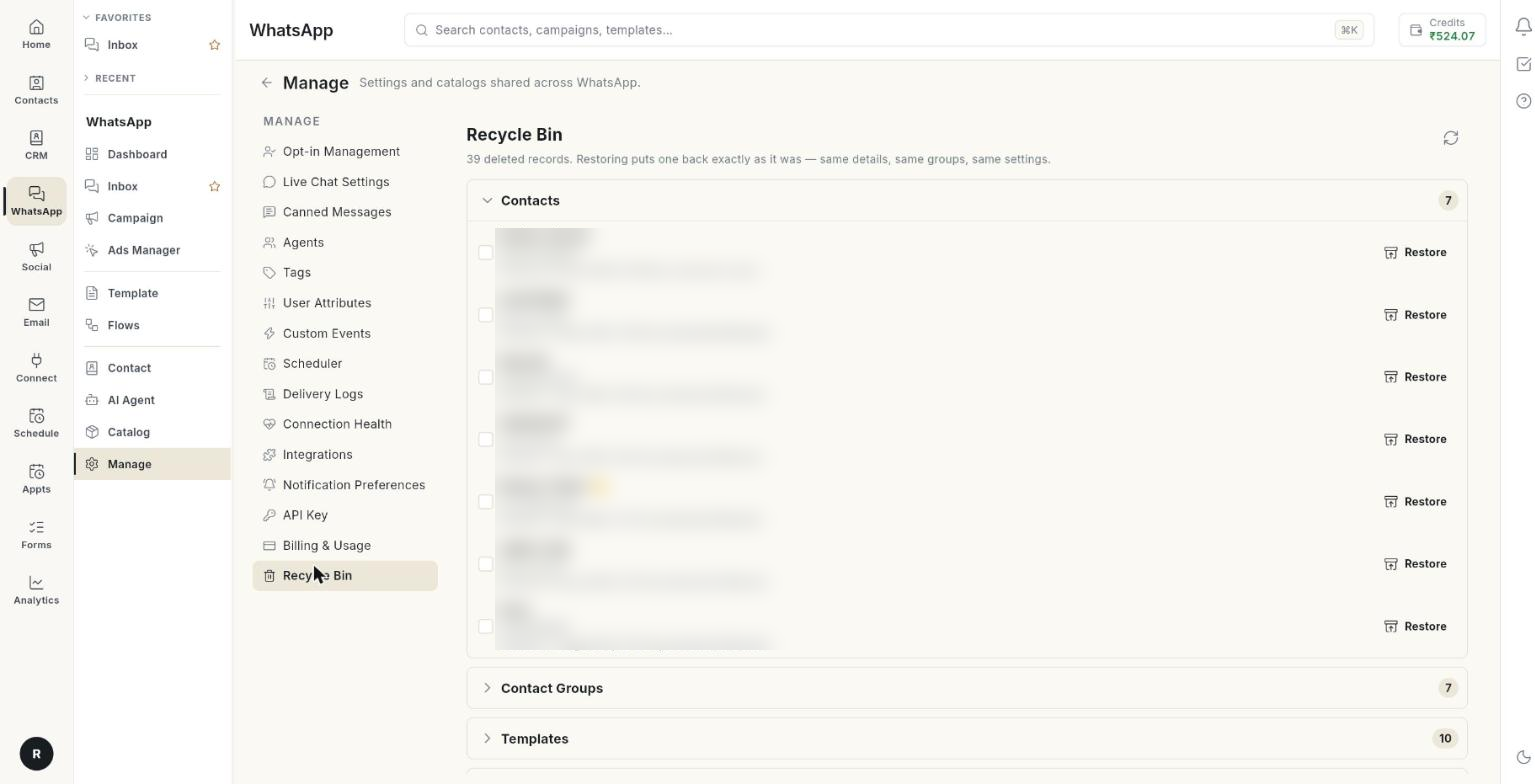
Select Recycle Bin. The header reads how many deleted records you have. It also reads Restoring puts one back exactly as it was — same details, same groups, same settings.
-
Click a type, for example Contacts, to open its list. Click it again to close the list.
- Read each row. It shows the name, a short description, and Deleted with the date and time. If it is known, it also shows who deleted it, as by and a name.
- If the list is long, its foot reads Showing the N most recently deleted of M. Older items are not listed. [LIMIT]
If nothing was deleted, the screen reads The recycle bin is empty — nothing has been deleted.
Restore one item
- Open the type that holds the item.
- Click Restore at the right end of its row.
- Read the message that appears. It reads Restored. or a message from the server.
- Open the item's own screen to check it is back. For a contact, open Contact.
Restore several items
- Open the type that holds the items.
- Tick the checkbox at the start of each row.
- Read the count above the list, for example 3 selected.
- Click Restore selected. The button shows a spinner while it works.
- Read the message that appears. The list reloads and the restored items are gone from the bin.
You can tick items in one type at a time. Ticks clear when the list reloads.
Restoring a contact or a flow
Restoring a Contact also puts its group links back. Restoring a Chatbot Flow puts back the parts that were deleted with it.
Reload the Recycle Bin
- Click the Refresh icon at the top right.
- If the bin does not load, the screen shows Could not load deleted records. Click Refresh again.
Troubleshooting
| Issue | Cause | Fix |
|---|---|---|
| Could not restore the selected records. | The server refused the restore, for example the item can no longer be used. | Read the message. Fix the cause, then try again. |
| Restore failed. | The request did not reach the server. | Check your internet connection, click Refresh, then try again. |
| The item you need is not listed | It is older than the latest items shown, or it was never deleted from the WhatsApp module. | Look under the right type. Check the Showing … most recently deleted line. |
| A contact is back but not in a group you expect | The contact returns to the groups it had when deleted. | Add it to the group again. See Manage WhatsApp contacts. |