Use ad creatives
Read how each picture and ad text performed in Creatives, filter the data, store your files in the Library, and find ideas. At the end, you know which creatives to keep, which are tired, and you have reused the best ones in a new ad.
Before you start
- Your Facebook account, Page and ad account are connected in Setup. See Set up Ads Manager.
- You have at least 1 ad that has run. Numbers sync from Meta every night.
- You can see Ads Manager in the WhatsApp panel. If not, ask your admin.
How Creatives is organised
Creatives has 4 tabs at the top.
| Tab | What it shows |
|---|---|
| Creatives | How every image, video or carousel performed across all ads that used it. |
| Ad copy | How each piece of primary text performed. Also length, emoji, link and phrase results. |
| Library | Every image and video in your ad account. Upload, rename, archive and reuse them. |
| Inspiration | Search Meta's Ad Library, save ads you like and keep notes. |
If Creatives shows Setup instead of data, finish the connection in Setup first.
Steps
Open Creatives and sync the numbers
- Open WhatsApp in the left rail, then select Ads Manager.
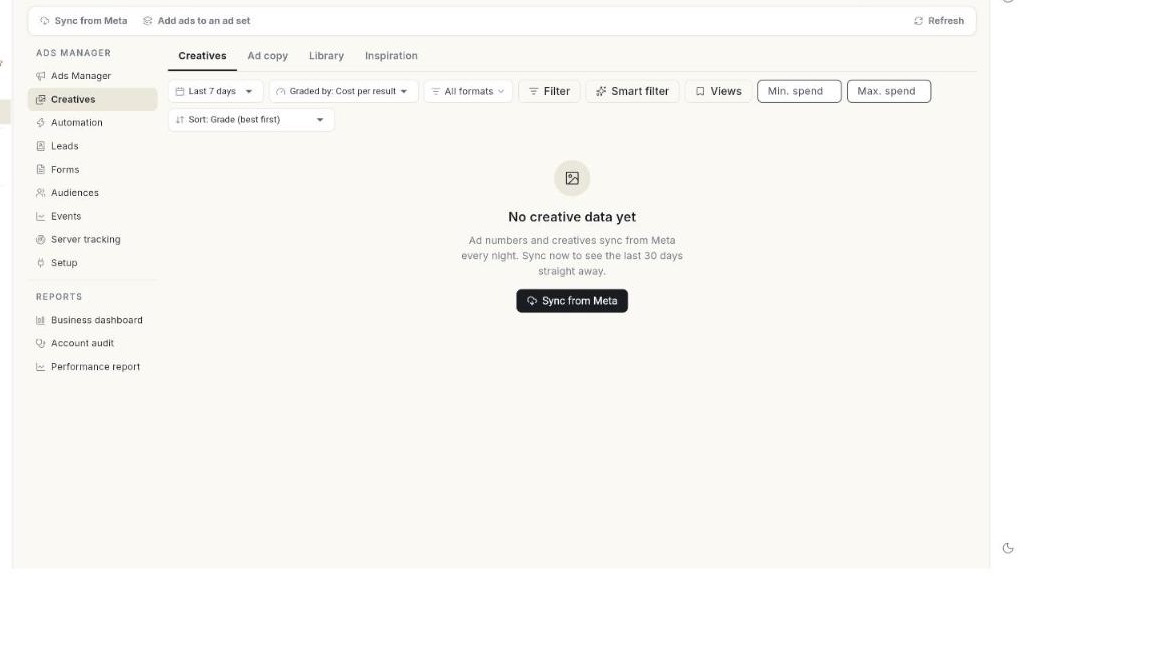
- Select Creatives in the left column. The Creatives tab opens.
-
Click Sync from Meta to pull the latest numbers now. The message Ad data synced from Meta. appears.
-
Pick a date range. Choices are Last 7 days, Last 14 days, Last 30 days and Last 90 days.
- Set Graded by. Choices are Cost per result, Results, ROAS, Revenue and CTR. The grade decides how each creative is ranked.
- Optional: click All formats and tick the formats to keep. Choices are Image, Short video, Medium video, Long video, Carousel and Catalog.
- Optional: click Filter to narrow the data. See Filter the data.
- Optional: type Min. spend or Max. spend.
- Optional: choose a Sort order. The spend and sort settings change the lists and the matrix, not the totals.
- Read the summary tiles: Spend, the result name for your ads, Cost per result, CTR (link) and Revenue · ROAS.
Read the format cards and the matrix
- Scroll to the format cards. Each card shows the format and the number of creatives, for example Image (4).
- Read Spend, Cost / result, CTR and Conv. rate on each card.
- Read the Spend and Results bars. They show each format's share.
- If a card says Not used yet — worth testing., click Find inspiration. The Inspiration tab opens.
- Read the Creative matrix. It plots spend against your grade.
- Click a dot to open that creative.
- Check the legend under the matrix. Each creative falls in one group.
| Group | How it appears |
|---|---|
| Core performer | Green dot. Spend is at or above the median, and results beat the average. |
| Scalable | Spend is below the median, but results beat the average. |
| Overspend | Red dot. Spend is at or above the median, but results do not beat the average. |
| Getting started | The default group for creatives with little data. |
Read the creative list
- Scroll to the creative list. Each row is one creative.
- Read the CREATIVE, FORMAT and ADS columns. They show the picture, its type and how many ads used it.
- Read the SPEND, result, COST / RESULT, CTR and ROAS columns. Read STATUS last.
- Click a row to open the creative. The window shows the picture, headline, text, Spend, Cost / result, CTR, Revenue and ROAS.
- Read the line Last 7 days vs the 7 before. It shows the change in CTR and cost per result. Fatigued means CTR fell 20% or more and cost per result rose 25% or more. Watch means only one of the two moved that far. Each week needs at least 1,000 impressions.
- Read Used in N ad(s) at the bottom of the window. It lists each ad and its status.
| Column | What it shows |
|---|---|
| Checkbox | Tick creatives to reuse them. |
| CREATIVE | Thumbnail, name, and headline or primary text. |
| FORMAT | Image, video length class, carousel or catalog. |
| ADS | How many ads used this creative. |
| SPEND | Money spent on it. |
| Result column | The result your ads are measured on, for example conversations. |
| COST / RESULT | Spend divided by results. |
| CTR | Link clicks divided by impressions. |
| ROAS | Revenue divided by spend. |
| STATUS | The matrix group, plus Fatigued or Watch when the creative is wearing out. |
Fatigued and Watch
Fatigued is shown in red. Watch is shown in amber. Both mean the creative performs worse than it did the week before. Replace a Fatigued creative with a new one.
Read AI tags and the trend
- Scroll to AI tags. It shows what the pictures contain, such as people, product, text, logo, offer badge, style, setting and colour.
- Click a category chip. The table shows TAG, CREATIVES, SPEND, SHARE, the result column, COST / RESULT and ROAS.
- Read the line N of M creatives tagged. Tags are AI guesses, not always right.
- Click Tag now to tag the next batch of creatives. The message Tagged N creatives appears.
- Scroll to Performance trend. The chart and table show the last four weeks of the creatives above it.
- Read the metrics: Spend, Cost per result, CTR, Conversion rate, Revenue, Average order value and ROAS.
New creatives are tagged every two hours after they sync. If there are no tags yet, the page says No tags yet. New creatives are tagged every two hours after they sync.
Filter the data
- Click Filter. The Smart filter menu opens. The button reads Filter · N when filters are on.
- Choose a ready-made filter:
- Active ads only
- Spending with no results
- Big spenders (over 1,000)
- Low CTR (under 1%)
- Tired ads (frequency over 3)
- Prospecting only
- Retargeting & retention
- Or open the custom Filter data window.
- Type in Name contains to match a campaign, ad set or ad name.
- Type in ID to match a campaign, ad set or ad ID.
- Choose a Status: Any, Active or Not active.
- Choose a Funnel stage from the chips: Prospecting, Re-engagement, Retargeting or Retention.
- Under Ad sets where, pick a metric, a comparison and a value. Metrics are Spend, Results, Cost per result, CTR %, CPM, CPC, ROAS and Frequency.
- Click Views to open Saved views.
- Click Save the current filter… to name and keep it.
- Click Clear filters to remove all filters.
The filter applies to both the Creatives and Ad copy tabs.
Read the Ad copy tab
- Select the Ad copy tab. The summary tiles are Copies, Spend, Cost per result and CTR (link).
- Read Pieces of copy. It is a matrix of all ad texts. Click a dot to open that text.
- Read the list. Columns are COPY, LENGTH, ADS, SPEND, the result column, COST / RESULT, CTR and STATUS.
- Read Ad copy length. See the table below.
- Read Emoji performance and Link performance. Each compares copies with it against copies without it.
- Read Top emojis and Top links. They list the winners.
- Read Top phrases. It lists two- and three-word phrases found in at least two copies, ranked by results.
- Read Top AI tags by category. It shows what the ad text does: offer, urgency, social proof, opening, tone and call to action.
| Length | Meaning |
|---|---|
| Short | Up to 125 characters. All visible before "See more". |
| Medium | 126–300 characters. |
| Long | Over 300 characters. |
If the tab shows No ad copy yet, ads with primary text appear once their numbers sync from Meta.
Reuse creatives and copy in a new ad
- In the creative list, tick the checkbox of each image creative to reuse.
-
Click Open selected in Create Ad. The form opens with the pictures filled in.
-
On the Ad copy tab, tick copies instead. Click Open selected in Create Ad. Meta rotates the texts.
- Click Clear to remove the ticks.
Limits:
- Only images can be reused. Videos, carousels and catalogue ads cannot be reused from here.
- One ad takes up to 3 pictures.
- One ad takes up to 5 texts and 5 headlines.
Add ads to an ad set that is running
- Click Add ads to an ad set in the top bar.
- Choose an Ad set. New ads copy the Page, button, link and WhatsApp greeting of an ad already in it. The audience and budget stay as they are.
- Under Pictures, click Add from library.
- Under Texts, fill Primary text 1.
- Fill Headline 1 (optional).
- Click Add text for more texts.
- Read the line that multiplies pictures by texts, for example 2 pictures × 3 text(s) = 6 ads.
- Turn Start them right away on or off. Off creates the ads paused. Switch them on in Ads Manager.
- Click Add N ads. The message Ads added. Their numbers show here after the next sync. appears.
Use the Library tab
- Select the Library tab.
- Read the counts line, for example N files · N images · N videos · N not used yet.
- Set the type filter: Images & videos, Images or Videos.
- Set the source filter: All sources, From Meta, Uploaded or AI generated.
- Set the shape filter: Any shape, Square, Portrait or Landscape.
- Set the use filter: Used & unused, Used in ads or Not used yet.
- Set the sort: Newest, Most spend, Cheapest result or Most used.
- Type in Search by name to find a file.
- Click Upload image and pick a file. The message Uploaded to your ad account. appears.
- Open the More menu on a file and click Rename to change its name.
- Click Add to an existing ad set to put the file into a running ad set.
- Archive a file from the same menu. Archived files leave the library.
- Click Archived to see archived files and restore them.
- Click Use in new ad on a file. Create Ad opens with that image chosen.
Upload limit: images must be under 30 MB.
Tip
The Generated with AI strip shows AI images not yet in the library. Add the ones you like to reuse them in any ad.
Find ideas in the Inspiration tab
- Select the Inspiration tab.
- Under Find competitor ads, type a brand or keyword in the search box, for example "saree".
- Pick a country: India, UAE, United Kingdom, United States, Germany or France.
- Click Search. The ads from Meta's Ad Library appear under Results for "…".
- Click Follow on an ad to add the brand to Brands you follow.
- Click Save to add the ad to Saved ads.
- Click View to open the ad on Meta.
- Click Make one like this to open Create Ad with the ad's text as a start.
- Click Note to save a note, for example what to borrow.
- Click Remove to delete an ad from your saved ads.
- Click Open Meta Ad Library to search on Meta's website instead.
- To save an ad you found elsewhere, paste its Ad Library link in the Saved ads box and click Save link.
- Click Collection on a saved ad to file it. Choose New collection… to create one.
Troubleshooting
| Issue | Cause | Fix |
|---|---|---|
| No creative data yet | Ad numbers sync every night and none have synced yet. | Click Sync from Meta to load the last 30 days. |
| No creatives match these filters | The format, spend or filter settings hide every creative. | Clear the format filter or pick a longer date range. |
| Pick image creatives — videos, carousels and catalogue ads cannot be reused in a new ad from here. | Only video, carousel or catalogue creatives were ticked. | Tick at least 1 image creative. |
| Images must be under 30 MB — Meta refuses larger files. | The upload is over the size limit. | Compress the image and upload it again. |
| AI tagging is not set up on this server. | The AI model is not set up on the Ohanvi server. | Contact Ohanvi support. |
| Meta did not return ads for this search. | The search found nothing, or Meta's Ad Library did not respond. | Try another keyword or country. Or click Open Meta Ad Library. |