Set up your WhatsApp catalog
Fill your WhatsApp Catalog with the products you sell, so agents, flows and templates can send them as product messages. At the end, your products are synced from Meta or your store, you know which ones are Ready to send, and you have sent one to a customer.
Before you start
- Your WhatsApp number is connected to Ohanvi. See Connect your WhatsApp number.
- You have a catalog in Meta Commerce Manager, linked to your WhatsApp Business Account. WhatsApp can only send products from that Meta catalog.
- You can see Catalog in the WhatsApp panel. If not, ask your admin. See Roles and permissions.
Where products come from
Each product card shows its Source:
| Source | How it gets there |
|---|---|
| Meta catalog | Pulled from your Commerce Manager catalog with Sync from Meta. |
| Shopify / WooCommerce | Synced from a store you connected under Connect in the left rail. |
| Added by hand | Typed in with Add product. |
Store products must also be in Meta
A product synced from Shopify or WooCommerce can only be sent once it is also in the Meta catalog linked to your number. Connect the store's catalog in Commerce Manager, then click Sync from Meta.
Steps
Sync your catalog from Meta
-
Open WhatsApp in the left rail, then select Catalog. The Catalog page opens. The counts at the top show Products, Ready to send, On Meta, Pending review, Rejected and Out of stock.

-
Click Sync from Meta. The button shows Syncing… while it works.
- When it finishes, Synced N product(s) from "…" appears and the products fill the grid.
Run Sync from Meta again whenever you change products or Meta finishes a review.
Add a product by hand
- Click Add product (or Add manually on an empty catalog).
- Fill in Product name.
- Fill in Meta catalog ID, from Commerce Manager, and Retailer ID, the content ID of the product inside that catalog.
- Fill in Price, and optionally Sale price (optional). Choose the Currency and Availability.
- Optional: add Brand (optional), Image URL (optional), Product page link (optional) and Description (optional).
- Click Save.
The Retailer ID must match the product in your Meta catalog, or WhatsApp cannot send it.
Check which products can be sent
Use the filter chips above the grid, for example All, Ready to send and Meta catalog. Each shows how many products sit behind it.
| Filter | Meaning |
|---|---|
| Ready to send | On Meta, approved, visible and sendable. |
| Not on Meta | Synced from your store but not in the Meta catalog, so WhatsApp cannot send it. |
| Rejected | Meta rejected the item. Customers cannot see it until you fix it in Commerce Manager. |
| Pending review | Meta is still reviewing it. |
| Out of stock | Flows still send it. Hide it in the store or Commerce Manager if you do not want that. |
| Hidden | Hidden from customers. |
| On sale | Has a sale price. |
A warning strip above the grid names what needs fixing, for example Show rejected or Show them. A product that cannot go out shows Cannot send: not on Meta, hidden or rejected.
To fix a rejected product, open it, read the reason in Rejected by Meta, fix it in Commerce Manager and request another review. The next Sync from Meta picks up Meta's decision.
Send a product in a chat
-
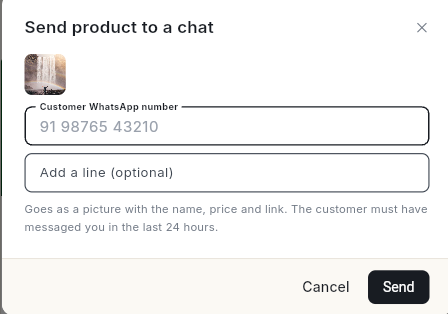
On a Ready to send product, click Send to a chat (the paper-plane icon on the card). The Send product to a chat window opens. The product goes as a picture with its name, price and link, and the customer must have messaged you in the last 24 hours.
-
Type the Customer WhatsApp number with the country code.
- Optional: type a line in Add a line (optional), for example
This one is back in stock!. - Click Send. Product sent. appears.
The product goes as a picture with the name, price and link. The customer must have messaged you in the last 24 hours.
In the Inbox, agents can also send products from the Store pane under Products & stock, when a store is connected.
Use products in a flow
Click Use in a flow on a product. Flows send products with their Single Product and Multi Product steps. See Build a WhatsApp chatbot flow.
Edit or delete a product
- Click Edit to open Edit product. For a synced product, the next sync may overwrite name, image, price and stock, so change those at the source.
- Click Delete product, then Delete. Flows that use its retailer ID keep working. A synced product comes back on the next sync unless you remove it at the source.
Video walkthrough
[VIDEO]
Troubleshooting
| Issue | Cause | Fix |
|---|---|---|
| No catalog is connected to your WhatsApp Business Account yet. Link one in Meta Commerce Manager, then sync again. | No Meta catalog is linked to your number. | Link a catalog to your WhatsApp Business Account in Commerce Manager, then click Sync from Meta. |
| Your Meta access token cannot read the catalog — it needs the catalog_management permission. Reconnect via WhatsApp Settings. | Your WhatsApp connection lacks catalog permission. | Reconnect your WhatsApp account with catalog access. See Connect your WhatsApp number. |
| WhatsApp is not connected yet — finish the Cloud API setup first. | The number is not connected. | Finish connecting your number first. |
| Products show Not on Meta | They came from your store but are not in the Meta catalog. | Connect the store's catalog in Commerce Manager, then Sync from Meta. |
| Catalog ID is required / Retailer ID is required | A required field is empty. | Copy both from Commerce Manager. |