Test a chatbot flow with the chat simulator
Talk to your chatbot from the builder before customers do. At the end, you have walked through the flow on your own phone, read every reply, and know how to go back to an earlier version.
Before you start
- Your chatbot flow is saved and published. The simulator needs a live version to start.
- You have a WhatsApp number you can test with. Use a number that is not assigned to an agent in Inbox.
- You have read how the keyword check works. See Create a WhatsApp chatbot flow.
How the Test tab works
For a chatbot, the Test tab in the right panel holds 3 tools, from top to bottom.
| Tool | What it does |
|---|---|
| Would this run? | Checks a keyword. It sends nothing to anyone. |
| Test on WhatsApp | The chat simulator. It runs the live bot and sends real messages to your test number. |
| Run published | Starts the published version once, against real data. |
The simulator is not a mock
It runs the live bot. Messages go out through WhatsApp to the number you enter. Use your own number.
Steps
Start a test chat
-
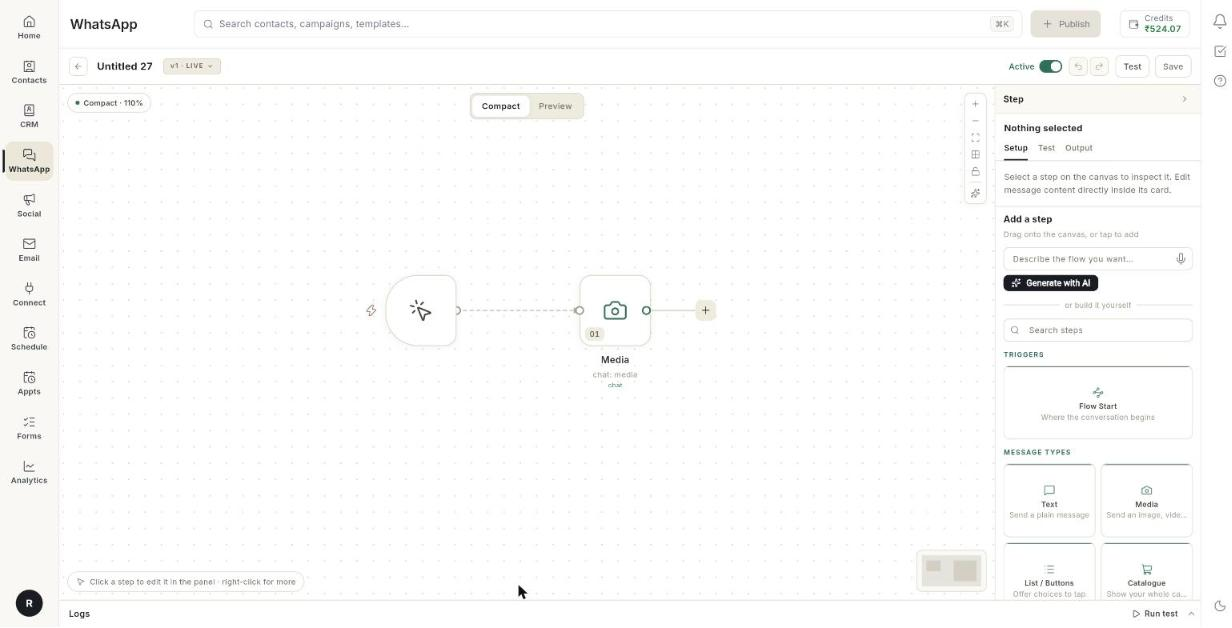
Open your flow in the builder.
-
Click Test in the toolbar. The Test tab opens.
- Scroll to Test on WhatsApp.
- In WhatsApp number to test with, type your number with the country code, for example
9198…. - Press Enter. The simulator keeps the number.
- Click Start from the top. The first message goes to your phone.
- Wait a moment. The bot's replies appear in the chat box.
The text under the buttons reads The simulator runs the live bot. Save, then publish, and the first message goes to the number above. while the flow has no live version. Start from the top stays off until you publish.
Reply as the customer
- Read the bot's last message in the chat box.
- If the bot offered buttons, click one under the chat box. Each button is a tappable chip.
- To type instead, enter text in Message to send as the customer. The hint reads Type as the customer….
- Click Send, or press Enter.
- Click the refresh icon (Refresh) to load replies that arrived late.
Read the result
- Read the chat box from top to bottom. Bot messages sit on the left. Your replies sit on the right.
- A line that reads Template · [name] above a message means the bot sent that template.
- A message that shows (no text) has no text, for example a media block with no caption.
- A grey message means it is still being sent.
- Open WhatsApp → Inbox to see the same conversation. Each bot message is marked Bot.
If the chat box reads No messages yet. Start from the top, or say hi., nothing has been sent. If it reads Enter a number to see the conversation here., you have not saved a number.
Check a keyword without sending
- In the Test tab, find Would this run?. The line under it reads Sends nothing to anyone.
- Under A message a customer might send, type a message, for example
hi. - Optional: type a phone number under From (phone, optional).
- Click Check. The button reads Checking… while it works.
- Read the verdict and the checks below it. See Create a WhatsApp chatbot flow.
Run the published version once
- In the Test tab, scroll to the bottom.
- Click Run published. If you have unsaved changes, hover over the button to read what it runs.
- Read each step's state under the button. Click Refresh to update it.
For what each state means, see Test a flow and fix failed runs.
Run published runs the live version
It does not run the draft on your screen. The tooltip Publish first — there is no live version to run. appears until you publish.
Undo and redo an edit
- Make a change on the canvas, for example delete a card by mistake.
- Click Undo in the toolbar to step back one change.
- Click Redo to bring the change back.
The buttons stay grey when there is nothing to undo or redo.
Go back to an earlier version
- Look at the version chip in the toolbar. It shows the state of the flow, for example Live or Draft.
- Click the chip. The Versions list opens. It opens only when the flow has more than 1 version.
- Read the headings. This flow holds the automation versions. Conversation: [name] holds the chat versions.
- Pick a version. Choose to view it, edit it or make it live. [VERIFY: the exact names of the three actions]
- Click Save, then Publish if you changed it.
You can also see versions outside the builder. Click the flow's row in the Flows list, then open the Versions tab.
Each row shows a version number, such as v3, and a badge: Live, Published, Being edited or Draft. It also shows Published with the time, or Not published. Click Open to open that version.
Published versions never change
A published version is locked. Editing one starts a draft. Runs already going stay on the version they started with.
If the list reads No versions yet., save and publish the flow once.
Troubleshooting
| Issue | Cause | Fix |
|---|---|---|
| Start from the top is grey. | The flow has no live version, or no number is saved. | Publish the flow, then enter your number and press Enter. |
| The bot does not reply to your test number. | The number is assigned to an agent or is in Requesting. | In Inbox, resolve the conversation, then start again. |
| The chat box stays empty after you start. | Replies have not arrived yet. | Click Refresh. If it stays empty, check the flow is Active. |
| Your change does not show in the test. | The simulator runs the published version. | Click Save, then Publish, then start again. |
| The simulator shows an error in red under the buttons. | The send failed, for example your number is not on WhatsApp. | Fix the number, or check your WhatsApp connection in WhatsApp → Manage. |
| Undo is grey. | There is nothing to undo, or the flow was just opened. | Make a change first. Undo only covers this session. [VERIFY: whether undo survives a save] |
| The Versions list will not open. | The flow has only 1 version. | Edit and publish once more to create a second version. |