Manage opt-in and opt-out words
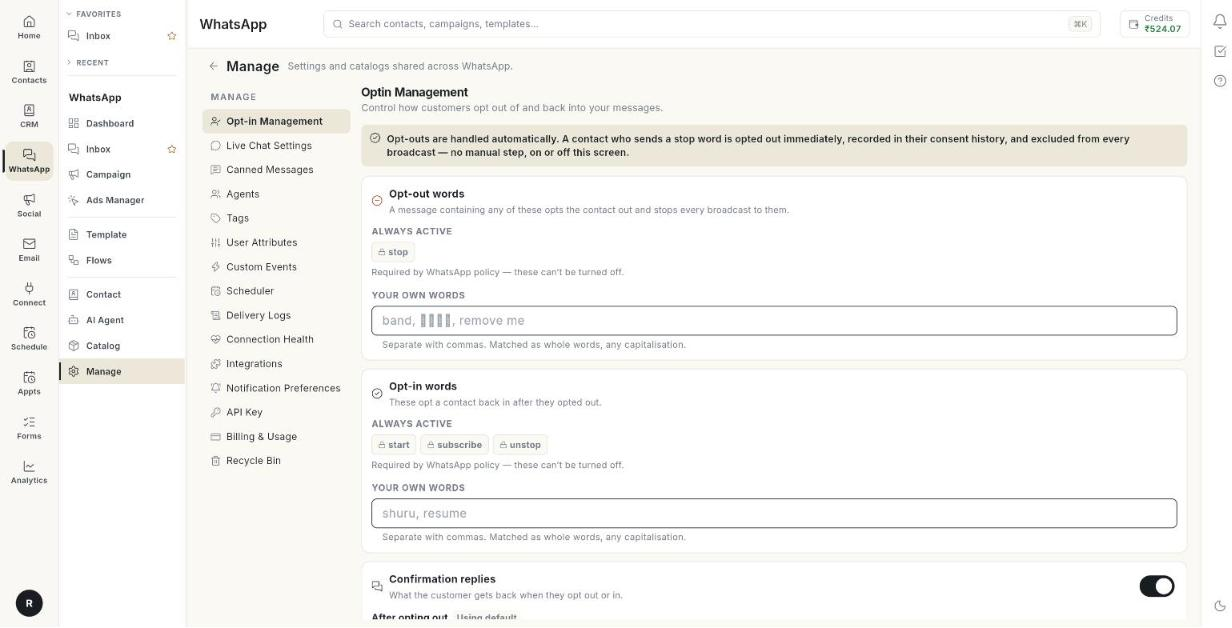
Opt-in Management decides which words stop your messages and which words start them again. At the end, customers can opt out in their own language, and they get a clear reply when they do. Opt-outs are always handled for you. This page only lets you add more words. Opt-out words used to be set in the number's configuration. They now live only here.
Before you start
- Your WhatsApp number is connected to Ohanvi. See Connect your WhatsApp number.
- You can open Manage in the WhatsApp panel. If not, ask your admin.
- You know the words your customers use, for example in Hindi or in your brand's own phrase.
How opt-out works
When a customer sends a stop word, Ohanvi does these things at once, with no manual step:
- It opts the contact out.
- It records the change in the contact's consent history.
- It leaves the contact out of every broadcast.
WhatsApp policy requires this, so the built-in words are always active. They show as ALWAYS ACTIVE and cannot be turned off. Your own words only add to them.
Steps
Open Opt-in Management
- Open WhatsApp in the left rail, then select Manage.
-
Select Opt-in Management. The page title reads Optin Management.
Add your own opt-out words
- Find the Opt-out words card. It lists the built-in words under ALWAYS ACTIVE.
- Click the box under YOUR OWN WORDS.
- Type your words, separated by commas. For example:
band, रोको, remove me - Click Save changes. The message Opt-in settings saved. appears.
Rules for the words:
- Separate words with commas.
- A word matches only as a whole word.
- Capital letters do not matter.
Add your own opt-in words
- Find the Opt-in words card. It says these words opt a contact back in after they opted out.
- Click the box under YOUR OWN WORDS.
- Type your words, separated by commas. For example:
shuru, resume - Click Save changes.
Edit the confirmation replies
- Find the Confirmation replies card. Keep its switch on.
- In After opting out, type the reply a customer gets when they opt out.
- In After opting back in, type the reply a customer gets when they opt back in.
- Leave a box empty to use the standard wording. The card then shows Using default.
- Click Save changes.
Keep confirmation replies on
If you turn the switch off, the opt-out still happens, but the customer hears nothing back. That can feel like being ignored. It can lead to blocks and lower your number's quality rating.
Reload your last saved settings
- Click Reload. The page shows the last saved words and replies.
Troubleshooting
| Issue | Cause | Fix |
|---|---|---|
| No WhatsApp account is connected yet. | No number is linked to this workspace. | Connect a number. See Connect your WhatsApp number. |
| Could not save opt-in settings. | The save request failed. | Check your connection, then click Save changes again. |
| A customer's opt-out word does not work | The word is part of a longer word, or it is not on the list. | Add the exact word. Words match as whole words. |
| A built-in word is missing from your list | Built-in words show under ALWAYS ACTIVE, not in your own box. | Add only extra words in YOUR OWN WORDS. |