Create canned messages
Save replies your team can insert in the inbox by typing / and a shortcut. At the end, your shortcut shows in the composer picker, with the message ready to send. Takes about 3 minutes.
Before you start
- Your WhatsApp number is connected to Ohanvi. See Connect your WhatsApp number.
- You can see Manage in the WhatsApp panel. If not, ask your admin to give your role access. See Roles and permissions.
- Your role can create and edit canned messages. Without that, New quick reply is greyed out.
- For an image, video or document reply, you have the file ready.
What a canned message is
A canned message is a saved reply. Your team inserts it into a chat with / and its shortcut. The app calls it a quick reply too.
Each canned message has a Shortcut, a Message and a Type. The type is Text, Image, Video or Document. A media reply sends the file with the message as its caption.
Variables
A variable is a placeholder such as {{name}}. Insert one from the chips under INSERT VARIABLE. When you insert the reply in a chat, Ohanvi fills each variable with that customer's value.
| Variable | Fills in |
|---|---|
{{name}} |
The customer's name. |
{{first_name}} |
The customer's first name. |
{{phone}} |
The customer's phone number. |
{{company}} |
The customer's company. It is not filled in a chat yet, so it stays as typed. Replace it by hand. |
{{agent}} |
The name of the agent who sends the reply. |
Steps
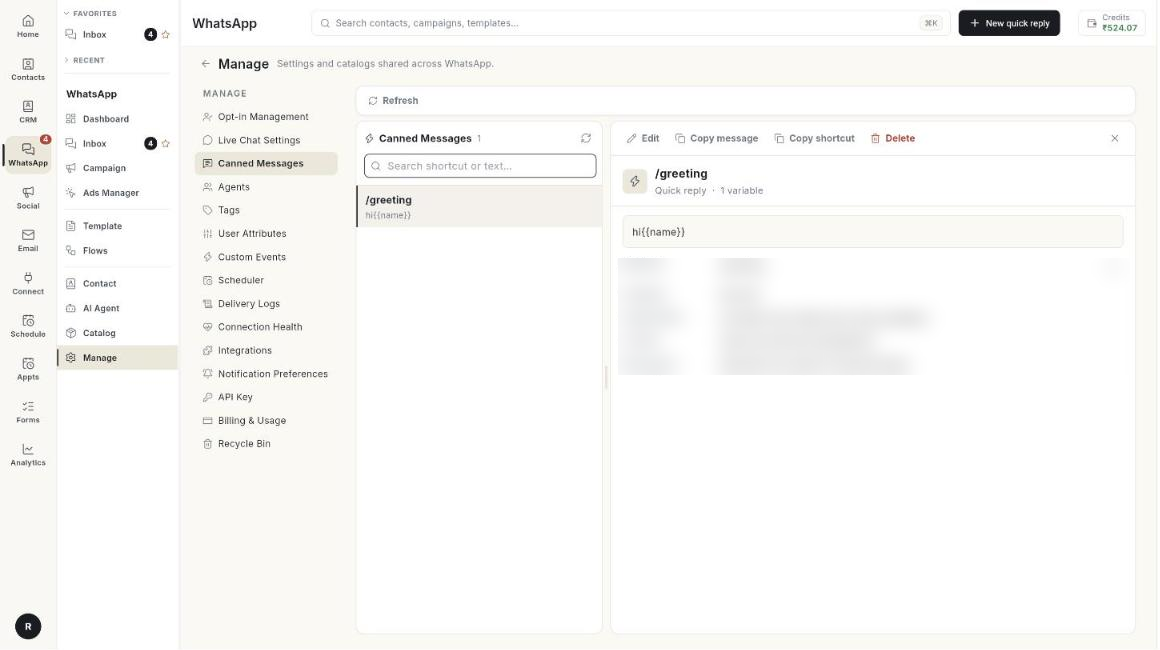
Open Canned Messages
- Open WhatsApp in the left rail, then select Manage.
-
Select Canned Messages. The list opens with the line Saved quick-replies your team inserts with "/" in the Live Chat composer.
-
Read the Canned Messages card. It counts your saved replies.
Create a canned message
-
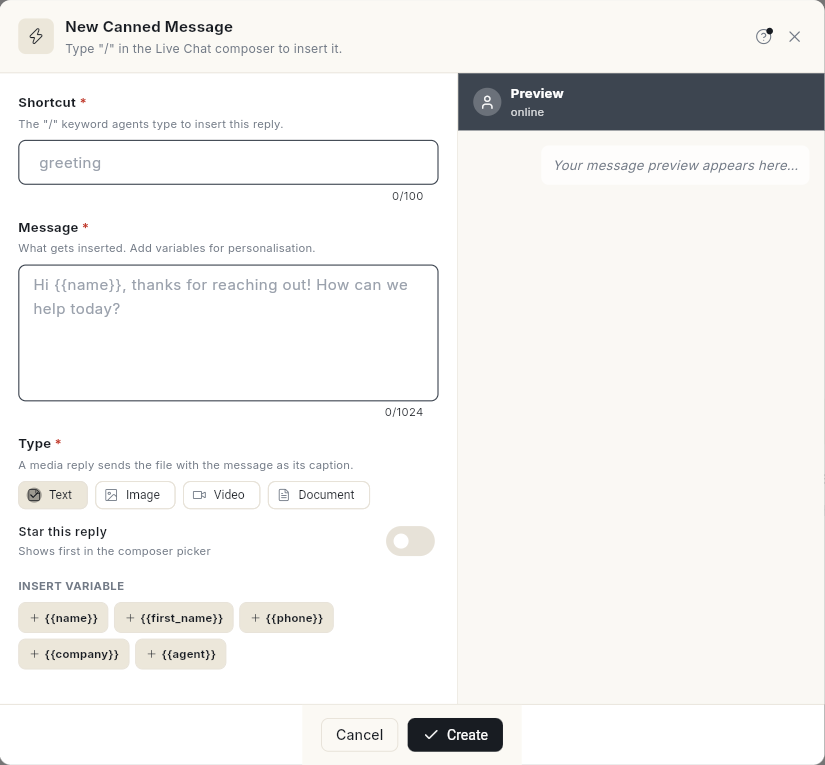
Click New quick reply. If the list is empty, click New Canned Message instead. The New Canned Message form opens.
-
In Shortcut, type the word your team will type after /, for example
greeting. Leave out the slash. - In Message, type the reply, for example
Hi {{name}}, thanks for reaching out! How can we help today? - To add a variable, put the cursor where it goes. Click a chip under INSERT VARIABLE, such as
{{name}}. - Under Type, choose Text, Image, Video or Document.
- For Image, Video or Document, go to Attachment and add the file. The file is uploaded for you.
- Optional: turn on Star this reply. A starred reply shows first in the composer picker.
- Check the Preview. It shows sample values, but the inbox does not fill them in.
- Click Create. The reply appears in the list.
Both Shortcut and Message are required. A media type also needs its file.
Read a canned message
- Type in Search shortcut or text… to find a reply by its shortcut or its words.
- Click the reply in the list. Its details open on the right.
- Read the Shortcut, Variables, Organization, Created and Message ID rows.
If nothing is open, the panel reads Select a canned message. It adds Pick a quick reply from the list to read it here.
Edit a canned message
- Click the reply in the list.
- Click Edit. The Edit Canned Message form opens.
- Change the Shortcut, Message, Type or Attachment. Turn Star this reply on or off.
- Click Save Changes.
Copy a message or its shortcut
- Click the reply in the list.
- Click Copy message text to copy the message. The detail panel names this button Copy message.
- Click Copy shortcut to copy the shortcut.
Delete a canned message
- Click the reply in the list.
- Click Delete. The Delete canned message? window opens. It shows the shortcut.
- Click Delete. The reply leaves the list.
Click Cancel to keep it.
Use your custom attributes
Custom attributes you defined for contacts also appear as chips under INSERT VARIABLE. They insert as {{attribute.Name}}, for example {{attribute.City}}.
- Open the canned message and click the chip of the attribute, for example
{{attribute.City}}. - To set a fallback, type it after a bar:
{{attribute.City|there}}. The fallback shows when the customer has no value. - Insert the reply in a chat. The attribute value from the contact's profile fills in. With no value and no fallback, the placeholder stays as typed.
Insert a canned message in the inbox
- Open WhatsApp → Inbox, then open a chat.
- In the composer, type /. The Canned messages list opens.
- Type part of the shortcut to narrow the list.
- Filter by All, Starred, Text, Image, Video or Doc.
- Click a reply. It is inserted into the composer.
- Read the message, then send it. The variables show this customer's values. A variable with no value stays as typed, so replace it by hand.
For the 24-hour window and the rest of the composer, see Use the WhatsApp inbox.
Troubleshooting
| Issue | Cause | Fix |
|---|---|---|
| Shortcut is required | The Shortcut box is empty. | Type a shortcut, then click Create. |
| Message is required | The Message box is empty. | Type the reply. |
| A file link is required for this type | You chose Image, Video or Document and added no file. | Add a file under Attachment, or choose Text. |
| Unable to save canned message. | The save did not go through. | Click Create or Save Changes again. |
| New quick reply is greyed out. | Your role cannot create canned messages. | Ask your admin. See Roles and permissions. |
| A shortcut does not show after you type /. | The filter hides it, or the shortcut is spelled differently. | Choose All, then type fewer letters of the shortcut. |