Understand flows and the Flows list
Find every chatbot, automation and email journey in your workspace on one screen. At the end, you can read what starts each flow, whether it is running, and how its last run went. You can also publish, pause, duplicate or delete it.
Before you start
- You can see Flows in the WhatsApp panel or in the Connect panel. If you see neither, ask your admin for access. See Roles and permissions.
- The Connect → Flows entry is for admins by default, because every step of a flow runs as the flow's owner.
- To create or change flows, your role needs save access to flows. Without it, you can open flows but not edit them.
What a flow is
A flow starts on a trigger and then runs its steps in order. The same canvas builds 3 kinds of flow:
| Kind | What starts it | Guide |
|---|---|---|
| Chatbot | A customer sends a keyword on WhatsApp. | Create a WhatsApp chatbot flow |
| Automation | Something happens in Ohanvi or a connected app, a schedule, a webhook, or you run it by hand. | Build an automation flow |
| Journey | A contact joins an email list or gets a tag. | Build an automation flow |
Each flow has a draft you edit and a published version that runs. Your edits never change the published version until you publish again.
Steps
Open the Flows list
- Open WhatsApp in the left rail, then select Flows. The Automation flows screen opens.
- Or open Connect in the left rail, then select Flows under Integration. The same screen opens.
The list shows every flow in your workspace, whichever way you came in.
Find a flow
- Type in Search flows. The search matches the flow name, its trigger and its step names.
- Click a status pill to narrow the list: All, Active, Draft or Paused.
- Open the first drop-down to pick a kind: All flows, Chatbots, Automations or Journeys.
- Open the second drop-down to pick a trigger, for example On a schedule. Choose Any trigger to clear it.
-
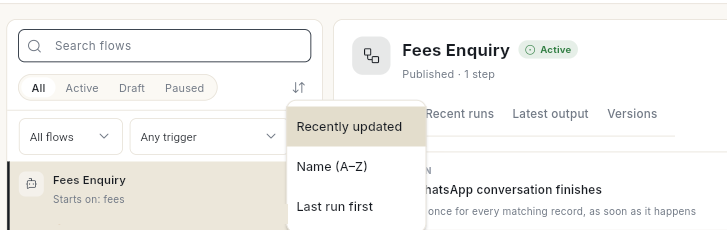
Click the sort icon (tooltip Sort) and choose Recently updated, Name (A–Z) or Last run first.
If nothing matches, click Clear filters.
Read a flow's row
Each row shows 3 lines:
- Name and status icon — Active, Draft, Paused or Archived. A second icon, Not published, means there are edits that are not live yet.
- What starts it — for a chatbot, Starts on: followed by its keywords. For other flows, a sentence about the trigger.
- Last run — for example Succeeded 2 hours ago, or Never run. Stuck means a run has been going for more than 6 hours.
A row may also show Reconnect needed or Connection problem. See Connect an app and use it in a flow.
Rows under Not yet migrated are older chatbots or email journeys. Open one to bring it into your flows.
Open a flow's preview panel
- Click a row. A panel opens beside the list.
-
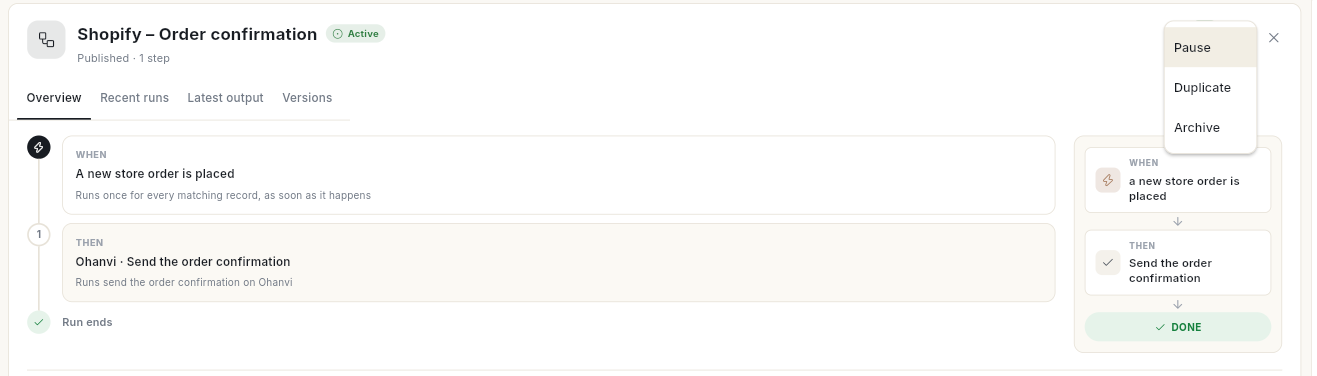
Read the Overview tab. It shows the steps as a timeline and in plain words.
-
Open Version, owner & technical to see Last run, Owner, Trigger, Current version, Steps and Flow ID.
- Use the other tabs to check results: Recent runs, Latest output and Versions. See Test a flow and fix failed runs.
-
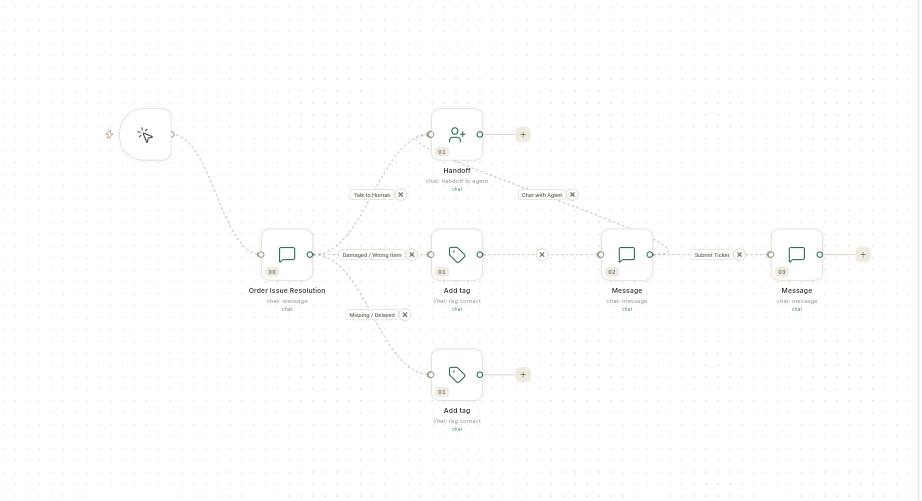
Click Open builder to edit the flow on the canvas.
Publish a draft from the list
- Click the flow's row.
- Click Publish & turn on. For a flow that is already live, the button reads Publish changes.
- Read the message. Published and live. means the flow now runs. Published. means it is published but switched off.
Turn a flow on or off
- Click the flow's row. The On/Off switch sits beside the flow's name. It appears only after the flow is published once.
-
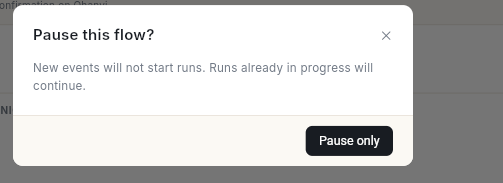
To stop it, click the switch. The Pause this flow? window opens.
-
Click Pause only. New events stop starting runs. Runs already going will finish.
- If a run is going right now, you can click Pause and stop runs instead. This also cancels the runs in progress.
- To start it again, click the switch, or click Resume. The message Flow resumed. New events start runs again. appears.
Stopping runs cannot undo what was sent
A step already running finishes, and messages it already sent cannot be taken back.
Duplicate a flow
-
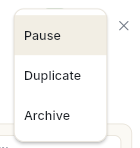
Click the flow's row, then click the More menu (…). It has Pause, Duplicate and Delete, or Archive for a flow Ohanvi created for you.
-
Click Duplicate. A copy named Copy of followed by the flow's name opens in the builder.
The copy is a draft. Publish it before it can run.
Delete a flow
- Click the flow's row, then click the More menu (…).
- Click Delete. The Delete this flow? window opens.
- Click Delete. The message Flow deleted. appears.
For flows Ohanvi created for you, such as store automations, the menu reads Archive instead. The effect is the same.
Deleted flows do not come back
The flow stops running and leaves the list. Finished runs keep their history. A store automation you archive is not created again.
Create a new flow
- Click New flow. A blank canvas opens.
-
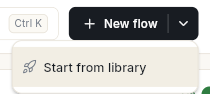
To start from a ready-made flow instead, click the arrow (⌄) on the right side of New flow, then click Start from library.
-
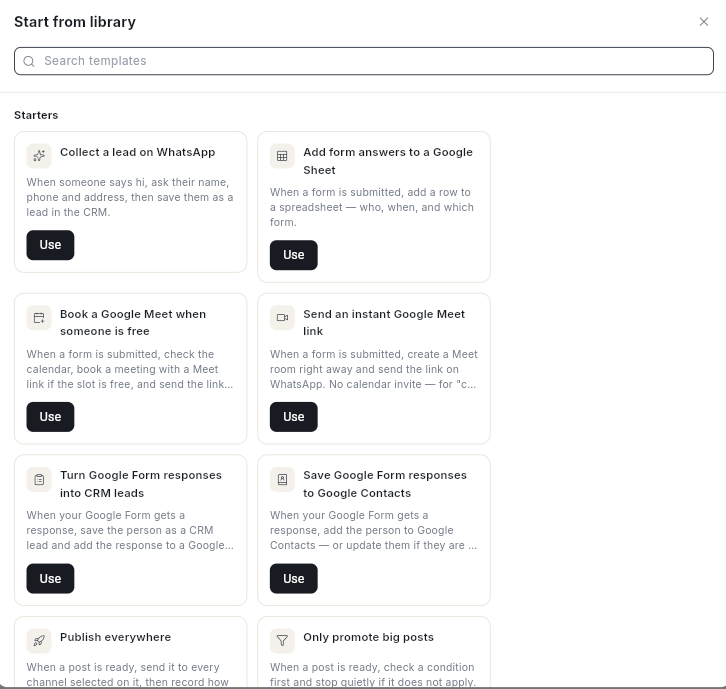
In Start from library, search with Search templates or pick a flow under Starters or Chatbot templates, then click Use on it. See Start a flow from a template for every starter and template.
For the next steps, see Build an automation flow or Create a WhatsApp chatbot flow.
Video walkthrough
[VIDEO]
Troubleshooting
| Issue | Cause | Fix |
|---|---|---|
| New flow is missing | Your role can view flows but not create them. The empty list says Your role can view flows but not create them. | Ask your admin for save access to flows. |
| Flows is not in the Connect panel | That entry is for admins by default. | Open WhatsApp → Flows, or ask your admin. |
| Row shows Not published next to Active | You saved edits but did not publish them. The live version still runs. | Click the row, then click Publish changes. |
| Row shows Stuck | A run has been waiting or running for more than 6 hours. | Open Recent runs and read the run. See Test a flow and fix failed runs. |
| No On/Off switch in the panel | The flow has never been published. | Click Publish & turn on. |
| The flow could not be copied. | The copy failed on the server. | Try again. If it fails again, note the Flow ID and contact support. |