Use the template library
Pick a ready-made WhatsApp template from the library, or describe a message and let AI write it. At the end, the template is saved to your account and submitted to Meta. Takes about 5 minutes. Meta usually decides within a few minutes.
Before you start
- Your WhatsApp number is connected to Ohanvi. See Connect your WhatsApp number.
- You can see Template in the WhatsApp panel. If not, ask your admin to give your role template access. See Roles and permissions.
- Your role can create templates. Without that, you can browse and preview, but you cannot use a template or write one with AI.
- You know which category your message belongs to. See Create a WhatsApp message template.
What the library holds
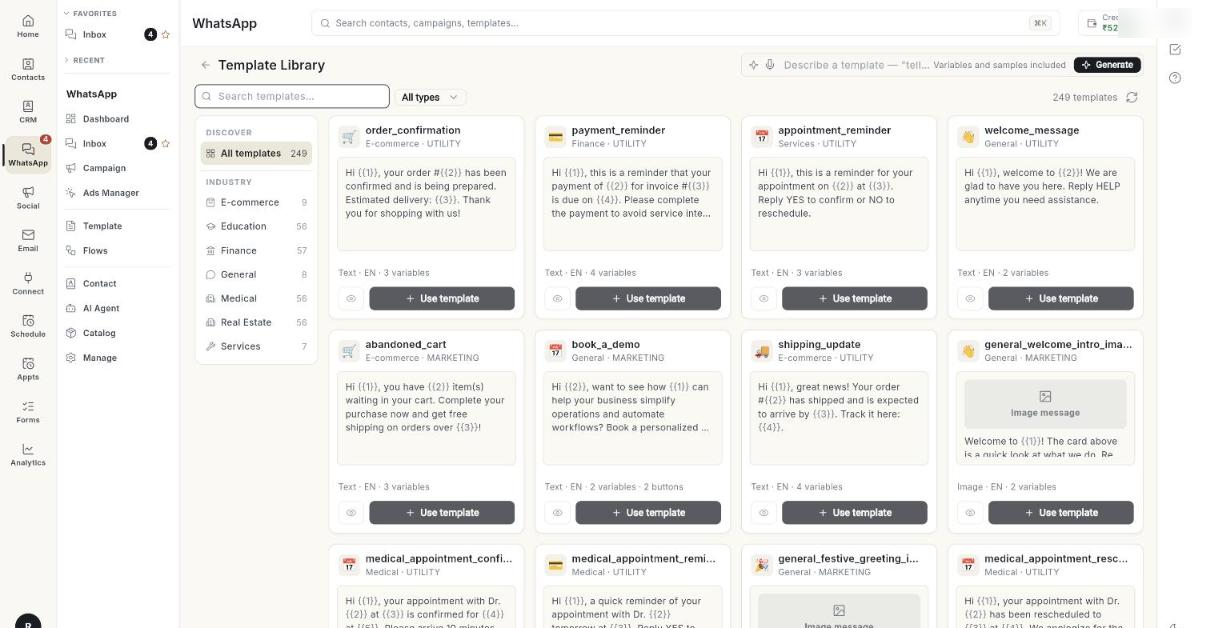
The Template Library holds ready-made templates grouped by industry. Each card shows the industry, the kind of message (Image message, Video message, Document message or text), and two buttons: Preview and Use template.
A template you use is copied to your account. You can change it before you submit it. The library template itself does not change.
Steps
Open the library
- Open WhatsApp in the left rail, then select Template. The Templates page opens.
-
Click Browse Library. The Template Library page opens.
-
To go back to your templates, use the back arrow at the top left of the page.
Other ways in
Click the arrow beside New template and choose Start from the library…. You can also click Generate. Both open the same Template Library page.
No Explore tab
The Templates page does not show an Explore tab. Use Browse Library instead. [VERIFY: an Explore tab is not shown on the Templates page]
Find a template
- On a wide screen, look at the DISCOVER panel on the left. Click All templates to see everything.
- Under INDUSTRY, click an industry. Each industry shows how many templates it holds.
- On a narrow screen, the industries appear as filters in the strip above the list instead.
- Type in Search templates… to search by name, use case or industry.
- Choose a language from the language list. The list shows All languages first. It appears only when the library has more than 1 language.
- Choose a message type: All types, Text, Image, Video or Document.
- Read the count beside the list, for example "12 templates".
- Click Refresh to reload the list.
Preview a template
- On a card, click Preview. A phone-style preview opens.
- Check the header, body, footer and buttons.
- Click the close icon to return to the list.
Use a library template
- On the card, click Use template. The Customize Template form opens with the fields already filled in.
- Change the Template name if you want a different name. Use lowercase letters, numbers and underscores only.
- Check the Template Category and Template Language.
- Edit the header, body, footer and buttons as you need. The form works like the one for a new template. See Create a WhatsApp message template.
- Check the Example for each variable. Use real-looking values.
- Click Save & Submit for Approval. The message Template saved. Awaiting WhatsApp approval. appears.
- Open Template. The template shows In review until Meta decides.
Write a template with AI
- On the Template Library page, click the box at the top. It reads Describe a template — "tell customers their order has shipped".
- Type what the message should do. Or click an idea under TRY THESE.
- Optional: pick an industry first. The AI writes for that industry.
- Optional: click the microphone icon, Describe the template out loud, and speak your description.
- Click Generate. The box reads Writing… while the draft is made. The draft includes variables and samples.
- Read the Review AI Draft form. Check the wording, category, variables and examples.
- Change anything that is wrong.
- Click Save & Submit for Approval. A message says the template was added to your templates, and the Templates page opens.
Check every AI draft
AI can get facts and offers wrong. You are responsible for what your template says. Meta can still reject it.
Inside the template form, one AI button sits in the form header, beside the close button. Its name changes with the form: Generate with AI, Fix template name or Improve wording.
Filter your templates by tab
- Open WhatsApp → Template.
- Click a tab: All, Favorites, Pending, Approved or Action Required.
- Read the number beside the tab name. It counts the templates in that tab.
- Click All to see every template again.
A tab with no templates is hidden. All and the tab you have open always stay. Action Required holds every template you need to fix. See Create a WhatsApp message template.
Pin a favorite template
- On the Templates page, find the template.
- Click Add to favorites.
- Click the Favorites tab to see your pinned templates.
- To unpin a template, click Remove from favorites.
If the star does not change, the message Could not update favorite. appears. Try again.
Troubleshooting
| Issue | Cause | Fix |
|---|---|---|
| No library templates found | Your search, language, type or industry filter matches nothing. | Try a different search term or industry. Choose All types and All languages. |
| Could not load the template library | The library did not load. | Click Refresh. If it still fails, reload the page and try again. |
| The box for writing with AI is missing, or Use template does not work. | Your role cannot create templates. | Ask your admin for template access. See Roles and permissions. |
| Describe the template you want first. | You clicked Generate with an empty box. | Type a description, then click Generate. |
| Could not generate a template. | The draft did not come back. | Click Generate again. Make the description more specific. |
| A tab such as Pending is missing. | A tab with no templates is hidden. | Nothing to fix. The tab returns when it holds a template. |
| The template shows Rejected after you submit it. | Meta refused the wording or layout. | See Fix a rejected template in Create a WhatsApp message template. |