Manage your ads in Ads Manager
Use the Ads Manager tab to see every ad on your Meta ad account, check its status, spend and leads, and pause, rename or change budgets without leaving Ohanvi. At the end, you can find any ad, read its numbers and change it from one table. Takes about 5 minutes to learn.
Before you start
- Your Facebook account, Page, ad account and WhatsApp number are connected. See Run Click-to-WhatsApp ads.
- You can see Ads Manager in the WhatsApp panel. If not, ask your admin.
- You have created at least 1 ad. See Create an ad.
What the tab shows
The Ads Manager tab has 5 parts, from top to bottom.
| Part | What it holds |
|---|---|
| Command bar | Create Ad, Sync, Export, Metrics, Columns, Presets and the date range. |
| Status filters | All, Active, Completed, In review, Paused and Not approved. |
| Metric cards | Totals for the date range, such as Total Spend and Number of Leads. |
| Level chips | Campaigns, Ad sets, Ads and All assets. |
| Table | One row per campaign, ad set or ad, with a checkbox and an ACTIONS menu. Ad rows also show quick actions when you hover them. |
Where the buttons are
In some layouts the command bar is a row of buttons under the page title. They are labelled Sync, Download Report, Customize Metrics, Columns and Presets, and the date range sits beside them. They do the same things.
Steps
Find the ads you want
-
Open WhatsApp in the left rail, then select Ads Manager.
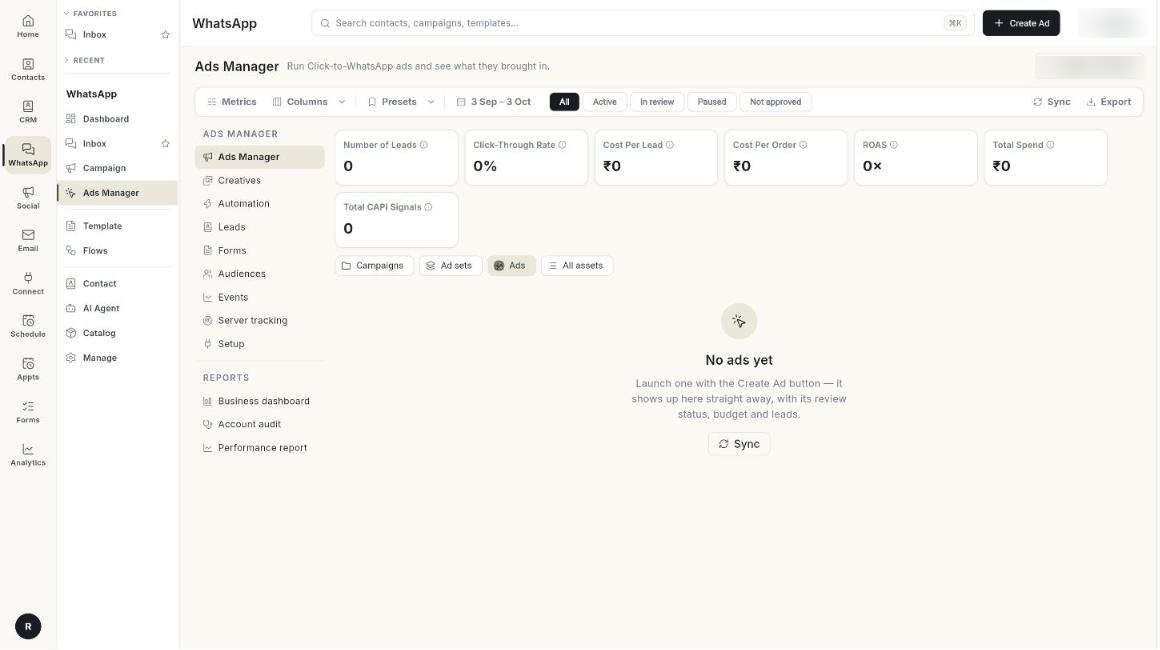
-
Click the date range, for example 7 Aug – 6 Sep.
- Pick a start and end date, up to 2 years back. The default is the last 30 days. The cards and table reload.
- Click a status filter: All, Active, Completed, In review, Paused or Not approved.
- Type in Search by Ad name to find an ad by name or ID.
- Click Sync to pull the latest ads and numbers from Meta. The button reads Syncing… until it finishes.
Each status filter uses Meta's real delivery state, worded the way Meta's own Ads Manager words it. An ad that is in review or rejected never appears under Active. In review also covers ads waiting on billing information. Not approved covers ads Meta rejected or flagged with issues.
An ad, ad set or campaign whose end date has passed shows Completed with a grey dot, as it does in Meta. It is not listed under Active any more.
Switch between campaigns, ad sets and ads
- Click Campaigns, Ad sets, Ads or All assets above the table.
- In a campaign row, click the name, or open ACTIONS and choose Show its ad sets. A chip such as In campaign: Monsoon sale appears.
- In an ad set row, click the name, or choose Show its ads. The chip changes to In ad set: ….
- Click the x on the chip to go Back to all.
Campaign and ad set rows add up the numbers of the ads inside them. Their Daily Budget cell reads Ad set budgets or Campaign budget when the budget is set one level away.
Choose which metric cards you see
- Click Metrics, or Customize Metrics.
- Tick the cards you want. At least 1 card stays on.
- Click Done.
- Hover the info icon on a card to read its definition.
A card shows ₹0 or 0× when there is no data yet.
| Card | What it counts |
|---|---|
| Number of Leads | Leads from your ads in the date range: the larger of the contacts Ohanvi saw arrive from an ad and the conversations Meta says the ads started. |
| Click-Through Rate | Clicks divided by impressions on the ad account. |
| Cost Per Lead | Total spend divided by the number of leads. |
| Cost Per Order | Ad spend divided by purchases reported back to Meta. |
| ROAS | Revenue divided by ad spend, from accepted conversion events. |
| Total Spend | Money spent by the Meta ad account. |
| Total CAPI Signals | Conversion events sent back to Meta. |
Choose which columns you see
- Click Columns.
- Tick or untick a column. At least 1 column stays on.
- Read the column you added. A dash (—) means Meta has not returned that number yet.
[VERIFY: add after step "Choose which columns you see"]
| Column | What it shows |
|---|---|
| Ad Name | The ad name, its ID and a thumbnail. Reads Name on campaign and ad set views. |
| Start Date | The date the ad started. |
| Status | Meta's delivery state: Active, Completed, In review, Rejected, Preparing, Campaign off or Ad set off. A red circle beside it holds Meta's rejection reasons. Tap it to read them. |
| Ad Type | The ad type. On campaign rows it shows the objective. On ad set rows it shows the optimisation goal. |
| Daily Budget | The ad set's daily budget. A lifetime budget shows the total with the word total. |
| Impressions | How many times the ad was shown. |
| Spend | Money spent in the date range. |
| Leads | People who messaged you from the ad. It is the larger of two counts: contacts Ohanvi saw arrive from the ad, and conversations Meta says the ad started. Number of Leads and Cost Per Lead use the same rule. |
| Performance overtime | A small chart of the last 7 days. Bars show spend and the green line shows results. Hover for each day. |
| Latest actions | The last change to the ad, who made it and when. A bolt icon means an automation rule made it. |
| Active optimization | The automation rules watching this row. Green means the rule is live. Amber means preview only. Click it to open Automation. |
Use the quick actions on an ad row
- Point at an ad name. The ID line turns into Charts, Edit, Duplicate and a ⋯ button.
- Click Charts to open the performance report.
- Click Edit to change the ad. See Edit an ad.
- Click Duplicate to copy the ad on the same ad set. The copy is paused and named with — copy. Activate it when you are ready.
- Click ⋯ for more:
- Analyze opens Account audit.
- Pin keeps the ad at the top of the table. A pin icon shows beside its name. Choose Unpin to remove it.
- View history opens the ad's storyline of changes and results by day.
- Rules opens Automation.
Pins are kept in this browser only.
Preview an ad
- Point at the small picture of an ad. A larger picture appears with Open ad preview and Analyze ad.
- Click Open ad preview (or choose Preview ad in the ACTIONS menu).
- On the Ad tab, pick a placement: Facebook feed, Instagram feed, Instagram story or Instagram reels. Meta draws the ad. Click Open in a new tab if the frame is empty.
- Click the Destination tab to see the WhatsApp chat a person lands in. It shows the ad card, the greeting and the icebreakers.
Meta needs a minute or so to draw a new ad. If nothing shows, try again shortly.
Edit an ad
- Click Edit on the ad row. The ad opens with everything that was entered when it was made.
- On the Edit tab, read the five parts from top to bottom:
- Ad: the Ad name and ID, with Open in Meta Ads Manager for anything you cannot change here.
- What people see: every Primary text, Headline and Description, the button, the Greeting message and the Ice breakers.
- Budget and schedule: the budget, Starts and Ends.
- Delivery: the objective, what the ad is optimised for, the bid strategy and, on a capped bid, the Bid / cost cap.
- Who sees it: countries, age, gender, interests, audiences and placements.
- Change what you need. You can change the name, the texts, the greeting, up to 4 ice breakers, the budget, the Ends date, the Starts date until the ad has started, and the bid cap.
- Click Save changes. If you changed any words, the ad asks you to confirm because Meta reviews it again.
- Click the Review tab to see Meta's preview of the ad.
What stays read-only here: the pictures and video, the button, the audience and the objective. Change pictures under Use ad creatives or in Meta Ads Manager.
An ad with several texts or pictures keeps all of them. Changing one headline keeps the other headlines, the pictures and the other settings of the ad. A carousel or catalogue ad is edited in Meta Ads Manager, and the page says so.
The budget and dates belong to the ad set, so they change for every ad in it. Meta sends an ad back for review when its words, greeting or ice breakers change, and may restart delivery when you edit a running ad.
If the page shows Showing what the list already knows, the full ad could not be loaded. You can still change the budget and dates, and the words are read-only until you open it again.
Change the budget or end date of an ad set
- In the Daily Budget or Ends column, click the pencil.
- For the budget, type the new Daily budget. Under the box, Ohanvi shows the most you can spend on any day and in a week.
- For the end date, pick the End date and time. The Start is shown for reference.
- Click Publish to change it at Meta now, or Save to draft to keep it for later.
- A draft shows Draft in the cell. A banner above the table reads N unpublished changes saved as draft. Click Review and publish to publish them all, or Discard.
Drafts are kept in this browser only.
Pause, activate, rename or preview one ad
- Click the three dots in the ACTIONS column of the ad row.
- To see the ad as people see it, choose Preview ad. Meta's own preview opens.
- To see changes and results by day, choose Storyline.
- To stop spending, choose Pause. The message Paused — this ad will stop spending. appears.
- To start spending again, choose Activate. The message Ad activated. appears.
- To rename, choose Rename. In Rename ad, type the new Ad name and click Save.
- To see who messaged you from this ad, choose View leads.
Activate starts spending at once
An approved ad goes live the moment you click Activate. Meta does not review it again. An ad still In review cannot be activated.
Change the budget of a campaign or ad set
- Switch to Campaigns or Ad sets.
- Click the three dots in the ACTIONS column of the row.
- Choose Change daily budget.
- In the Change budget window, pick Set daily budget, Increase by % or Decrease by %.
- Type the amount in New daily budget (or Percent), then click Apply.
Change daily budget is available only on rows that have a daily budget of their own. Campaign and ad set rows also have Show its ad sets or Show its ads, Storyline, and Pause or Activate.
Change many rows at once
- Tick the checkbox on each row. Tick the box in the header to select the whole page.
- Read the bar that shows 2 selected or the matching count, with Turn on, Pause and Change budget.
- Click Turn on or Pause and confirm. Turn on asks Turn on 2 rows? and warns that approved ads start spending right away.
- To change budgets, click Change budget.
- Choose Increase by %, Decrease by % or Set daily budget.
- Type the Percent or New daily budget.
- Click Apply.
- Click Clear to drop the selection.
Bulk change limits:
- Up to 50 rows at a time.
- An increase can be up to 500%.
- A decrease can be up to 90%.
- Only ad sets with their own daily budget change.
The change takes effect on Meta right away. If some rows fail, a window titled for example 3 updated · 1 not changed lists each failed row and Meta's reason.
Save a view as a preset
- Set the level, status filter, search text, columns and metric cards the way you want them.
- Click Presets, then Save current view….
- Type a Preset name.
- Click Save. If the name exists, the button reads Replace.
- To use it later, click Presets and pick the name. The message Preset “…” applied. appears.
- To remove one, click Presets, then Manage presets…, then the delete icon.
Presets are shared
A deleted preset is removed for everyone in your team. A preset does not save the date range.
Download the report
- Pick the date range.
- Click Export, or Download Report.
- Open the Excel file. It is named
ads_report_followed by the start and end dates.
The button is off while the table is empty.
Troubleshooting
| Issue | Cause | Fix |
|---|---|---|
| Connect and Setup Meta Ad Account to continue! | Setup is not finished. | Click the message to open Setup, then finish all steps. |
| Could not load ads, with Could not fetch ads from the Meta ad account. | Meta did not answer, or the connection expired. | Click Retry. If it repeats, reconnect in Setup. |
| No ads yet | The ad account has no ads. | Click Create Ad. A new ad appears here straight away. |
| Nothing matches this filter | The status filter or search hides every row. | Click All and clear the search box. |
| A red circle beside Status | Meta found a problem with the ad. | Tap the circle, read Meta's reason, fix the ad and create it again. |
| Nothing ticked has a daily budget of its own to change. | The rows you ticked have no daily budget. | Tick ad sets with a daily budget, or change the budget on the campaign. |
| This ad has no ad set id yet. Sync and try again. | The ad was just created and its ad set is not loaded. | Click Sync, then change the budget or end date again. |
| Could not duplicate the ad. | Meta refused the copy. | Read the message from Meta and fix what it names. |
| Could not update the ad. | Meta refused the change, for example a budget below the account minimum. | Read the message from Meta that appears with it and adjust the value. |
| An ad past its end date still reads Active. | You are on an older version of the table. | Update Ohanvi. It now shows Completed, like Meta. |
| Ice breakers are empty on an ad you made. | The ad was made without ice breakers, so Meta uses its default greeting. | Click Edit, add up to 4 under Ice breakers, and save. |
| Could not download the report. | The export did not finish. | Click Export again. |