Sign up for Ohanvi
Create your Ohanvi account in two steps: fill in your details, then verify your email with a 6-digit code. You land on your new workspace, ready to connect WhatsApp.
Before you start
- You have an email address you can open right now. The verification code arrives there.
- You have a mobile number (10 digits for India).
- You know whether you are signing up for yourself (Individual) or for a business (Organization).
Steps
Open the sign-up form
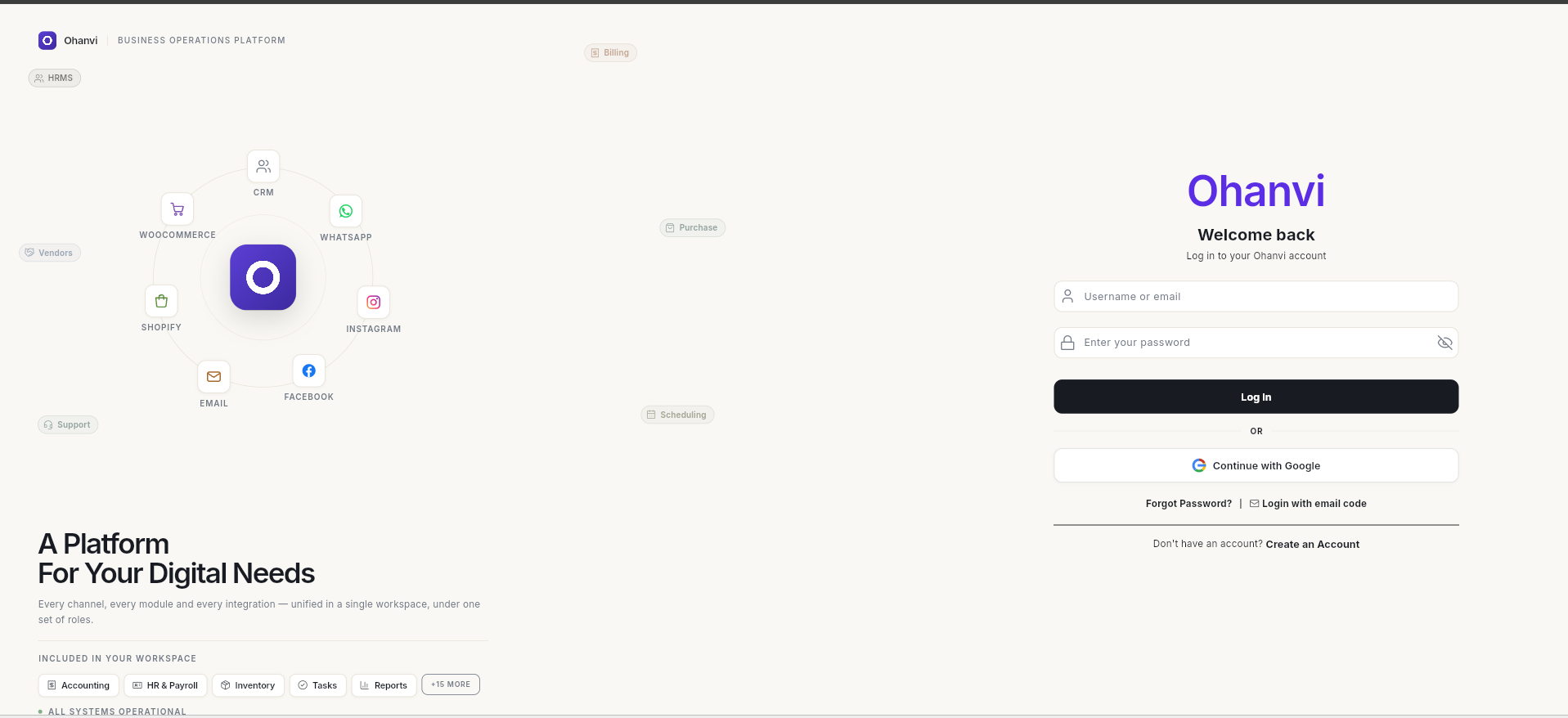
- Go to app.ohanvi.com.
-
Below the login form, click Create an Account.
Choose the account type
-
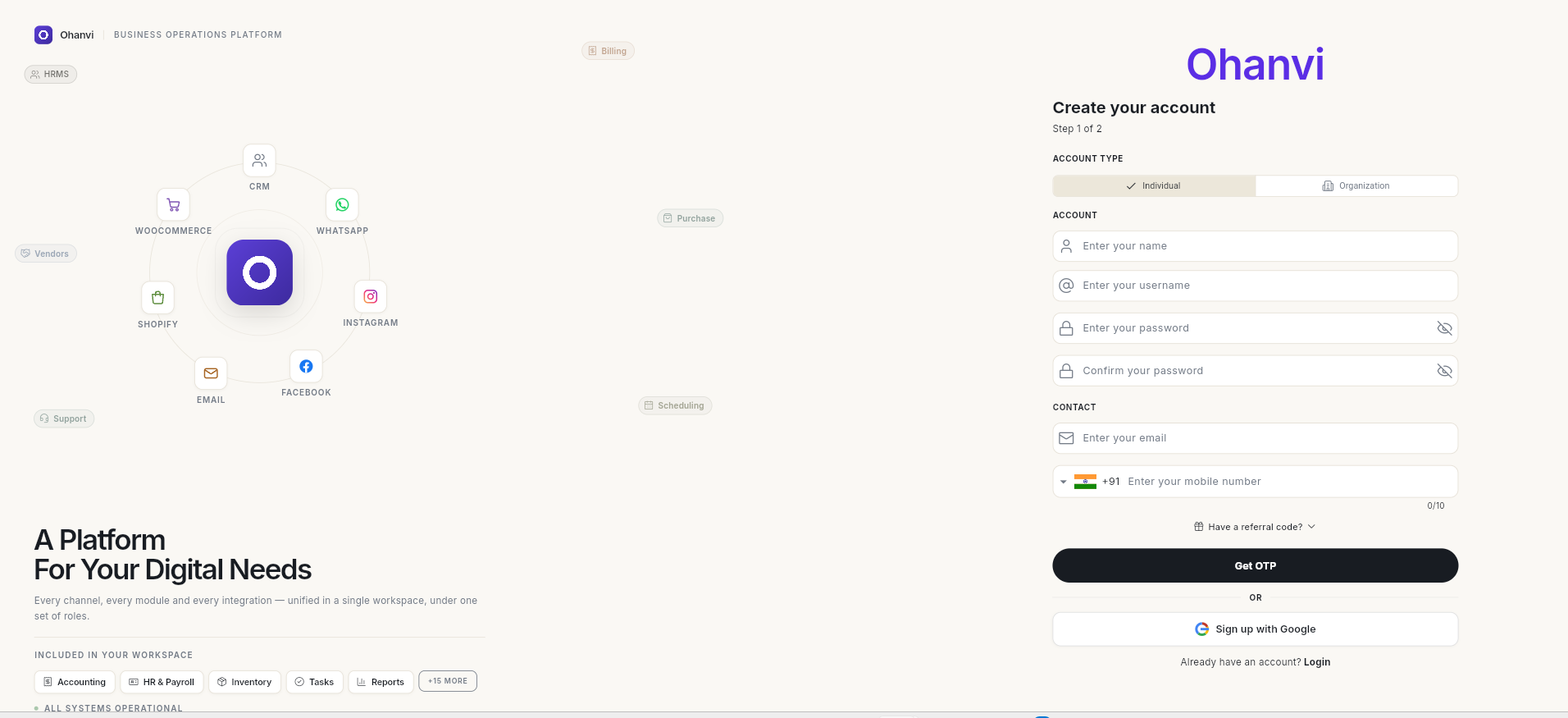
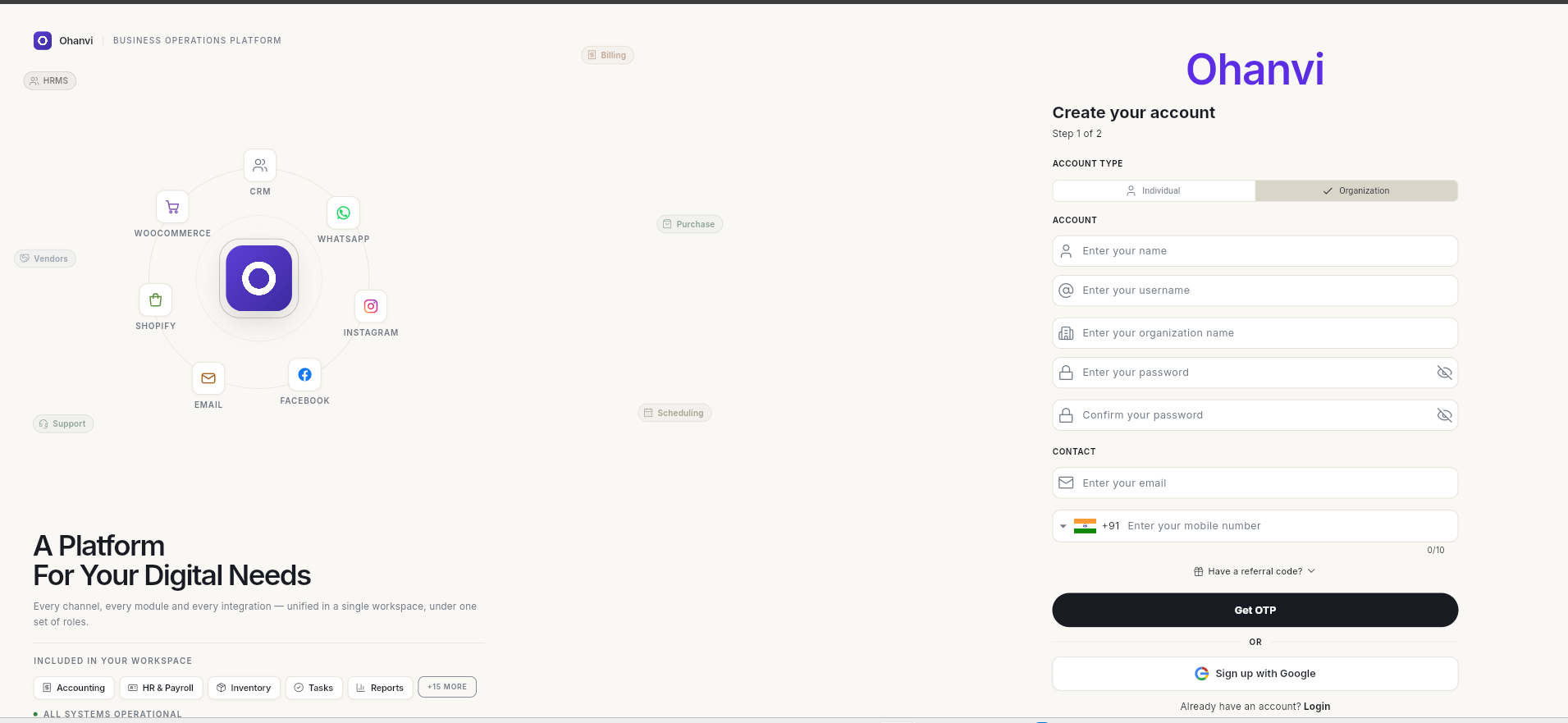
Under Account type, pick one:
- Individual — for yourself. You can add teammates later.
- Organization — for a business. This adds one extra field, organization name.
Fill in your details
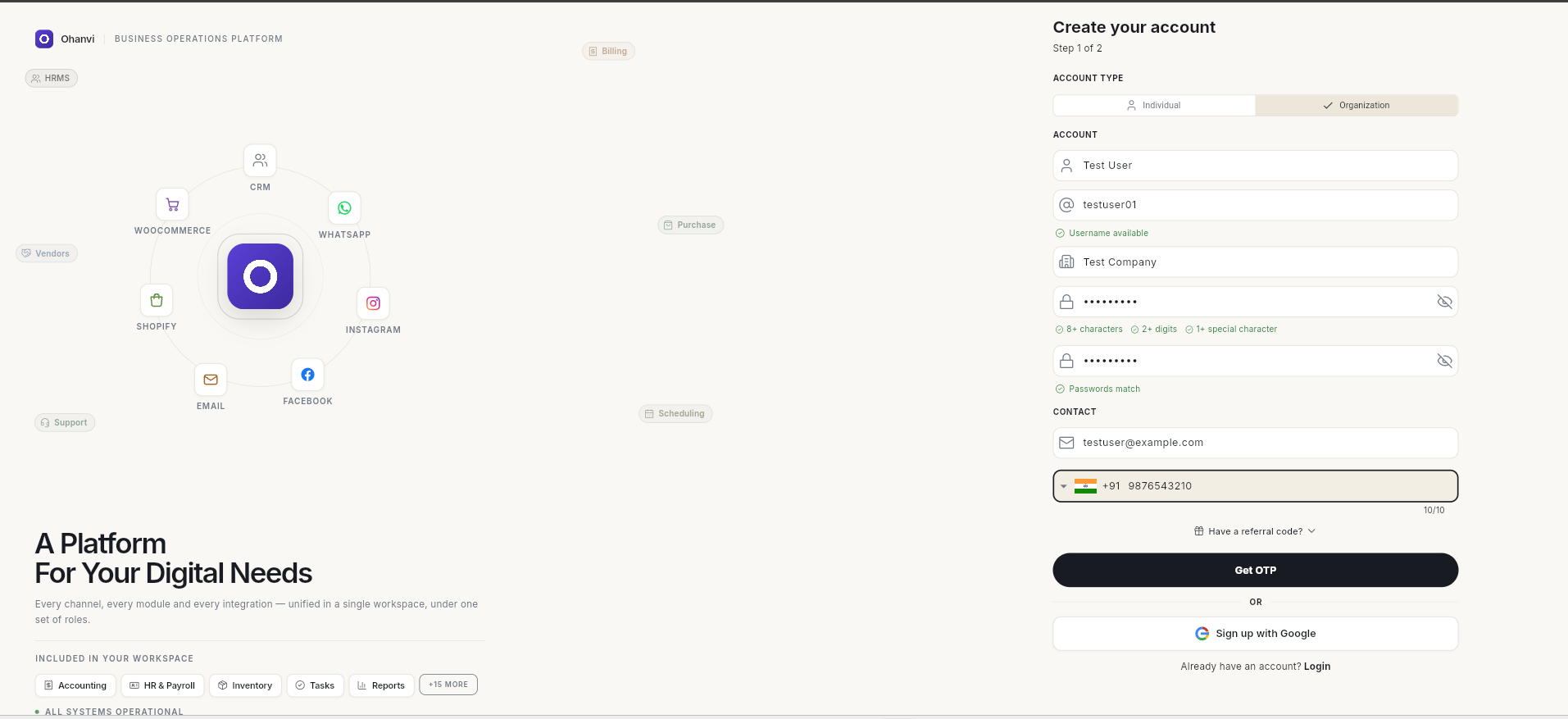
- Enter your name and a username. The form shows Username available when the username is free.
- For an organization, enter the organization name.
-
Enter a password and type it again in Confirm your password. The password needs:
- 8 or more characters
- 2 or more digits
- 1 or more special character
The checks turn green as you type, and Passwords match appears when both fields agree.
-
Under Contact, enter your email and mobile number.
-
If someone gave you a referral code, click Have a referral code? and enter it.
-
Click Get OTP.
Verify your email
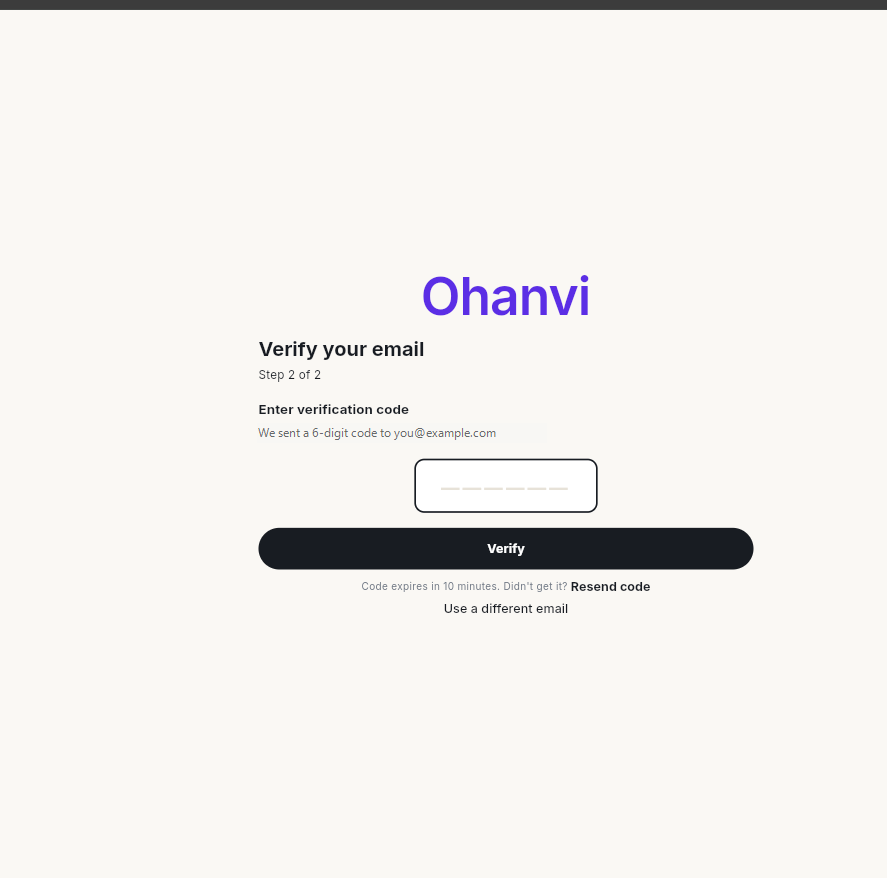
- Open your email. Copy the 6-digit code Ohanvi sent you.
-
Type the code in the box and click Verify. The code works for 10 minutes.
Tip
Keep the email open in another tab before you click Get OTP, so you can enter the code straight away.
-
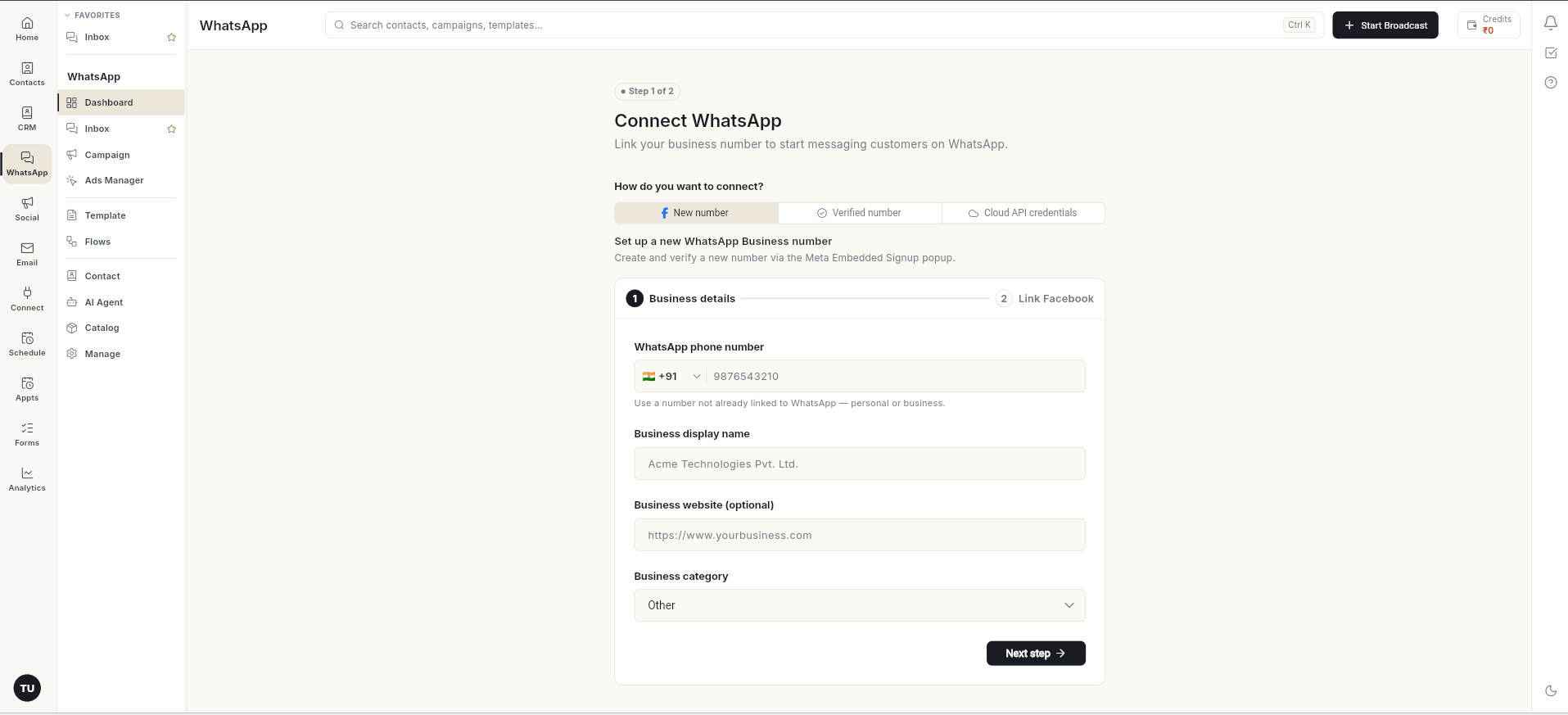
Your account is created and you are signed in. Ohanvi opens Connect WhatsApp, the first setup step for your workspace.
Sign up with Google instead
- On the sign-up form, click Sign up with Google and sign in with your Google account. Your Ohanvi account is created with that Google email, and your username is made from the email address.
- Check your email. Ohanvi sends you a username and password, so you can also sign in without Google.
Note
Google sign-up always creates an Individual account, even if Organization is selected. To sign up as an organization, fill in the form and click Get OTP instead.
Video walkthrough
[VIDEO]
Troubleshooting
| Issue | Cause | Fix |
|---|---|---|
| Username available does not appear | Someone already uses that username. | Try a different username. |
| Get OTP shows a message such as Enter a valid mobile number. | A field is empty or invalid, or a password rule is not met. | Fix the field the message names. For an organization, also fill in organization name. |
| No code in your inbox | The email went to spam or promotions. | Check those folders and wait 1–2 minutes. |
| OTP has expired. Please request a new one. | More than 10 minutes passed. | Start the sign-up again from app.ohanvi.com and enter the new code quickly. |
| No account found for this email. Please sign up first. after Resend code or Verify | Ohanvi no longer holds your sign-up details, so the code cannot finish the sign-up. | Close the tab, open app.ohanvi.com in a new window, and sign up again from the start. |