Track website events
Create a dataset in Ads Manager, copy its event script onto your website, and check that Meta receives events. You can also upload sales that happened offline. At the end, Meta can use these events to find buyers for your ads. Takes about 10 minutes.
Before you start
- Your Facebook account, Page and ad account are connected in Setup. See Run Click-to-WhatsApp ads.
- You can edit the code of your website, or you know who can.
- For offline sales, you have a CSV file with a phone number or an email for each sale.
What a dataset is
A dataset is the place in Meta where your website events are collected. Events are actions such as PageView, AddToCart and Purchase. Meta also calls a dataset a pixel. Events from your website and from WhatsApp go into the dataset. Meta optimises your ads toward them.
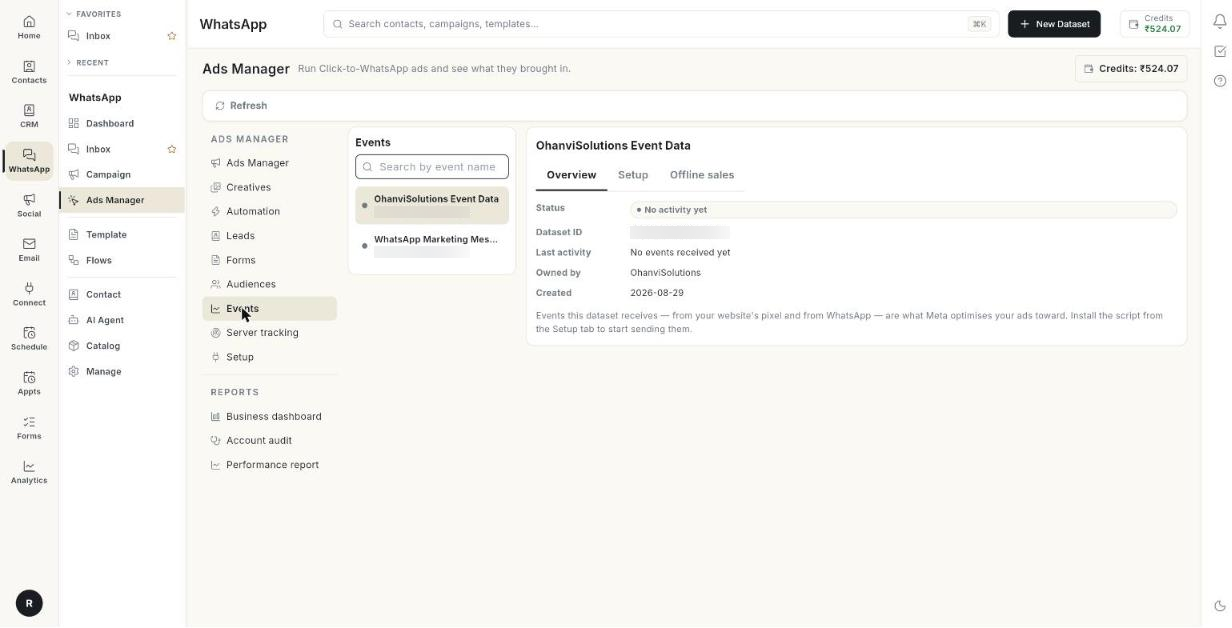
The Events tab has a list of datasets on the left and the selected dataset on the right.
| Dot beside a dataset | What it means |
|---|---|
| Green | Meta has received at least 1 event from it. |
| Grey | No event has arrived yet. |
Steps
Create a dataset
- Open WhatsApp in the left rail, then select Ads Manager.
-
Click Events.
-
Click New Dataset. The Create Dataset window opens.
-
Type a Dataset name *, for example
Website Event Data. - Click Create. The dataset is created on your ad account in Meta Events Manager. The event script appears under Setup once it exists.
Setup must be finished first
If Setup is not complete, New Dataset takes you to Setup instead.
Find a dataset
- Click Events. The list of datasets opens on the left.
- Type a name or an ID in Search by event name at the top of the list.
- Click the dataset. Its tabs open on the right.
- To reload the list, click Refresh. The dot beside each dataset updates.
Read the Overview
- Select a dataset, then open Overview.
- Read Status. It shows the dataset status, for example Active.
- Read Dataset ID. This is the number Meta uses for the dataset. Click the copy icon (Copy ID) to copy it.
- Read Last activity. It shows the date of the last event, or No events received yet until one arrives.
- Read Owned by. It shows the business that owns the dataset. It appears only when Meta gives it.
- Read Created. It shows the date the dataset was created.
Install the event script
- Select the dataset, then click Setup.
- Open Copy the Event Script.
- Click the copy button on the Event Code box. The message Event script copied appears.
- Open Install on Your Website.
-
Paste the code just before the closing
</head>tag on every page of your website. -
Save and publish the change on your website.
The example in the panel looks like this:
<head>
  <!-- Your existing head content -->
  <!-- Paste your event code here -->
</head>
Verify the installation
- In Setup, open Verify the Installation.
- Visit your website and open any page. This sends the first PageView event.
- In Meta Events Manager, open the Test Events tool. Confirm the event is active and receiving data.
- Come back to Events and click Refresh. The dot beside the dataset turns green once Meta has received its first event.
Tip
Use Search by event name at the top of the list to find a dataset by name or ID.
Send offline sales
Use Offline sales for sales that did not happen on your website. Examples are shop counter sales, phone orders and cash on delivery paid later. Meta credits the ads that brought those buyers.
- Select the dataset, then click Offline sales.
- Prepare a CSV file. The columns can be in any order. Use the columns in the table below.
- Make sure each row has an email or a phone number.
- Click Choose CSV and pick your file. The button then reads Choose another.
- Read the line that says how many sales are ready, for example 120 sales ready to send. Lines such as 3 rows skipped: no email or phone explain what was left out.
- Click Send to Meta.
- Wait for Sending… 40 of 120 to finish. The message Meta received 120 sales. They show in Events Manager under this dataset within about an hour. appears.
CSV columns
| Column | Use |
|---|---|
email |
The buyer's email. |
phone |
The buyer's phone number. |
date |
The sale date. Use 2026-10-02 or 02/10/2026. |
value |
The sale amount. |
currency |
The currency, for example INR. Defaults to INR when empty. |
order_id |
The order number. |
first_name, last_name |
The buyer's name. |
city, state, pincode, country |
The buyer's location. |
Limits and rules:
- Each row needs an email or a phone number.
- The event is Purchase unless the file has an
eventcolumn. - Meta accepts sales up to 62 days old. A row older than 62 days is skipped with the reason date outside the last 62 days.
Tip
Add an order_id to every row. Sending the same file again then counts each sale once.
Troubleshooting
| Issue | Cause | Fix |
|---|---|---|
| Connect your Meta ad account with a Set up now button | Setup is not finished. | Click Set up now and finish Setup. |
| No datasets yet | No dataset exists on the ad account. | Click Create Dataset. |
| Could not load datasets | The list did not load. | Click Retry. |
| Could not create the dataset — is Facebook connected? | Facebook is disconnected, or Meta refused the request. | Check Setup, reconnect Facebook, and create the dataset again. |
| The dot beside the dataset stays grey | No event has reached Meta. | Check the code is on every page, visit your site, and click Refresh. Use Meta's Test Events tool to confirm. |
| Last activity shows No events received yet | The script is not installed or is blocked. | Reinstall the script. If an ad blocker is on, test in a clean browser. For stronger tracking, see Set up server tracking. |
| Upload failed. | Meta refused the sales, or the connection dropped. | Check the CSV columns and dates. Click Send to Meta again. |
| rows skipped: no email or phone | A row has neither an email nor a phone number. | Add one of them to each row and choose the file again. |