Ask for a location, a file or a reply in a chatbot
Collect more than text answers in a chatbot. At the end, your bot can ask a typed question, request a shared location, request a photo or file, or wait for a tap and send each choice down its own path.
Before you start
- You have a chatbot flow open in the builder. See Create a WhatsApp chatbot flow.
- You know which answers you want to keep. Each answer is saved under a name you choose.
How ask blocks work
Every ask block sends a message, waits for the customer, and saves the answer under a name. You use that name later as {{name}} in a message.
| Block | What the customer does |
|---|---|
| Ask Question | Types an answer. |
| Ask Location | Shares a location from WhatsApp. |
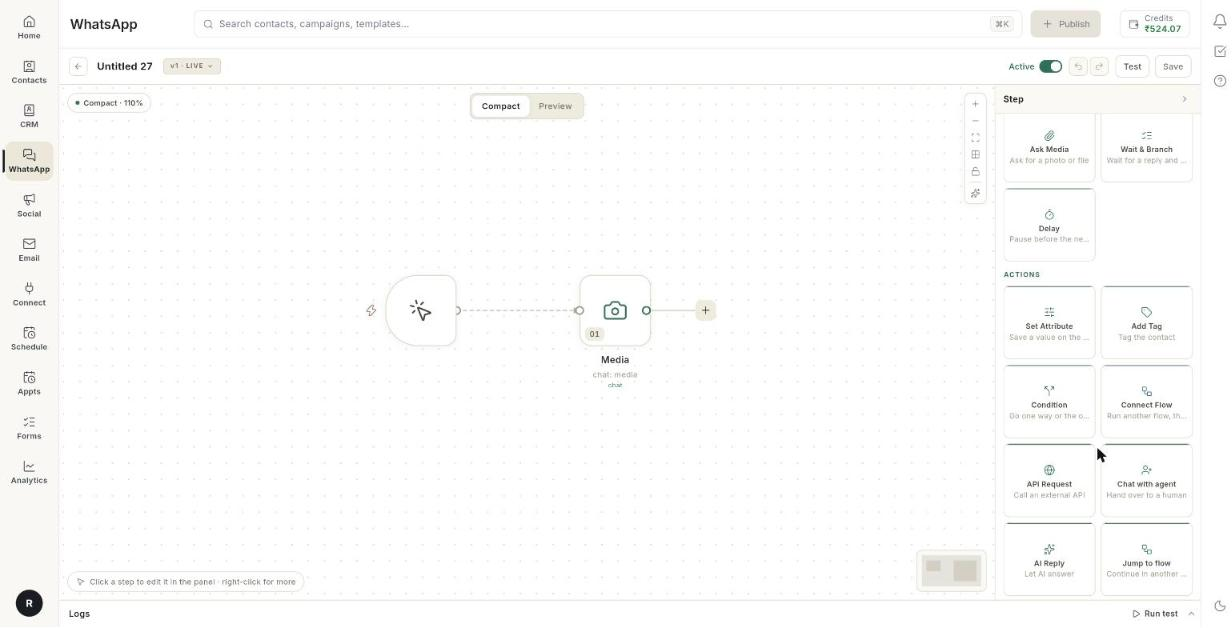
| Ask Media | Sends a photo, video, document or audio file. |
| Wait & Branch | Taps one choice. Each choice leads to its own path. |
Find all four under All steps → Ask the customer.
Steps
Add an ask block
- Open your flow in the builder.
- Click + next to a step, or click + Add Content at the bottom of a card.
- Choose All steps.
-
Under Ask the customer, choose Ask Question, Ask Location, Ask Media or Wait & Branch.
-
Click the block to open its fields in the right panel.
Ask a question and choose the answer type
The first steps are in Create a WhatsApp chatbot flow. This task adds the answer type.
- Open an Ask Question block.
- Type the Question.
- Under Save the answer as, pick a name. See Choose where the answer is saved.
- Under The answer should be, pick a type.
The types are Short text, Long text, Number, Email, Phone number, Date, Time, One choice, Several choices, Yes or no, A file, A location, A rating and An NPS score.
Ask for a location
- Add an Ask Location block.
- Under Ask for a location, type the message, for example
Please share your location…. - Under Save the answer as, pick a name. See Choose where the answer is saved.
- Optional: switch on Set Timeout and type Timeout after (minutes).
Ask for a photo or file
- Add an Ask Media block.
- Under Ask for a file, type the message, for example
Please send a photo or document…. - Under Accepts, click the row to switch between IMAGE, VIDEO, DOCUMENT and AUDIO.
- Under Save the answer as, pick a name. See Choose where the answer is saved.
- Optional: switch on Set Timeout and type Timeout after (minutes).
Choose where the answer is saved
- Click the row under Save the answer as. The Save the answer as list opens.
- Pick a ready-made name, or a name this flow already saves.
- To use your own name, pick Custom…. The detail reads Your own name, e.g. company_name.
- Type the name and click Use. Ohanvi turns it into lowercase letters and underscores.
- Use the answer later as
{{company_name}}.
Use double curly braces in small letters
{{company_name}} works. {{Company_Name}} is sent to the customer as plain text.
Wait for a tap and branch
Wait & Branch sends a message with choices and waits. Each choice has its own exit on the card.
- Add a Wait & Branch block.
- Optional: type a Header. It can hold up to 20 characters.
- Type a Body. It can hold up to 4,096 characters.
- Optional: type a Footer, up to 60 characters.
- Click + Add Section to add a choice. The button reads + Add Section, but it adds a list row.
- In Item, type the choice name, up to 24 characters.
- In Describe it, type a short line under the name, up to 72 characters.
- Repeat steps 5 to 7 for each choice. You can add up to 10.
- In Button label, type the words on the button that opens the choices, up to 20 characters.
- Click the + at the right end of a choice and pick the step that runs for it.
Choices you leave unwired continue to the next block of the card.
Handle a customer who does not reply
- Open a block that waits for a reply: Ask Question, Ask Location, Ask Media or Wait & Branch.
- Switch on Set Timeout.
- Type Timeout after (minutes).
- Wire the new Timed out exit to a follow-up step, for example a reminder message.
Troubleshooting
| Issue | Cause | Fix |
|---|---|---|
The answer shows as {{Name}} in the message. |
The variable has a capital letter. | Write it in small letters: {{name}}. |
| The bot does not use a custom answer name. | The name has spaces or symbols. | Use letters, numbers and underscores only, then click Use again. |
| The customer sends the wrong kind of file. | Accepts is set to another type. | Change Accepts to the type you expect. |
| + Add Section is missing. | The block already holds 10 choices. | Remove a choice, or split the choices over 2 blocks. |
| The conversation stops at a question. | The customer never answered and there is no Timeout. | Switch on Set Timeout and wire Timed out to a next step. |
| A choice does nothing. | Its exit has no wire. | Wire the choice to a step, or leave it to continue to the next block. |