Schedule
Schedule shows everything that is set to happen later, across every module, in one calendar or list. You create items in their own module; the Schedule is where you see and change them together.
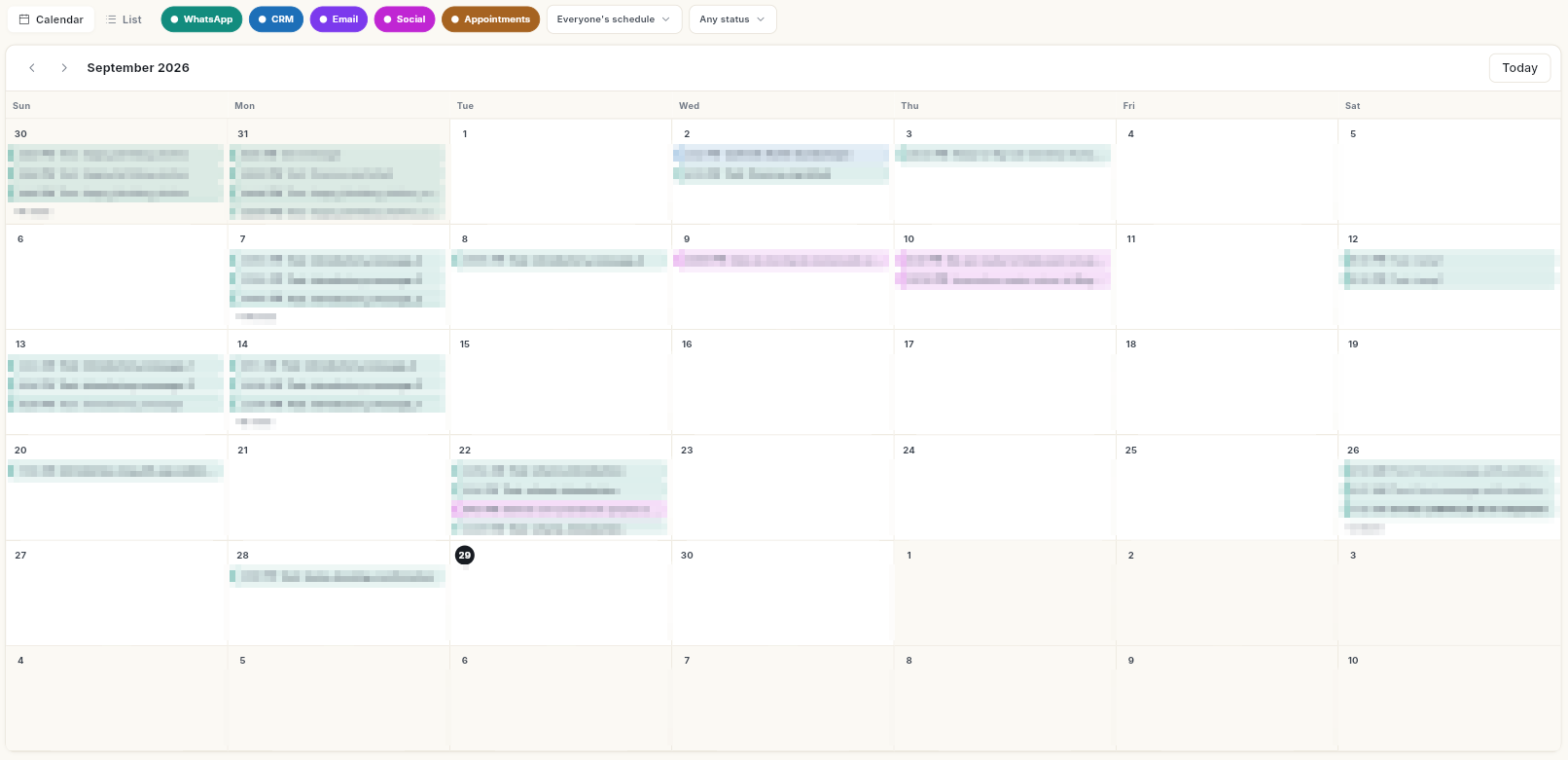
Where to find it
Open Schedule in the left rail. The panel lists:
- All schedules, Today, Upcoming, Drafts
- By channel: WhatsApp, CRM, Email, Social, Appointments
- Recurring
Before you start
- Your role has Schedule access. By default only the Super Admin role has it.
- You have created something scheduled in another module, for example a WhatsApp broadcast or a social post.
- To reschedule, cancel or delete, use a window wide enough to show the details pane. On a narrow screen the action buttons are hidden.
Guides
| Guide | Use it when |
|---|---|
| View everything scheduled | You want to see what goes out today or this week, and filter the calendar. |
| Reschedule, cancel or delete a scheduled item | Plans changed and an item needs to move or stop. |
| See what is scheduled for today | You want only today's items. |
| See what is coming up | You want to plan the next days. |
| Find and finish drafts | You saved something and want to finish it. |
| See your scheduled WhatsApp messages | You want only WhatsApp items. |
| See your scheduled CRM activities | You want only CRM activities. |
| See your scheduled email campaigns | You want only email campaigns. |
| See your scheduled social posts | You want only social posts. |
| See your scheduled appointments | You want only bookings. |
| Manage recurring schedules | You have a repeating WhatsApp send to check, pause or end. |