Handle store orders in the inbox
Find shoppers by order status in the Orders tab, then fix their order from the chat without opening your store admin. At the end, you can send order details, mark an order shipped, correct tracking, send a discount code or credit, and cancel, refund or return an order.
Before you start
- Your WhatsApp number is connected, and your Shopify or WooCommerce store is connected under Integrations → Stores. [VERIFY: menu path] The Orders tab and the store pane show only when a store is connected.
- You can see Inbox in the WhatsApp panel. See Use the WhatsApp inbox.
- To mark an order shipped, send a discount code or add store credit, you are an admin or a manager.
- Most order changes need a Shopify connection that allows writing. If a button is greyed out, see Reconnect a store that is missing permissions.
What the two places do
| Place | What it is for |
|---|---|
| Orders tab in the chat list | Lists chats with store activity, so you can find who is owed a reply or has a delivery problem. |
| Store pane in the chat | Shows one shopper's orders, cart and history, with buttons to change an order. The pane carries your store's name, for example Shopify or WooCommerce. |
Steps
Find shoppers with the Orders tab
- Open WhatsApp in the left rail, then select Inbox.
- Click the Orders tab above the chat list.
-
Click a chip under the tabs to narrow the list:
Chip What it shows All Every chat with store activity. Awaiting reply Shoppers who wrote and are still owed a reply. Confirmed Chats whose latest store event is an order placed. Shipped Chats whose latest store event is a shipment. Abandoned cart Chats whose latest store event is an abandoned checkout. Cancelled Chats whose latest store event is a cancelled order. Delivery issue Chats with a delivery attempt that failed. -
Click a chat. The chip on the row shows the latest store event, for example Confirmed, Out for delivery, Delivery failed, Refunded or Cart abandoned.
The chips scroll sideways when the list is narrow.
Open the Store pane
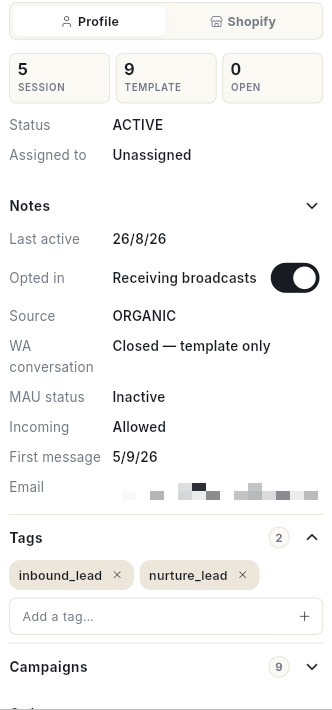
- Open a chat with a shopper. The profile panel opens on the right.
-
At the top of the panel, click your store's name, for example Shopify. The other choice is Profile.
-
Read the line at the top of the pane. It shows Live from your store with Read from … just now, or From last sync with Showing our last synced copy of the store.
- Click Refresh from your store to read the store again.
- Click Open your store admin to open the store in a new tab.
The pane lists Open orders, an Abandoned cart if there is one, Products & stock, and Order history. If the shopper is not a customer yet, it reads Not found as a customer in the store — no order under this number or email yet.
Read the customer summary
- At the top of the pane, read the figures orders, lifetime and last 7 days.
- Read Customer since and the customer's tags.
- If the shopper has store credit, read the Credit chip. It applies at checkout.
- Click Open customer ↗ to open the customer in the store.
Send order details or tracking
- Under Open orders, find the order card. It shows the order number, date, items, total and shipment status.
- Click Send details to put the items, total and status into the chat. The message Order details sent to the chat. appears.
- Click Send tracking to send the tracking number and link. With no tracking yet, it sends the current status. The message Tracking sent to the chat. appears.
- For an unpaid order, click Send payment link. The message Payment link sent — COD can become prepaid. appears.
- To let the shopper buy the same items again, click Reorder link. It sends a store checkout with the same items. The message Reorder link sent — same items, they pay at checkout. appears.
- Click Track ↗ on an order to open the carrier's tracking page.
- Click Run flow to start a chatbot flow for this order, such as a COD confirmation, an address check or a review request.
If Send details is greyed out, it reads Needs a live store read — press Refresh. Click Refresh from your store first.
Mark an order shipped
- On the order card, click Mark shipped. The window Mark … shipped opens.
- Type the Tracking number (AWB).
- Type the Carrier, for example Delhivery, Blue Dart or DTDC.
- Optional: type a Tracking link (optional).
- Choose whether to tick Also send Shopify's shipping email.
- Click Mark shipped.
Every open line ships as one fulfilment. The shopper gets the WhatsApp shipping update automatically.
Correct the tracking on a shipped order
- On the order card, click Update tracking. If the order has more than one shipment, pick one under Which shipment?.
- Change the Tracking number (AWB), Carrier or Tracking link (optional).
- Click Update. The message Tracking updated. appears.
The new tracking replaces the old one on that shipment in the store. If you leave all three fields empty, the message Enter a tracking number, carrier or link. appears.
Change the delivery address
- On the order card, click Edit address. The window Delivery address opens.
- Edit the fields: First name, Last name, Address line 1, Address line 2, City, State / province, PIN / ZIP, Country and Phone. Fields marked * are required.
- Click Save address. The message Address updated in the store. appears.
Not after the order ships
The store refuses an address change once the order has shipped.
Add a note to an order
- On the order card, click Note. The window Order note opens.
- Type the note. The hint says it is seen by your team in the store admin, not by the customer.
- Click Save note. The message Note saved on the order. appears.
Send a discount code
- At the top of the pane, click the tag icon. Its tooltip is Send a discount code.
- Pick % or ₹ for the type of discount.
- Type the Percent off or Amount off.
- Type Valid for (days).
- Type a Reason (goes in the message), for example
Late delivery. - Click Create & send. The message Discount code sent. appears.
The code is single use. It is locked to this customer when the store knows them.
Add store credit
- At the top of the pane, click the wallet icon. Its tooltip is Add store credit.
- Type the Amount, with your currency in brackets.
- Optional: type Expires in (days, blank = never).
- Type a Reason (goes in the message), for example
Damaged item. - Click Add & send. The message Store credit added and sent. appears.
The credit applies automatically at checkout on the next order. Nothing goes back to the payment method. The wallet icon shows only when the store knows the shopper as a customer.
Send a free replacement
- On the order card, click Free replacement. The window Send a free replacement of …? opens.
- Read the note. It creates a new paid order of the same items at 100% off, to the same address, so the warehouse ships it.
- Click Create replacement. The message Replacement created and sent. appears.
The shopper gets the new order number in the chat.
Open a return
- On the order card, click Open return. The window Open a return for … opens.
- Pick a Reason: Too small, Too large, Wrong item sent, Damaged / defective, Not as described, Colour, Style, Changed mind or Other.
- Optional: type a Note (optional).
- Click Open return. The message Return opened in the store. appears.
Every shipped item on the order is included. Shopify tracks the return. Open return is greyed out until something has shipped.
Refund an order
- On the order card, click Refund. The window Refund … in full? opens.
- Read the note. Every refundable item plus shipping goes back to the original payment method.
- Optional: type a Reason (optional).
- Click Refund. The message … refunded. appears.
Do a partial refund in the store admin.
Cancel an order
- On the order card, click Cancel. The window Cancel …? opens.
- Read the note. The store cancels, restocks and refunds the order as it would from the admin. It then tells the shopper on WhatsApp through the order-update message.
- Click Cancel order. The message … cancelled. appears. To back out, click Cancel in the window.
Cancelling refunds the shopper
The shopper is refunded and told on WhatsApp. This cannot be undone from the inbox.
Work with an abandoned cart
- Under Abandoned cart, read Left with the date, the first items and the total.
- Click Copy recovery link. The message Recovery link copied. appears.
- Paste the link into the chat.
Search products and send one
- Under Products & stock, type in Search the catalogue — name, SKU….
- Click Search. Each result shows the price and the stock for each variant.
- Click Send product to send it to the chat. The message … sent to the chat. appears.
- Click View to open the product in the store.
If nothing matches, the pane reads No product matches with your search.
Read the order history
- Scroll to Order history.
- Click Show all with the number, or Show fewer, to open or close the full list.
If nothing is synced, it reads No orders synced for this contact yet.
Reconnect a store that is missing permissions
- If a button is greyed out, read its tooltip. It reads Needs Shopify to be reconnected, followed by the permission name.
- Read the banner at the top of the pane. It says the store was connected before some features existed.
- Click Reconnect now. Shopify asks only for the new permissions.
- Or click Integrations → Stores ↗ to manage the store connection.
Write buttons stay greyed out on a copy of an order from the last sync. Click Refresh from your store to read it live.
Troubleshooting
| Issue | Cause | Fix |
|---|---|---|
| There is no Orders tab or store pane | No store is connected. | Connect a store under Integrations → Stores. |
| Could not read the store. | The store did not answer. | Click Try again. |
| Live read failed with an error | The store could not be reached. | The pane shows the last synced copy. Click Refresh from your store later. |
| A button is greyed out with Needs Shopify to be reconnected | The store connection lacks a permission. | Click Reconnect now. |
| Mark shipped is missing | The order is not open, or you are not an admin or a manager. | Check the order status. Ask an admin or a manager. |
| Update tracking is missing | The order has no shipment yet. | Click Mark shipped first. |
| Open return is greyed out and reads Nothing has shipped yet | No item has shipped. | Mark the order shipped first. |
| Edit address fails after shipping | The store refuses address changes after shipment. | Contact the carrier. |